14
CONTENTS
4 • USER
Enrolling User
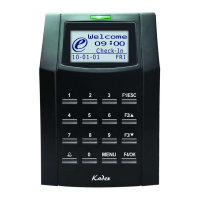
The terminals can enroll passwords and card information. This chapter covers all pos-
sible user enrollments in the terminals.
Caution: Enrollment of supervisor or administrator is important to ensure the terminals
data safety. Prior to enrolling a new user, a supervisor has to be enrolled first by using
any of the methods mentioned below. Select Enroll Admin > Choose the Privilege Level
either Supervisor or Administrator to proceed.
CARD ENROLLMENT
The default card for the terminal is the RFID card. MiFare and HID card systems are avail-
able upon request.
Enrolling card: Press Menu > User Manage > Enroll User > Reg RFID > New Enroll? > OK
> Key in User ID (PIN) > Wave the card at the scanning area until the screen displays the
Card ID > (OK) Save
PASSWORD ENROLLMENT
The terminals offer password verification and the maximum length of password is 5
digit.
Enrolling password: Press Menu > User Manage > Enroll User > Enroll Pwd > New En-
roll? > OK > Key in User ID (PIN) > OK > Input your password > LCD showing the ID with
minus -P to indicate that the user ID is using password > OK (Save)
Changing password: Press Menu > User Manage > Enroll User > Enroll Pwd > ESC >
Input User ID > OK > Change your password > LCD showing the ID with minus -P to
indicate that the user ID is using password > OK (Save)
CARD AND PASSWORD ENROLLMENT
The terminals offer a combination of card and password enrollment for better security.
Enrolling card and password: Press Menu > User Manage > Enroll User > Card & Pwd >
New Enroll? > OK > Key in User ID (PIN) > OK. Wave the card at the scanning area until
the screen displays the card ID > OK (Save) > Input your password and confirm the
password one more time > LCD is showing the ID with minus -OP to indicate that the
user ID is using a combination of card and password > OK (Save)
PASSWORD VERIFICATION
Password is an option for those who prefer not to use other verification methods. To verify
via password, insert User ID > OK > insert password and press OK.
CARD VERIFICATION
Place the card on the card scanning area and the terminal will read and verify the card.


 To Next Page