SYSTEM OPERATION - RANDOM TRAINING
..................................................................................................................................................................................................................................
CHARGING THE SYSTEM - RANDOM TRAINING
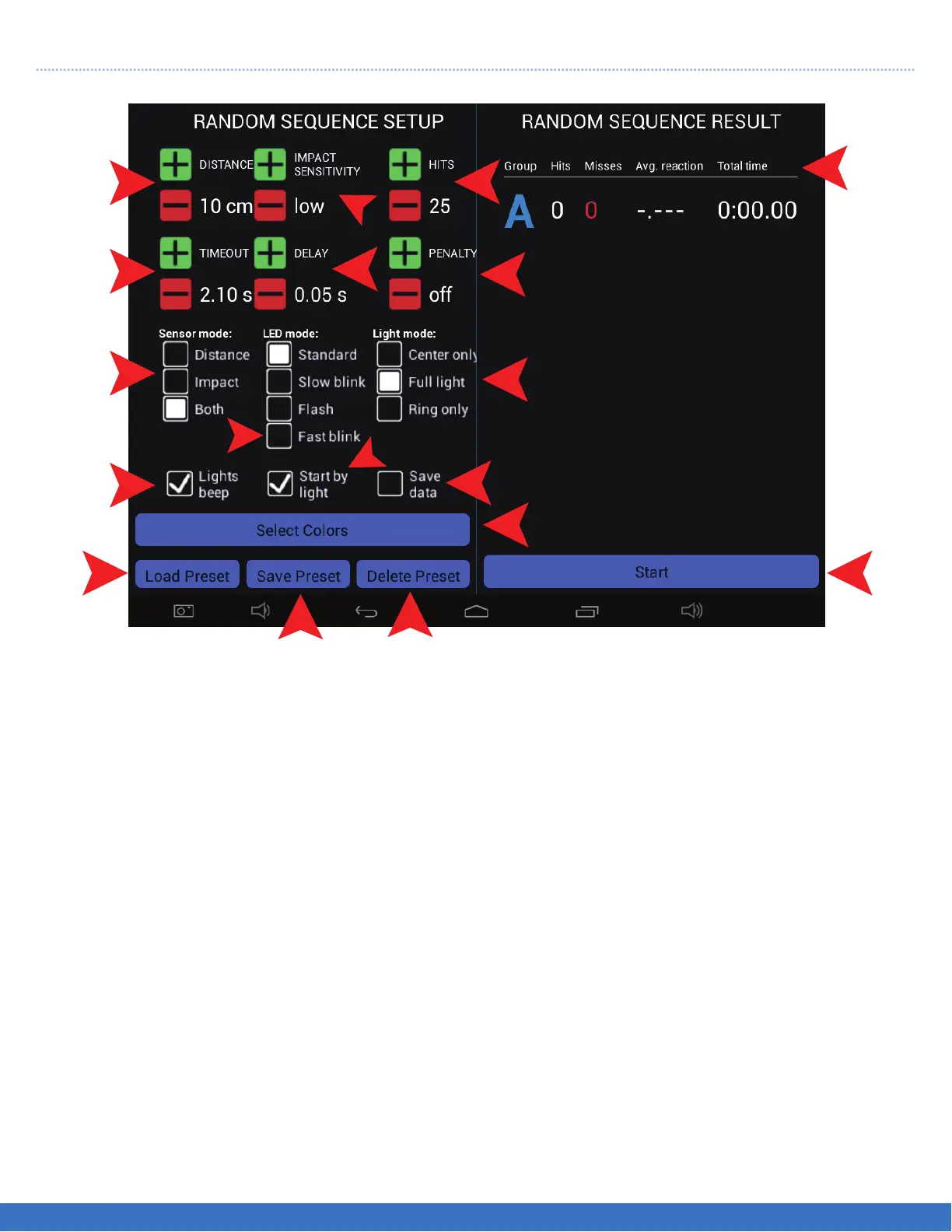
1.The deactivation distance can be set from 10 cms to 80 cms.
2. The time out can be set from 0.10 seconds to 10 seconds.
3. There are 3 deactivation modes to select from. Distance only, Impact only or both, which means the
Light can be deactivated by motion or Impact.
4. Select the “LED” mode of the Light, there are 4 selections, which will have the LEDs flash rapidly or
slowly etc. per your preference and ease of visibility.
5. Select if sound ( Beep ) is required.
6. Select the sensitivity of ‘Impact” as required, “soft hit or a firm hit”.
7. Select the number of hits/Lights required in the routine. The example shows 25.Use the +/- buttons to
increase or decrease the number.
8. Select the “Delay” interval between Lights coming on in succession.
9. There are 3 choices, Full Light, Perimeter Light or just the Centre of the Light that illuminates.
10. Select “Save Data” if you require the results of the routine to be saved for future analysis.
11. Select “Start by Light” if you would like the “User” to start the routine.
12. Select “Start” if the routine is to be controlled by the administrator.
13. This displays the results of the run, see following pages for explanation of the “Results”.
14. Add a penalty for those lights that were not deactivated.
15. This gives a choice of 6 different colours. See the following pages for more info.
16. Select “Load Preset” if the set up has been saved before.
17. Select this to save the current set up.
18. If the set up has been saved before, select “Delete preset” to remove it.
8
14
7
9
12
11
6
10
15
1
2
3
2
5
16
17
13
18
PLEASE NOTE: Depending on the Tablet Controller that you have, you may have to scroll up/down
within the “Sequence Step Setup” to view all of the options.
17


 To Next Page