The sensor may be disconnected and connected at any time from either the device or
the finger. Please allow up to 5 seconds for a new connection to take place.
Screen Status
The screen indicator consists of 3 moving dots. The moving dots indicate that the screen is not frozen.
In the event of a screen freeze, all data displayed is invalid.
Battery Status
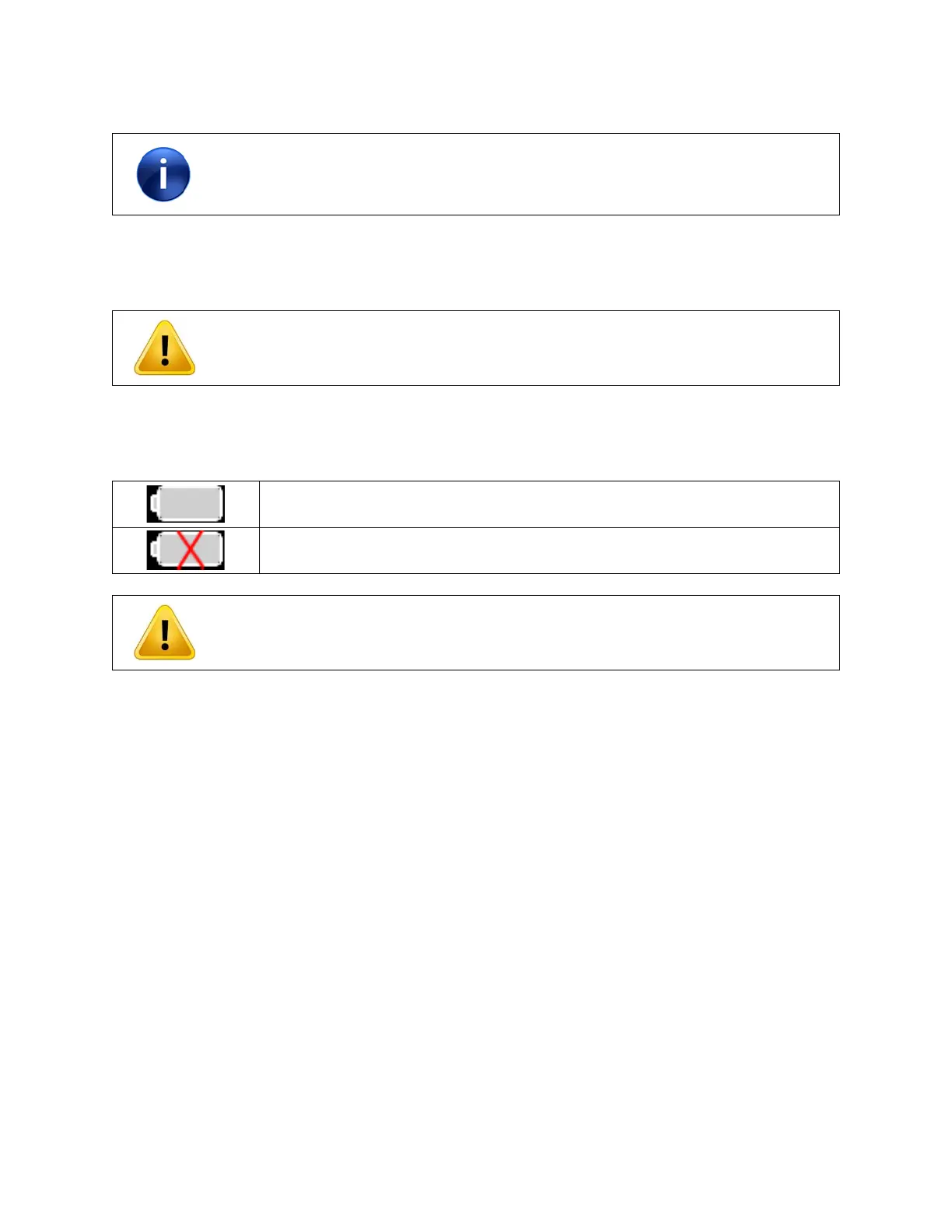
There are two Battery Status indicator states:
The battery has greater than 20 minutes of use remaining.
Replace the battery. Less than 20 minutes of device use may remain.
The battery status indicator is only valid when an alkaline battery is used.
Adjusting the Screen Brightness
The screen starts up in “Normal” brightness mode. There are three levels of brightness.
• Normal
• Bright
• Brightest
The screen brightness may be changed by pressing and releasing the “Mode” button. The “Mode” button
is located on the top of the device on the left side. Each press will cycle the brightness mode. Using the
lowest acceptable brightness level will prolong battery life.
Powering off the M1
The device can be powered off by pressing and holding the power button for approximately 5 seconds, or
until the device shuts down.



 To Next Page