10
Audio Setup in your DAW
The Scarlett 18i8 is compatible with any Windows-based DAW that supports ASIO or WDM or any Mac-
based DAW that uses Core Audio. After installing Focusrite Control and connecting the hardware,
you can start using your Scarlett 18i8 with the DAW of your choice. To allow you to get started if
you do not already have a DAW application installed on your computer, both Pro Tools | First and
Ableton Live Lite are included; these will be available to you once you’ve downloaded and activated
your software online. To install either DAW, download and save the relevant installer file from your
registered Focusrite “My Products” page as described on page 5, and then run it, following all
on-screen instructions.
Operating instructions for Ableton Live Lite and Pro Tools | First are beyond the scope of this User
Guide, but both applications include a full set of Help files. You can also find a video tutorial on
getting started with Ableton Live Lite at www.focusrite.com/getting-started.
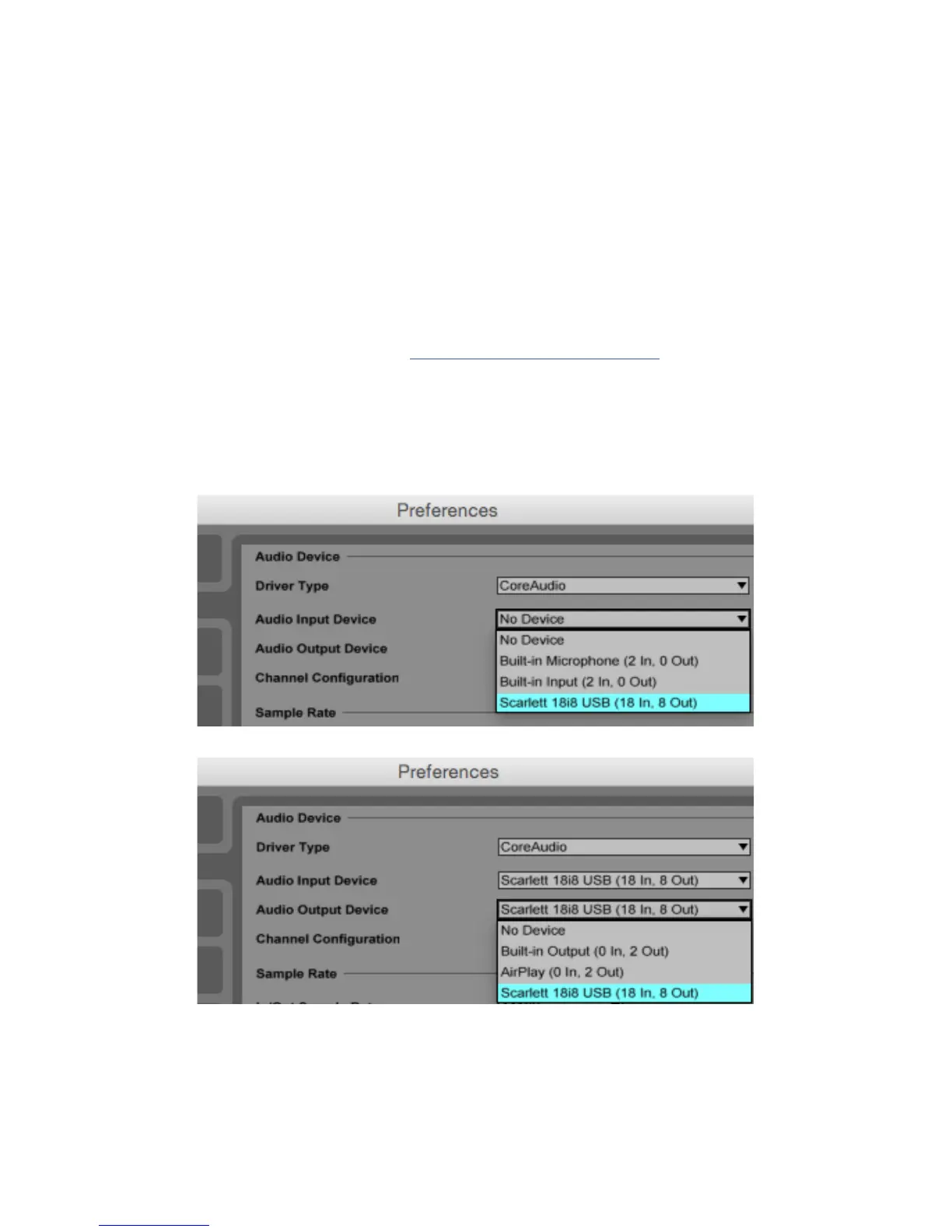
Please note - your DAW may not automatically select the Scarlett 18i8 as its default I/O device. In this
case, you must manually select the driver on your DAW’s Audio Setup* page (select Scarlett 18i8
for Mac or Focusrite USB 2.0 driver for Windows). Please refer to your DAW’s documentation (or
Help files) if you are unsure where to select the ASIO/Core Audio driver. The example below shows
the correct configuration in the Ableton Live Lite Preferences panel (Mac version shown).
*Typical name. Terminology may differ slightly between DAWs.




 To Next Page