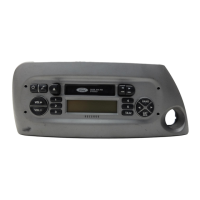
6. Scroll repeatedly until ADVANCED appears in the radio display.
7. Press OK to confirm and enter the ADVANCED menu.
8. Scroll repeatedly until PROMPTS appears in the radio display.
9. Press OK to enter the PROMPTS menu.
10. Scroll to toggle between PROMPTS ON or PROMPTS OFF. (The
default setting is ON).
11. Press OK when the desired selection appears in the radio display.
SET ON or SET OFF will appear in the radio display as a confirmation.
SYNC will then take you back to the ADVANCED menu.
Changing the SYNC language setting
SYNC allows you to select from three languages: English, French and
Spanish. Once selected, all of SYNC’s radio displays and prompts will be
in the selected language. To access the language menu:
Note: To scroll, press
SEEK or / .
1. Press AUX repeatedly until SYNC appears.
2. Press MENU. MEDIA MENU will momentarily appear in the radio
display.
3. Press OK to access the PLAY MENU.
4. Scroll repeatedly until SYSTEM SETTINGS appears in the radio
display.
5. Press OK to confirm and enter the SYSTEM SETTINGS menu.
6. Scroll repeatedly until ADVANCED appears in the radio display.
7. Press OK to confirm and enter the ADVANCED menu.
8. Scroll repeatedly until LANGUAGE appears in the radio display.
9. Press OK to enter the LANGUAGE menu.
10. Scroll repeatedly to cycle through ENGLISH, FRANCAIS and
ESPANOL.
11. Press OK when the desired selection appears in the radio display. If
you have changed the language setting, the display will read UPDATING.
Once the change is complete, SYNC will confirm the change audibly and
in the radio display. SYNC will then take you back to the ADVANCED
menu.
SYNC media features
48
See
End User License Agreement
at the end of this book



 To Next Page