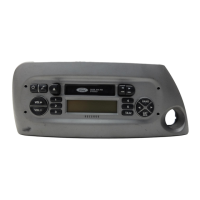
8. Scroll repeatedly until MASTER RESET appears in the radio display
9. Press OK. SYNC will ask you to confirm the master reset.
10. Press OK to confirm. The radio display will read RESET DONE.
SYNC will take you back to the ADVANCED SETTINGS menu.
Installing new vehicle applications
You can download new software applications (if available) and then load
the desired applications onto SYNC through your USB port. Please refer
to www.SyncMyRide.com for further information.
USING SYNC’S PLAY MENU
The SYNC PLAY MENU allows you to play your music by playing all
selections, by artist listing, album listing, genre listing, playlists, tracks,
or by selecting similar music to what is currently playing. You can also
choose to ‘Explore USB’ which will allow you to explore supported digital
music files on your playing device.
Note: The PLAY MENU is only available for indexable media through the
USB port. This is not available for LINE IN and BT AUDIO.
SYNC is able to organize and sort your indexed media from your playing
device by metadata tags. Metadata tags are descriptive software
identifiers embedded in your media files which provide information about
the media file. SYNC supports the following metadata tags:
• Artist
• Album
• Genre
• Track
If your indexed media files contain no information embedded in these
metadata tags, SYNC will automatically classify the empty metadata tags
as UNKNOWN.
To access the SYNC PLAY MENU:
Note: To scroll, press
SEEK or / .
1. Ensure that your playing device is plugged into the USB port and is
ON.
2. Press AUX repeatedly until SYNC appears.
3. Press MENU. MEDIA MENU will momentarily appear in the radio
display.
SYNC media features
50
See
End User License Agreement
at the end of this book


 To Next Page