9
EN
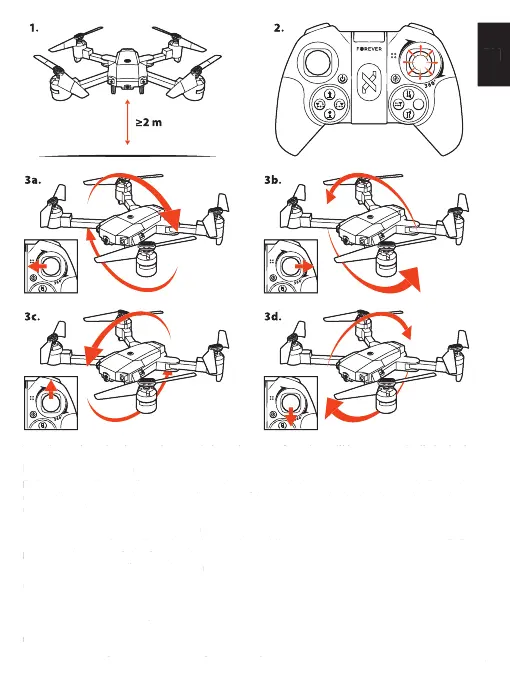
Warning! When the drone’s battery is low, the stunt function will be automatically locked!
Use of application
FLEX Drone application allows to connect mobile device with the drone via WIFI network. The appli-
cation allows to control the drone, see live image of the camera installed in the drone, shoot a photo
or record a video.
Downloading the application
1. In App store or Google Play, depending on the mobile device’s operating system, enter “FLEX
Drone” in the search fi eld of the application
2. Download and install the application
Connecting the application with the drone
1. Activate the drone
2. Activate WIFI connectivity in the device on which FLEX Drone application is installed.
3. Connect the mobile device with Wi-Fi network called “FLEX Drone.” The network does not
require password.
4. After connecting with Wi-Fi network generated by the drone, launch FLEX Drone application
Warning! When the drone’s battery is low, the stunt function will be automatically locked!
Use of applicationUse of application
FLEX Drone application allows to connect mobile device with the drone via WIFI network. The appli-
cation allows to control the drone, see live image of the camera installed in the drone, shoot a photo
Downloading the applicationDownloading the application
1. In App store or Google Play, depending on the mobile device’s operating system, enter “FLEX
Drone” in the search fi eld of the application
2. Download and install the application
Connecting the application with the droneConnecting the application with the drone
2. Activate WIFI connectivity in the device on which FLEX Drone application is installed.
3. Connect the mobile device with Wi-Fi network called “FLEX Drone.” The network does not
4. After connecting with Wi-Fi network generated by the drone, launch FLEX Drone application


 To Next Page
 Loading...