EasyManua.ls Logo

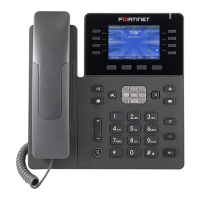
Fortinet FON-380 - User Manual

Fortinet FON-380
52 pages
Print Icon
To Next Page IconTo Next Page
Loading...
User Guide
FortiFone FON-x80/x80B Series 3.0.19

Other manuals for Fortinet FON-380

Questions and Answers

  • A
    arobertsAug 10, 2025
    What to do if there is no audio during a call on my Fortinet FON-380 IP Phone?
    • J
      Justin KimAug 10, 2025
      If you experience no audio during a call on your Fortinet IP Phone, verify the handset or headset connections. Also, ensure the phone is properly registered with the FortiVoice unit. If the phone is an external extension, check the network connection and firewall settings at the FortiVoice location.
  • C
    Crystal HernandezAug 18, 2025
    Why is my Fortinet IP Phone not receiving a DHCP IP Address?
    • J
      James ParksAug 18, 2025
      If your Fortinet IP Phone isn't receiving a DHCP IP address, first ensure your DHCP server (typically your router) is online. If it is online, try rebooting the router or DHCP server. If problems persist, the phone may need advanced network configuration, so please contact your administrator.
  • M
    Mary CummingsAug 26, 2025
    How to fix no name and extension number displayed on Fortinet FON-380 IP Phone?
    • O
      ortizjoshuaAug 26, 2025
      If your Fortinet IP Phone doesn't display the name and extension number, it might not be registered. On the FortiVoice interface's Extensions page, check that the MAC address is correctly entered and the Phone Type is FON-380. Save the configuration and reboot the phone. If configured as an external extension, ensure the Server Address is correct and check the network connection and firewall settings at the FortiVoice location.
  • J
    John TorresSep 1, 2025
    How to troubleshoot a blank display on my Fortinet FON-380 IP Phone?
    • B
      Brandon CarlsonSep 1, 2025
      If the display of your Fortinet IP Phone is blank, check the phone’s power source. If using Power over Ethernet (PoE), ensure the Ethernet cable is plugged into the WAN port and the PoE switch is properly configured; if it still doesn’t work, replace the Ethernet cable. If using the power adapter, ensure it is plugged in; if it still doesn’t work, replace the power adapter.

Summary

Introduction

Phone buttons

Explains the function of various phone buttons like navigation, hold, and transfer.

Programmable keys

Soft keys

Configuration overview

Status

Details phone status information, including general, network, phone, account, and accessory status.

Contact

Explains how to access and manage business, directory, and personal contacts.

Setting

Covers various settings to configure phone operation, including preference, accessory, and network.

General

Network

Phone

Accessory

Provisioning

Personal

Preference

Audio

Soft key

Programmable key

Connecting a Bluetooth headset

Step-by-step guide to connect a Bluetooth headset to compatible phones.

Ethernet

DNS

VLAN

DSCP

Feature

Call Forwarding

Enables automatic forwarding of calls to a specified destination number.

Tool

Using your phone

Ending a call

Call features

Attended transfer

Enables announcing a call before transferring it to another party.

Redialing

Blind transfer

Three-party conference

DND

Voicemail

Troubleshooting

Solving FON-x80;x80 B series IP phone issues

Provides solutions for common problems like blank screens or registration failures.

Collecting a traffic capture

Details how to capture network traffic for diagnosing connectivity issues.

Performing a ping test

Collecting traceroute information

Setting log levels and downloading logs

Bluetooth dongles

Fortinet FON-380 Specifications

General IconGeneral
BrandFortinet
ModelFON-380
CategoryIP Phone
LanguageEnglish

Related product manuals