13
w
w
w
w
w
w
w
w
w
w
w
w
w
w
w
w
ww.foscam.co
ww.foscam.co
ww.foscam.co
ww.foscam.co
ww.foscam.co
ww.foscam.co
ww.foscam.co
ww.foscam.co
m
m
m
m
m
m
m
m
Shenzhen
Shenzhen
Shenzhen
Shenzhen
Shenzhen
Shenzhen
Shenzhen
Shenzhen
Foscam
Foscam
Foscam
Foscam
Foscam
Foscam
Foscam
Foscam
Intelligent
Intelligent
Intelligent
Intelligent
Intelligent
Intelligent
Intelligent
Intelligent
Technology
Technology
Technology
Technology
Technology
Technology
Technology
Technology
Co.,
Co.,
Co.,
Co.,
Co.,
Co.,
Co.,
Co.,
Limited
Limited
Limited
Limited
Limited
Limited
Limited
Limited
Tel:
Tel:
Tel:
Tel:
Tel:
Tel:
Tel:
Tel:
86
86
86
86
86
86
86
86
755
755
755
755
755
755
755
755
2674
2674
2674
2674
2674
2674
2674
2674
5668
5668
5668
5668
5668
5668
5668
5668
Fax:
Fax:
Fax:
Fax:
Fax:
Fax:
Fax:
Fax:
86
86
86
86
86
86
86
86
755
755
755
755
755
755
755
755
2674
2674
2674
2674
2674
2674
2674
2674
5168
5168
5168
5168
5168
5168
5168
5168
13
13
13
13
:
:
:
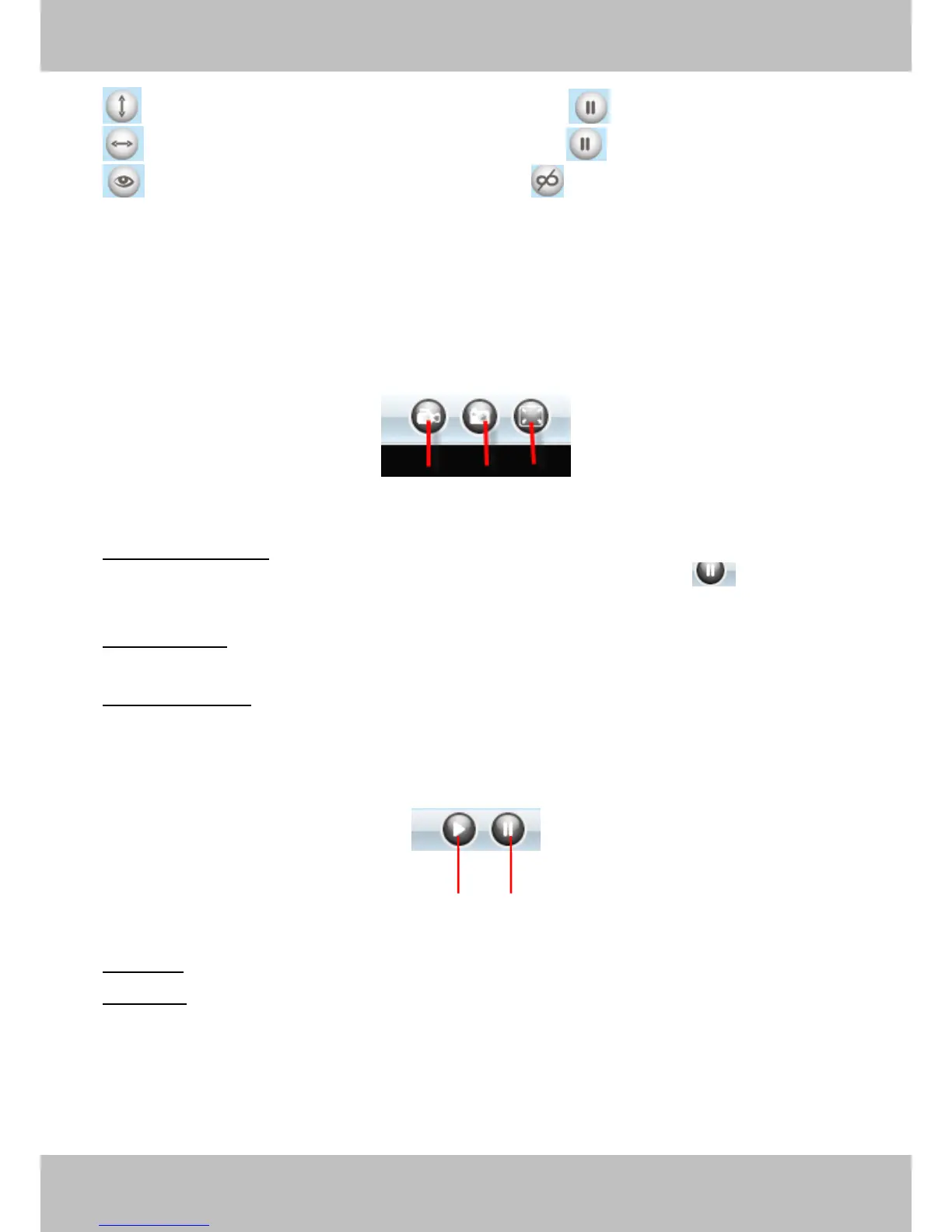
: Click this icon; camera will rotate up and down. Click to stop.
:
:
:
: Click this icon; camera will rotate left and right. Click to stop.
: Click this icon, all the IR lights will turn on. Click to turn off them.
Section5
Section5
Section5
Section5 Device
Device
Device
Device Management
Management
Management
Management
Device Management ------Path to Administrator Control Panel, Click it, and it will lead to
Administrator Control Panel.
Section6
Section6
Section6
Section6 Record
Record
Record
Record &
&
&
& Snapshot
Snapshot
Snapshot
Snapshot &
&
&
& Full
Full
Full
Full Screen
Screen
Screen
Screen Buttons
Buttons
Buttons
Buttons
1------Record
1------Record
1------Record
1------Record Button
Button
Button
Button Click it and it pop-up a path-setting window, you can select the storage
path and the record file name. At the same time the record icon changes to ,, Click it again
and stop recording.
2------Snapshot
2------Snapshot
2------Snapshot
2------Snapshot Click it to make snapshot and it pop-up a window which picture you snapshot,
right click in the window and save the picture to anywhere you want.
3------Full
3------Full
3------Full
3------Full Screen
Screen
Screen
Screen Click it to make full-screen or you can double click the surveillance screen to
make full-screen .
Section7
Section7
Section7
Section7 Play/Stop
Play/Stop
Play/Stop
Play/Stop Buttons
Buttons
Buttons
Buttons
1------Play
1------Play
1------Play
1------Play Click it to play the video of the camera
2------Stop
2------Stop
2------Stop
2------Stop Click it to stop the video of the camera
1
1
1
1 2
2
2
2 3
3
3
3
1
1
1
1 2
2
2
2



 To Next Page