4------ Audio Click the button and the icon will become to , you can hear the sound around the camera if
the camera has connected with other audio input device through the Audio Input port of the camera, Click the
icon again and stop audio.
5----- Volume click it to open the volume control.
6----- Snap Click it to make snapshot and it pop up a window which picture you snapshot, right click in the
window and save the picture to anywhere you want.
7----- Record Click the icon and the camera start recording, you can see a green dot in the live window.
Click again and stop recording. The default storage path is C:\IPCamRecord. You can change the storage path:
Go to Settings > Record > Storage Location panel.
8------Full Screen Click it to make full-screen, or you can double click the surveillance screen to make
full-screen. Double click again and exit full-screen.
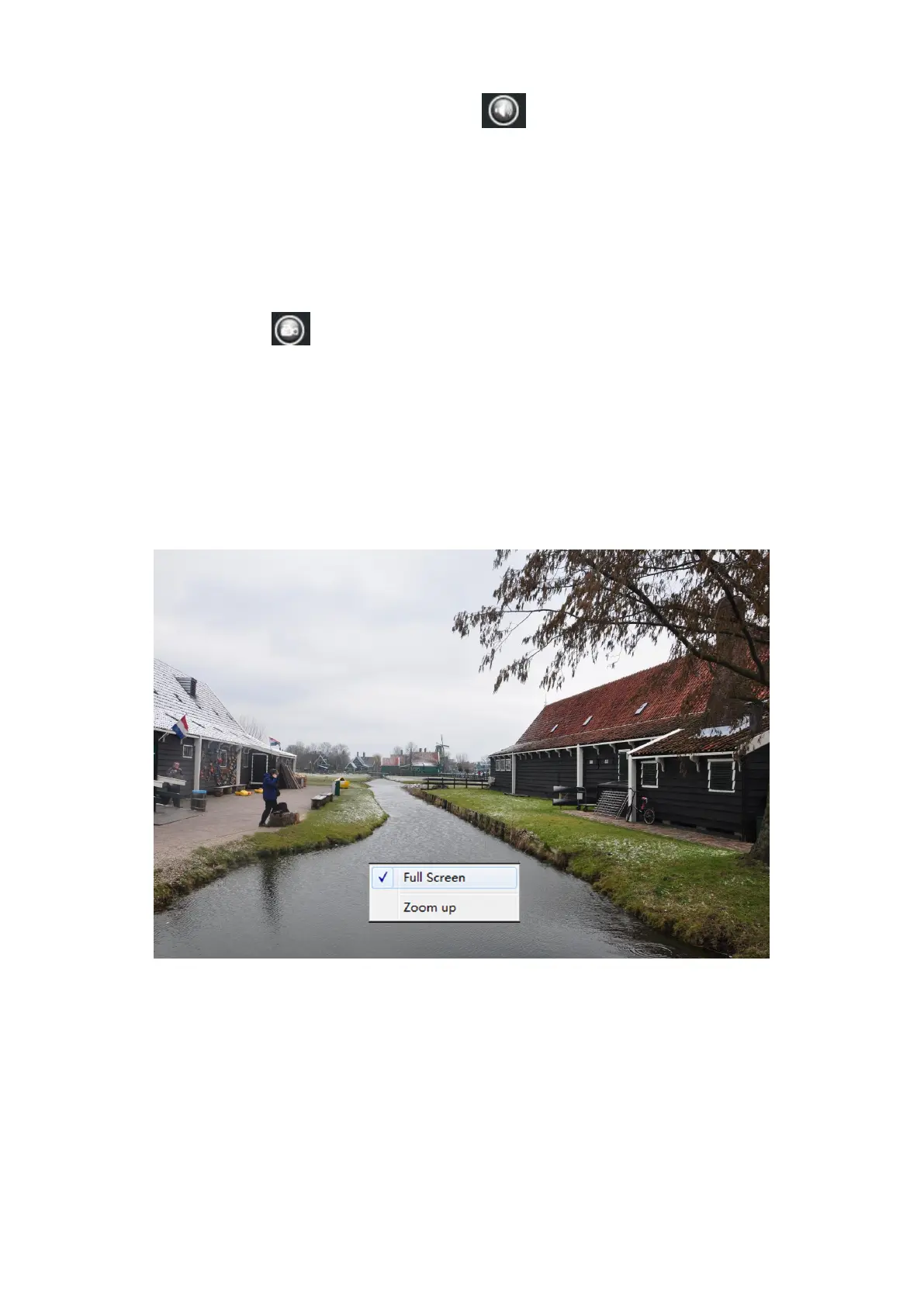
Onscreen Mouse Control
Right click the mouse and you can full screen and Zoom up.
Full Screen: Select it and Click it to make full-screen, press ESC and exit full-screen.
Zoom Up / Down: Click it and the live view will be digital zoomed up, then click Zoom Down and the live view
back to original size.
NOTE: For Mac OS, the plugin cannot support Onscreen Mouse function, so you cannot allow to use it.


 To Next Page