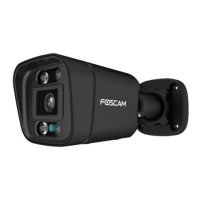
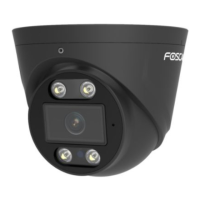
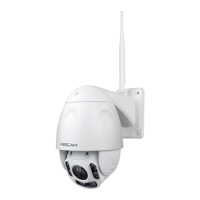
1 LAN
10/100M adaptive Ethernet interface. Through this interface, IP camera can be connected with various network
devices, such as hub, router, etc.
2 Audio input interface
The jack is used to plug external input device such as sound pick up device directly. Here microphone cannot
directly insert to the interface, it must connect to adapter first.
3 Audio output interface
The jack is used to plug external output device such as loud speaker directly. Here microphone cannot directly
insert to the interface, it must connect to adapter first.
4 Power Interface
Connect the external power adapter, request for 12V / 1A power.
5 Reset button
Press and hold on the reset button for 5 seconds. Releasing the reset button, the password will back to the
factory default administrator password. The default administrator user is admin with no password.
1.5 SD Card Management
This camera supports Micro SD Card.
When you plug in the SD card during the camera work process, please reboot the camera again, or else the
SD Card may be cannot work well.
Go to the SettingsDevice StatusDevice Status page, you can see the SD card status.
1.6 Add Device: Connection via the Foscam App
Scan the QR code below to download and install the Foscam APP.
Please refer to the Quick Setup Guide.
1.7 Installation
Please refer to the Quick Setup Guide.


 To Next Page