38
5 FOOTSWITCH FUNCTIONS
“Layout Link” is not a category function like “Preset: Select” or “Looper: Record”. Instead, this feature
is built in to every other function, adding four parameters to every footswitch function on the FC.
With Layout Links, any Tap or Hold function can serve double-duty to also
change the layout on one or more of the FC Controllers in your rig.
Setting up Layout Link is simple, but it does not appear on the EZ page. To use this feature, navigate
to the desired layout and footswitch using the Layouts page of Setup | FC Controllers.
Notice that every Tap and every Hold function also offers four Layout Link parameters. Why
four? Because this is the maximum number of FC units in a daisy chain conguration. To create
a Layout Link, simply designate the layout(s) you want on the desired FC unit(s).
Layout Links re the primary function they are assigned to, but their timing isn’t based on a
delay. Instead, the Layout Link activates when the switch for its associated function is released.
Don’t confuse Layout Link with the ordinary LAYOUT: SELECT function, which in comparison is a simple way for
a footswitch to change the layout on the FC. Layout Link is more far-reaching; it can automatically trigger
layout sequences, or control multiple units at once without needing to visit multiple Master Layout Menus.
LAYOUT LINKS EXAMPLE
In this example, we’ll envision a set of two custom layouts. Let’s call them Layout 1:Presets and Lay-
. The Presets layout contains Bank: Up, Bank: Down, and several “Preset within Bank” switches
(just like factory default Layout 1).
Imagine now that Layout Links are added so each Preset switch does two things: selects a preset
and then changes automatically to Layout 2, showing scenes and effects for the current preset.
How would you get back to layout 1? There are many ways, but one that comes to mind based
on the examples in factory default Layouts 7 and 8 is to add a “Layout 1” switch somewhere
on Layout 2. This could even be a press and hold function if “real estate” is scarce.
LAYOUT LINKS EXAMPLE: 6 + 12 = KILLER APP
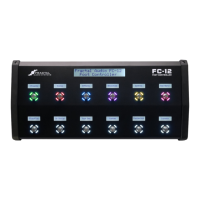
In this example, we’ll envision an FC-6 (FC#1) daisy-chained to an FC-12 (FC#2).
The FC-6 powers on with a totally customized layout. We’ll call it “Layout 1: MODES”. It contains six switches
custom-labeled as “BANKS” “PRESETS” “SCENES” “LOOPER” “Tap Temp” and “Tuner”. Each switch has a unique
LED ring color, but in fact, aside from the obvious Tempo and Tuner, they’re all set to .
Huh? That’s the same layout these switches are on, so they don’t do anything. Enter Layout Link!
First, the BANKS switch on the FC-6 uses Layout Link to load a “Banks” layout on the FC-12. This
contains 12 different bank switches. When you load a bank, Layout Link in the Bank Switch
itself changes the FC-12 to the “ layout. ()
The PRESETS switch shows 12 Presets from the current bank. When you load any Preset, another
Layout Link changes the FC-12 to a “Scenes/FX layout” (as in the rst example above).
Take a moment to think about what just happened here: we had access to 144 different presets in just
two taps, and we’re already looking at the Scenes and Effects for the current preset! It’s a “killer app.”
The SCENES/FX layout could in practice be anything you want: Scenes, Effects,
Channels, etc. It could even link to other layouts if you needed multiple “pages” of
controls (counting the obvious “Looper” layout, we have three layouts left!).
THE LAYOUT LINK FEATURE



 To Next Page