44
8 ADDITIONAL TOPICS
FC-6: SHORT TUTORIAL
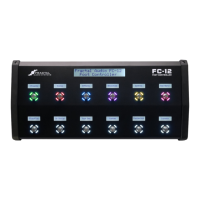
For the FC-12 Tutorial see p.46.
A CLOSER LOOK AT LAYOUTS 7 & 8
The following tutorial will be easier to follow if you have reviewed the
previous sections of this manual. At a minimum, see p. 11 and p. 14.
Factory default Layouts 7 and 8 were created as examples of how Layouts
and Functions can work to control the Axe-Fx III during a live performance.
is intended as an easy way to select presets and
scenes on the FC-6. Two switches (green rings) allow you to step one-by-
one—up or down—through the list of presets. Three switches (Red rings) load scenes 1 through 3 for the current
preset. Scene footswitches are set to show the “Destination”, which is to say, the name of the Scene which will be
loaded if you activate that switch.
The top center switch loads Layout 8 and has the custom label “<EFFECTS>”.
Layout 7 has no “Hold” functions, but should you add your own, the Hold function of the lower right switch is set
to “Reveal Hold”, which shows the Hold functions of switches in the Mini-Displays.
contains 4 classic “Instant Access” switches set up as Drive 1, Delay 1, Reverb 1, and
Chorus 1. All of these except the Reverb 1 switch have their Hold function set to toggle between Channels A and
B. (This emulates the classic “Press and Hold for XY” found on some of our other products.) The Hold function on
the Reverb switch (lower right) is set to “Reveal Hold”, as on layout 7.
The upper right switch is Tap Tempo, with a Hold function to access the Tuner.
The top center switch returns to Layout 7 and has the custom label “<MAIN>”.
TRY THE LAYOUTS
To begin, let’s load Layout 7 on your FC Controller and try it out:
Perform the “Master Layout Menu Switch Combination” as illustrated on p. 11. This loads the
Master Layout Menu, with footswitches for layouts 1 through 6 (Presets, Scenes, et al.).
Without leaving the Master Layout menu, perform the special MLM Switch Combo AGAIN to change to the
second page of the Master Layout Menu—with switches to access the Perform 1 and Perform 2 layouts.
Step on the lower left switch for PERFORM 1 to load this layout on the FC.
Play with the demo layouts a bit before continuing (next page).
Bank +1
Bank -1
PRESETS
P3 P4
P1 P2
1
S6
S3
SCENES
S4 S5
S1 S2
2
MORE >>
(Loads Layout 4)
Chorus 1
EFFECTS 1
(effect bypass)
Delay 1 Reverb 1
Comp 1 Drive 1
3
<< MORE
(Loads Layout 3)
Flanger 1
EFFECTS 2
(effect bypass)
Rotary 1 Plex 1
PanTrem1 Phaser 1
4
Half SpeedUndo
LOOPER
Reverse
Once
Record Play
5
PP#6
PP#3
PER-PRESET
PP#4 PP#5
PP#1 PP#2
6
(Loads Layout 8)
Preset +1
S3
PERFORM 1
Preset -1
<EFFECTS>
S1 S2
HOLD:Reveal
7
<MAIN>
(Loads Layout 7)
TAP:
Tempo
HOLD:Tuner
Reverb 1
HOLD:Reveal
PERFORM 2
Chorus 1
Drive 1 Delay 1
8



 To Next Page