This document describes the C Spire 4G LTE Mobile Hotspot, a portable device designed to provide high-speed wireless internet access.
Function Description
The C Spire 4G LTE Mobile Hotspot serves as a personal Wi-Fi hotspot, allowing multiple devices to connect to the internet via a 4G LTE network. It offers a high-speed wireless data connection with a fall-back to 3G CDMA service when necessary. The device features an easy-to-use Web User Interface and a graphic color LCD for displaying status and messages. It also includes a data usage display and an alert message system.
Important Technical Specifications
Network Technology:
- 4G LTE (Long Term Evolution)
- 3G CDMA (Code Division Multiple Access) / eHRPD / HRPD
SIM Card:
- Requires a C Spire 4G LTE SIM card.
Wi-Fi:
- Supports 802.11b/g/n Wi-Fi modes.
- Allows connection of up to 10 Wi-Fi enabled devices simultaneously.
- Wi-Fi security options include OPEN (NO AUTH), WEP OPEN, WEP SHARED, WPAPSK, WPA2PSK, and WPAPSK/WPA2PSK.
- Wi-Fi channels can be set to "Auto" or specific numbers.
Display:
- Graphic color LCD with 6 icons and 4 display lines for alphanumeric character display.
- Icons include signal strength, 4G/3G service indicator, alert message, GPS, connected devices, and battery status.
- Display automatically turns off after 10 seconds to save power.
Buttons:
- Alert / Clear Button: Press once to display alert messages; press and hold to delete messages.
- Information Button: Press once to display data usage; press and hold to reset data usage; press short again to display SSID; press short again to display Wi-Fi security key.
- Power Button: Press and hold to turn the device on or off.
Battery:
- Charging status LED (red when charging, green when fully charged).
- Battery outline blinks when battery level is very low.
Connectivity:
- Micro USB port for charging.
GPS:
- Integrated GPS functionality with display of State (On/Off), Latitude, Longitude, Altitude, Speed, Heading, Number of Satellites, HEPE (Horizontal Estimated Position Error), and UTC time.
Device Information (via Web UI):
- Device Name, Device Description, Manufacturer (Franklin Wireless Corp.), Modem Model (R775), Hardware Version (P1), Firmware Version (R775C35.01.M1125), IMEI (International Mobile Equipment Identity).
Network Information (via Web UI):
- General Network: Connected Network (LTE/eHRPD/HRPD), Data Received, Data Sent, Data Total.
- 4G LTE Device: Technology (LTE), IMSI, ICCID, USIM State (Present).
- 4G LTE Network: Status (Connected), Band (25), SNR (13.0), RSRP (-105), RSRQ (-10), PLMN ID (310 120).
- 3G Device: Technology (eHRPD), MEID, Phone Number (MDN), MSID (IMSI_S).
- 3G Network: Status (Disconnected), Home Carrier Name (C Spire Wireless), Ec/Io (-1.0 dB), RSSI (-63 dBm).
Security Features:
- Port Forwarding: Configurable with IP Address, Protocol (Both/UDP/TCP), External Port, Internal Port, and Comment.
- Firewall: Packet Filtering Configuration with Protocol (ICMP/TCP/UDP/ICMPv6/TCP UDP), Start Port, End Port, and Comment.
- DMZ: Enable/Disable DMZ with configurable DMZ Address.
- VPN Passthrough: Supports IPSec, PPTP, and L2TP passthrough.
Usage Features
Getting Started:
- Insert the 4G LTE SIM card.
- Insert and charge the battery using the provided travel charger and USB cable. The charging status LED indicates charging (red) and full charge (green).
- Power on/off by pressing and holding the Power Button.
Activation:
- Devices purchased at a C Spire store are likely pre-activated.
- Devices received by mail for new service accounts or lines activate automatically upon SIM card insertion.
- For device swaps, transfer the SIM card from the old device to the new one.
- C Spire Customer Service (1-855-CSPIRE5) is available for activation assistance.
Connecting to the Hotspot:
- Power on the hotspot and your Wi-Fi capable device (computer, tablet).
- The hotspot will search for 4G LTE or 3G services and broadcast a Wi-Fi signal.
- Connect to the Wi-Fi signal named "C Spire 4G LTE Hotspot XXXX" (where XXXX are the last four digits of the device's Wi-Fi MAC ID) using your device's Wi-Fi manager.
- The Wi-Fi Password is not pre-configured and should be changed immediately for security.
Web Browser Interface:
- Access the Web UI by typing
http://cspire-admin or http://192.168.10.1 into a web browser.
- The default administrator password is "admin".
- Landing Page: Displays network connection status, current connection state, and signal strength.
- Device & Network Menu: Provides detailed information on General Device, 4G LTE Device and Network, and 3G Device and Network.
- Check Usage Menu: Reviews data usage history. Allows resetting usage data.
- Wi-Fi Menu: Configures Wi-Fi tethering settings, including Wi-Fi Profiles (SSID, 802.11 Mode, Channel, Security Option, WPA Passphrase) and Connected Devices (MAC Address, IP Address, Host Name, Date/Time).
- Settings Menu: Accesses Connection Options (Enable Auto Connection, Automatic, 4G LTE Only, 3G Only), Network Setting (LAN Settings, Custom DNS), Security Settings (Port Forwarding, Firewall, DMZ), VPN Passthrough, and GPS Settings.
- Help Menu: Displays system information (System Name, CM Version) and provides access to the user guide.
LCD UI Operation:
- Power On/Off: Displays C Spire animation.
- No SIM Card/Error: Displays "No 4G LTE SIM card found" message.
- Account Activation: Displays "Activating... Please wait..." message.
- Searching for Network: Displays "Searching for network" message.
- Service Status: Displays signal strength, 4G/3G icons, Date/Time, and customizable banner text (default "C Spire").
- Data Usage Display: Shows "xxxx MB used Since [date]" message for 10 seconds.
- Data Usage Reset: Requires pressing and holding the Information button for 2 seconds to confirm reset.
- SSID & Wi-Fi Security Key Display: Cycles through data usage, SSID, and Security Key with short presses of the Information button.
- Alert Message Display/Browsing: Displays alert messages from the network or hotspot. Allows browsing through messages and deleting them.
- Connected Device Icon: Displays the number of connected Wi-Fi devices.
- Battery Icon: Indicates battery power level; blinks when low.
Maintenance Features
Account Management:
- Online access via cspire.com to view account information, check data usage, pay bills, enroll in online billing, purchase accessories, and view service plans.
- Customer Service available by phone (1-855-CSPIRE5).
Security Settings:
- Change Administrator login password via the Advanced Settings menu.
- Configure Port Forwarding, Firewall, DMZ, and VPN Passthrough for network security.
Software Updates:
- Automatic Version Check: Enable notifications for new software updates.
- Check System Upgrade: Manually check for and download the latest Web browser interface software.
- Software Update to Device: Manually browse and upload a downloaded software update file to the device.
- Important: Do not unplug the hotspot during software upgrades.
Troubleshooting:
- Contact C Spire Customer Service for activation difficulties.
- Refer to computer help documentation for Wi-Fi connection issues.
- Changing LAN settings can result in connection malfunction; refer to C Spire's recommendations.
- Changing LTE or 3G configuration profiles can result in connection malfunction; refer to C Spire's recommendations.

 Need help?
 General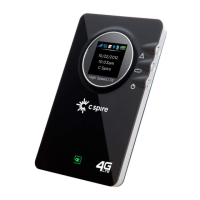

 To Next Page