QUANTUM
™
LX EVAPORATOR CONTROL PANEL
MAINTENANCE
090.610-M (MAY 2016)
Page 32
FUSE TESTING AND REPLACEMENT
1. Power off the panel.
2. Open the panel door.
3. Remove the questionable fuse.
4. Place the questionable fuse into the fuse tester at
the one end of each Digital I/O Board (refer to the
Digital Board drawings at the end of this section
for exact fuse tester location).
5. Power on the panel.
6. Check the LED on the tester. If the LED is lit, the
fuse is OK.
7. Power off the panel.
8. If the fuse is faulty, check for external shorts on
the corresponding circuit, the replace the fuse
with a new plug-type fuse (refer to Recommended
Spare Parts list).
INPUT AND OUTPUT MODULE TESTING AND
REPLACEMENT
1. Power off the panel.
2. Open the panel door.
3. Replace the questionable module.
4. Power on the panel.
5. If it is an Output module, check for proper panel
voltage on the DIO connector plug. Check the
voltage between position 4 (neutral) and the
associated position to the Output module.
6. If it is an Input module, check if the associated LED
is on when power is applied to the module.
TROUBLESHOOTING AN OUTPUT
1. Make sure the LED associated with the Output is
on when power is applied to the module.
2. If the LED is not on when it should be and there is
no operating condition preventing it, contact the
Frick
®
Service Department.
3. If the LED is on when it should be, check for proper
panel voltage on the DIO connector plug. Check
the voltage between the position 4 (neutral) and
the associated position to the Output module.
4. If the voltage is OK, check for proper panel voltage
between the associated position to the Output
module on the DIO connector and the associated
position on the terminal strip.
5. If the voltage is OK, check the wiring external to
the panel.
6. If voltage is not OK, check the fuse.
7. If the fuse is OK then check the module.
8. If the module is OK, check for proper panel voltage
on the DIO connector plug between position 3
(Hot) and position 4 (neutral).
TROUBLESHOOTING AN INPUT
1. Make sure the LED associated with the Input is on
when power is applied to the module.
2. If the LED is on then the fuse and Input module are
good.
3. If the LED is on and there is no input voltage,
replace the Input module.
4. If the LED is not on when power is applied, check
the fuse.
5. If the fuse is good, replace the Input module.
6. If you are receiving an Alarm or Shutdown from
a digital input in which the adjacent LED indicator
light is on, check the Digital I/O screen to see if
that channel is turning on and off. If so, replace the
input module.
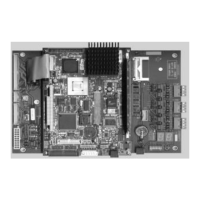
REPLACING A DEFECTIVE DIGITAL BOARD
The procedure to replace a Digital board is outlined
below:
1. Shut off control power.
2. Remove the old board from the machine and
the new board from its packing and place both
on an anti-static surface.
3. Remove any required chip(s) from the
defective board and install them in the
replacement board.
4. Check that all jumpers, dipswitches and
components are properly setup on the new
board using the old board as a reference (refer
to the Digital Settings tables near the end of
this section).
5. Install the modied replacement board in the
panel.
After replacing or installing a Digital Board and powering
on the control panel, select User Level 1 or higher, then
select the Setpoints Menu, then the Communications
Menu. On the Communications Screen is a button
labeled as [Redetect I/O Comms]. Clicking on the
[Redetect I/O Comms] button will cause the controller
to examine the internal I/O communications of the
panel, and initialize all connected boards If a board has
been removed, a communication error shutdown will
be issued until this key is selected. The About screen
will show what was detected.


 To Next Page
 Loading...