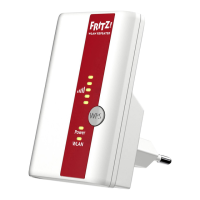
LED lights up orange: the FRITZ!The repeater has a weak Wi-Fi connection. Insert the FRITZ! Repeater into an outlet closer to the wireless router.
LED flashing continuously orange: cannot connect via Wi-Fi. Insert the FRITZ! Repeater into an outlet closer to the wireless router.
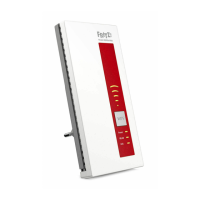
FRITZ!Repeater 600 in the Home Network
FRITZ!Repeater 600 on a FRITZ!Box with Mesh
In the home network of a FRITZ!Box with Mesh (FRITZ! OS 7 or newer), operation of your FRITZ! The repeater is especially easy and convenient.
When Mesh is enabled, all of the FRITZ! Box’s Wi-Fi network settings are permanently adopted.
Updates for the FRITZIRepeater can be performed directly in the FRITZ! Box user interface under Home Network / Mesh.
Mesh Wi-Fi provides for the optimum Wi-Fi connections of all wireless
FRITZ!Repeater 600 on a FRITZ!Box without Mesh or a Wireless Router from Another Manufacturer
During configuration the FRITZ! Repeater adopts the Wi-Fi network name and password of the FRITZ! Box (wireless router).
If the Wi-Fi network name and/or password is changed in the FRITZ! Box (wireless router), the FRITZIRepeater has to be reconnected.
Settings and updates for the FRITZ! Repeater are configured and performed via the FRITZIRepeater user interface.
Opening the User Interface of the FRITZ! Repeater 600
With a FRITZ!Box:
Enter http://fritz.repeater in the web browser on a connected device to open the user interface of the FRITZ! Repeater. Perform any update available under
System / Update.
With another wireless router:
1. Open the user interface of your wireless router to determine the IP address assigned to the FRITZIRepeater.
2. Enter the IP address in the web browser to open the user interface of the FRITZ! Repeater.
3. Secure your Repeater with a password the first time you open the user
4. Perform any update available under System / Update.
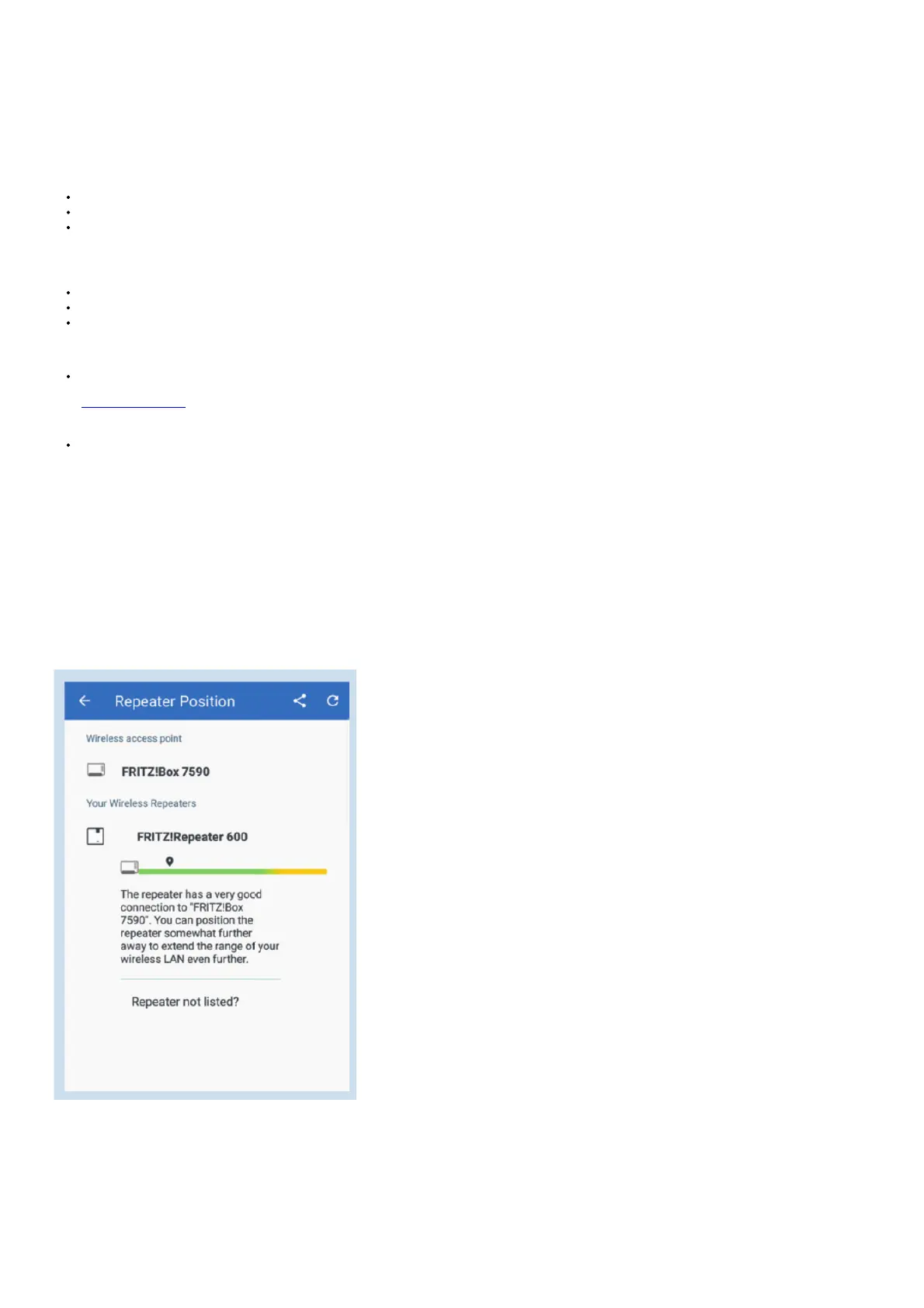
Position FRITZ!Repeater with the FRITZ!App WLAN
FRITZ! Repeaters increase the Wi-Fi range of your home network optimally when they are positioned corresponding to the spatial conditions at your location.
The FRITZ!App WLAN helps you to configure your FRITZ! Repeaters and position them at the ideal locations. For this the FRITZIApp WLAN must be installed
on your smartphone and be connected to the home network.
The FRITZ!App WLAN can be downloaded for free:





 To Next Page