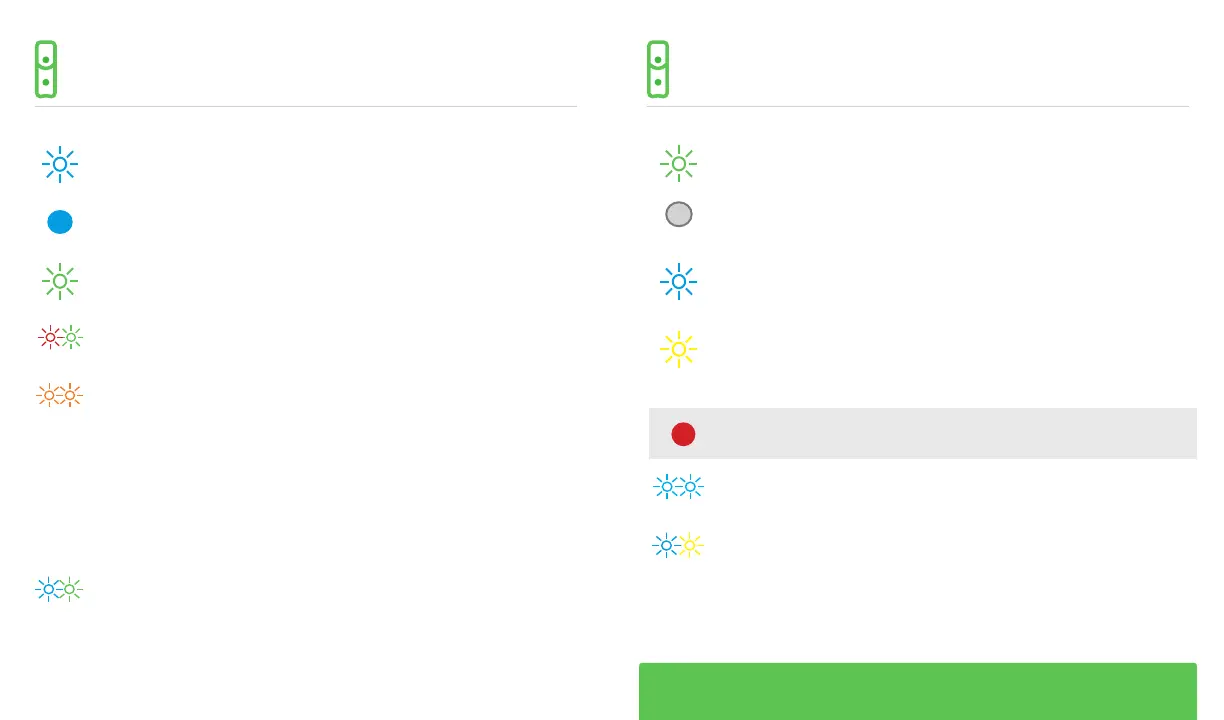
Blue | Flashing
The Doorbell Camera is charging
Blue | Solid
The Doorbell Camera is booting
Green | Flashing
The Doorbell Camera is entering troubleshooting mode
Red & Green | Alternating Flashing
The Doorbell Camera is in Standard WiFi mode (AP mode)
Orange | Rapid Double-Flash
No WiFi or lost WiFi connection
Blue & Green | Alternating Flashing
Connected to WiFi, but waiting for server connection
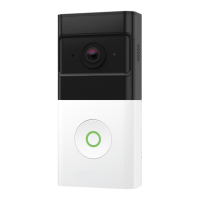
The doorbell needs to be manually placed into AP mode. Press and
hold the main button until the LED begins rapidly flashing green, and
then release. The LED will flash green as the Doorbell Camera scans the
WiFi networks in the area. The Doorbell Camera should enter standard
WiFi mode after a couple of minutes and the LED should begin
alternating Red and Green.
!
Green | Solid
Ready to use
White | Solid
“In call” mode or motion was detected by the camera
Blue | Flashing
The Doorbell Camera is in Power Cycle. Hold the button until the LED
rapidly flashes blue (about two minutes)
Yellow | Flashing
Factory reset. Hold the button until the LED rapidly flashes yellow
(about two minutes)
If you initiate a factory reset, the Doorbell Camera will need
to be re-synced with your Frontpoint account.
Blue | Rapid Double-Flash
There is a power supply issue
Blue & Yellow | Alternating Flashing
There is a firmware update in progress
FOR ADDITIONAL HELP, CALL CUSTOMER CARE AT 1-877-602-5276
LED REFERENCE GUIDELED REFERENCE GUIDE



 To Next Page