18
Windows
Using the DPC-R1
〈Reading and writing digital camera image files〉
To view an image imported onto a Windows PC, you will need an image-viewing
software program that supports the image format.
1 Load the xD-Picture Card or SmartMedia into the DPC-R1.
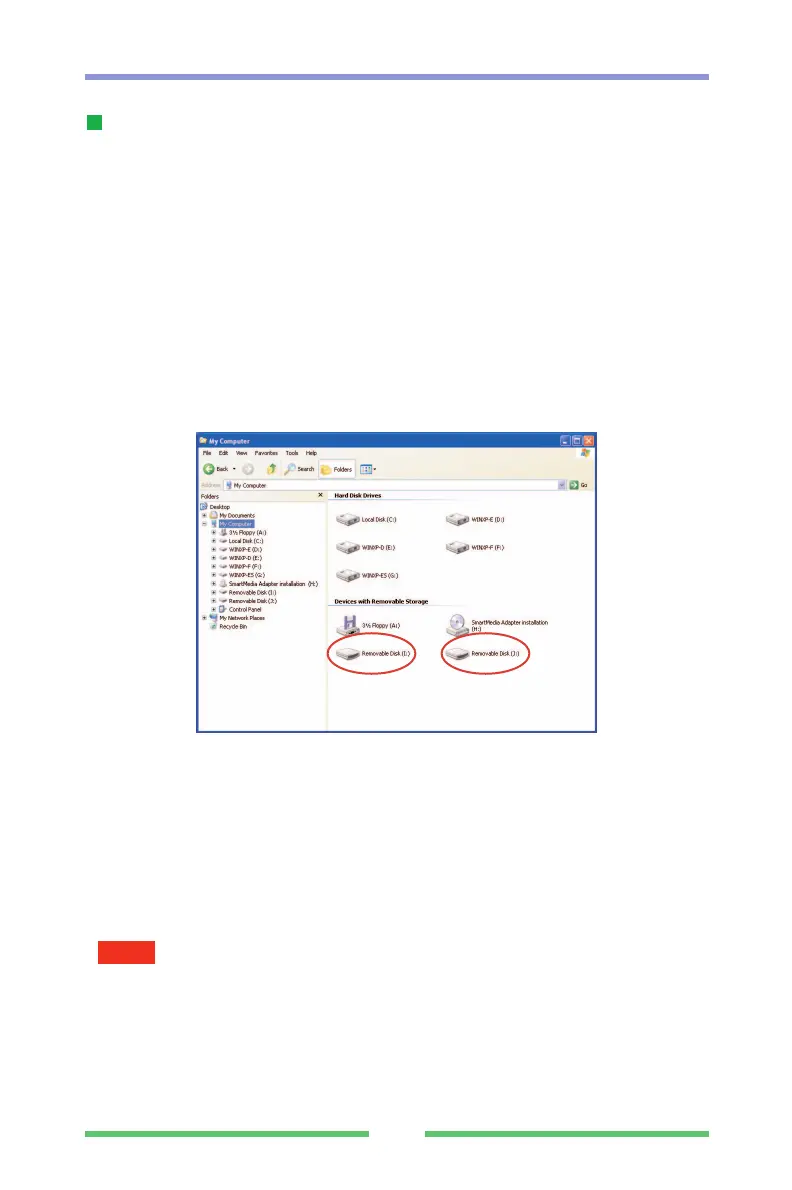
2 When you open the “My Computer” window, a “Removable disk” icon that
was not there previously is displayed.
The drive with the lower drive letter is used for xD-Picture Cards.
(In the window below, the I: drive is for xD-Picture Cards.
Double-click this icon. The folders and files on the xD-Picture Card or
SmartMedia appear.
●
Files can be read by dragging them from the xD-Picture Card or SmartMedia
to your hard disk.
●
Files can be written by dragging them from your hard disk to the xD-Picture
Card or SmartMedia.
●
Files can also be read and written by specifying the xD-Picture Card or
SmartMedia as the drive name from an application program.
●
Files can be copied in either direction between a xD-Picture Card and a
SmartMedia.
•Never switch off your PC or touch the DPC-R1 slot cover while the READY/ACCESS
lamp is lit. Either of these actions could corrupt the data on the xD-Picture Card or
SmartMedia or damage the media itself.
• To use a xD-Picture Card or SmartMedia in a digital camera, you must always
initialize (format) the xD-Picture Card or SmartMedia in the digital camera.
• The DPC-R1 does not support 2MB SmartMedia. Note also that when a 2MB
SmartMedia and an xD-Picture Card are loaded at the same time, the xD-Picture
Card cannot be accessed after the SmartMedia has been accessed. Open the cover
and remove the 2MB SmartMedia.
NOTE



 To Next Page