51
Advanced Features
3
50
PHOTOGRAPHY MENU
PHOTOGRAPHY MENU
1
01
02
2
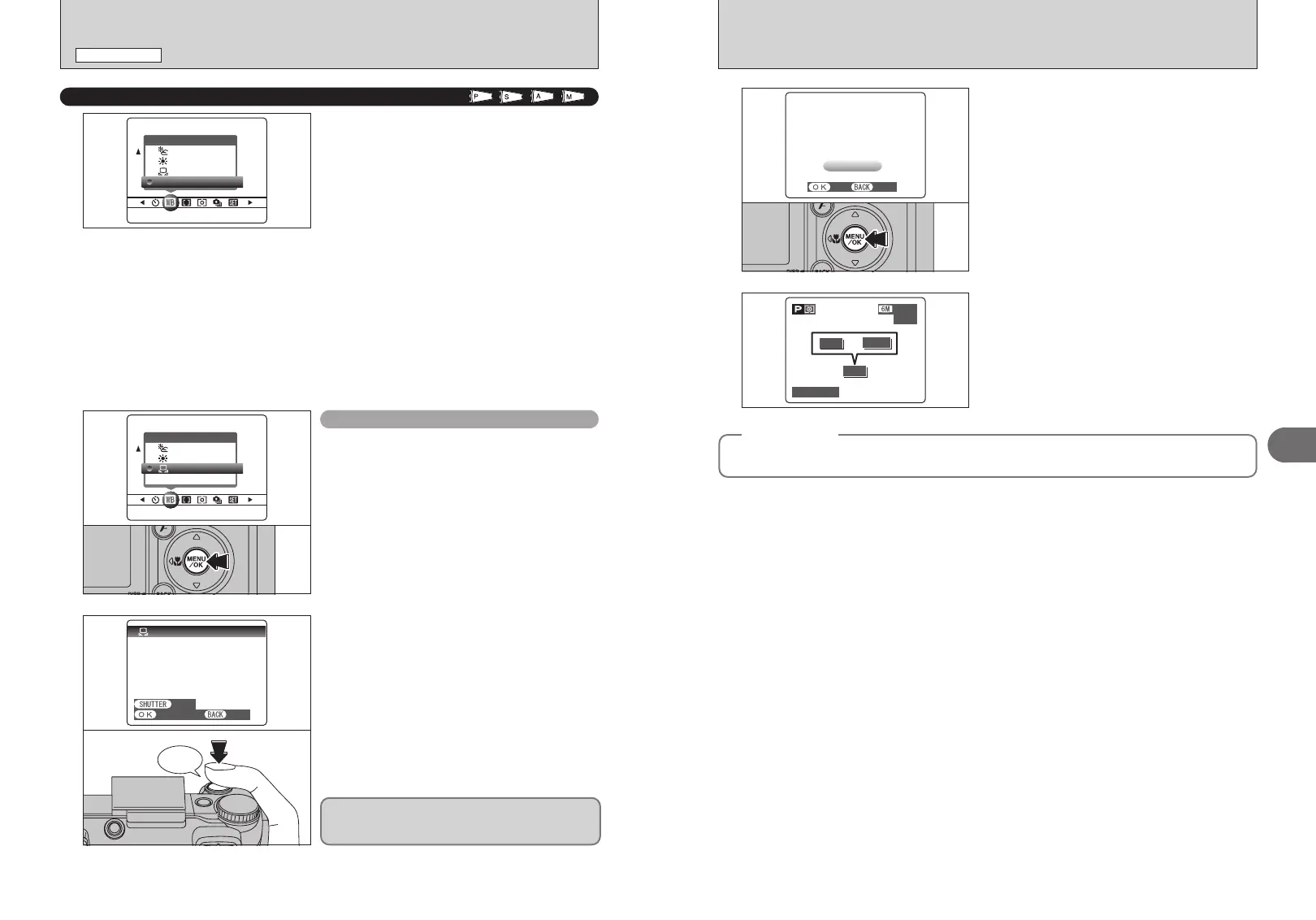
Hold a piece of white paper under the light source
for setting the white balance, so that it fills the LCD
monitor. Then press the shutter button to set the
white balance.
●
!
The white balance setting does not affect the image shown
on the LCD monitor.
AUTO: Automatic adjustment
(shooting to show the ambience of
the light source)
I: Custom white balance
6: Shooting outdoors in good weather
7: Shooting in shade
9: Shooting under “Daylight” fluorescent
lamps
0: Shooting under “Warm White”
fluorescent lamps
-: Shooting under “Cool White”
fluorescent lamps
8: Shooting in incandescent light
✽ When the flash fires, the white balance setting (excluding custom white balance) for the flash is used. Consequently,
to achieve a particular effect, the flash mode should be set to Suppressed flash (➡P.42).
●
!
The color tones may vary depending on the shooting conditions (light source, etc.).
Change the white balance setting to take a picture
with the white balance fixed for the surroundings
and lighting.
In AUTO mode, the correct white balance may not
be achieved for subjects such as close-ups of
people’s faces and pictures taken under a special
light source. Select the correct white balance for
the light source. See P.119 for more information on
the white balance.
A
WHITE BALANCE
Available Photography mode:
Use this setting to set the white balance for the
ambient natural or artificial lighting in images. Use
this setting to achieve special effects also.
1Select “I” custom white balance.
2Press the “MENU/OK” button.
Custom white balance
To use the white balance set previously, press the
“MENU/OK” button without pressing the shutter
button.
CUSTOM WBCUSTOM WB
NOT CHANGENOT CHANGE
NEW WBNEW WB
CANCELCANCEL
3
When the correct exposure is measured,
“p” appears.
Press the “MENU/OK” button to confirm the setting.
●
!
The specified custom white balance is retained until it is
reset. This setting is retained even if the battery is removed.
●
!
After taking the picture, check the “Color (White Balance)”
setting for the image.
i Set “IMAGE DISP.” to “PREVIEW” in the “SET-UP” screen
(➡P.81).
i Set the Mode switch to “
w” (➡P.27).
When “y ” or “u” appears, the white
balance was not measured at the correct exposure.
Set the exposure compensation again, using a
negative value (–) when “y” appears and a
positive value (+) when “u” appears.
COMPLETEDCOMPLETED ! !
SETSET CANCELCANCEL
ISO 80ISO 80
oror
OVEROVER
OVEROVER
UNDERUNDER
1010
−−−−−−−− F−−−F−−−
◆
Example
◆
You can change the white balance for a photographed image by using colored paper instead of white
paper.
✽ Displaying the menus (➡P.48)








 To Next Page