EasyManua.ls Logo

FujiFilm FinePix S1000fd - User Manual

FujiFilm FinePix S1000fd
164 pages
Print Icon
To Next Page IconTo Next Page
Loading...
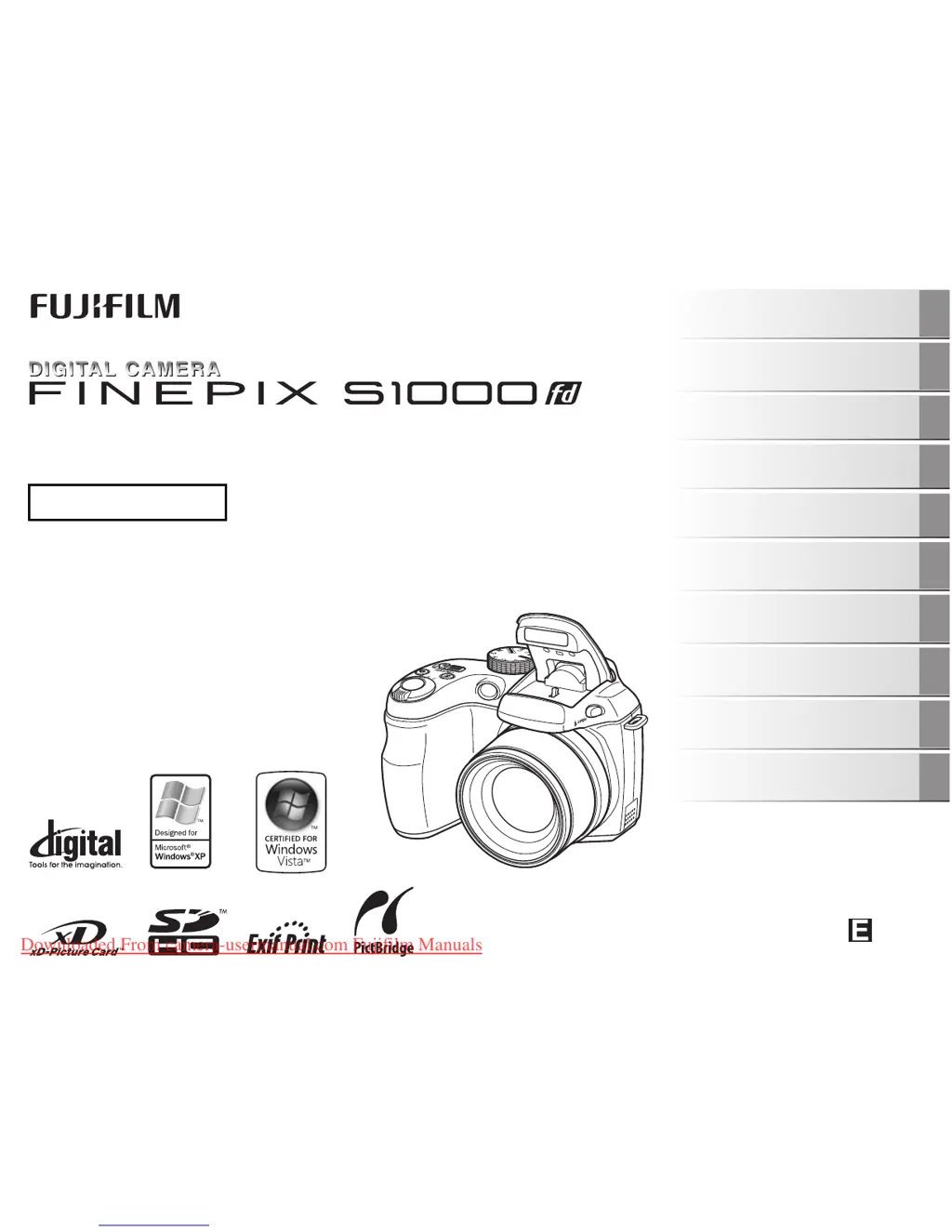
OWNER’S MANUAL
This manual will show you how to use
your FUJIFILM DIGITAL CAMERA
FinePix S1000fd correctly.
Please follow the instructions carefully.
BL00731-200(1)
Getting Ready
Using the Camera
Advanced Features
Photography
Settings
Camera Connection
Software
Installation
Playback
•Movie
Appendices
Troubleshooting
Downloaded From camera-usermanual.com Fujifilm Manuals

Table of Contents

Questions and Answers

  • P
    padillaaprilSep 23, 2025
    Why [CONTINUOUS] in the frame number setting does not function on my FujiFilm FinePix S1000fd?
    • Y
      ydavisSep 23, 2025
      If [CONTINUOUS] in the frame number setting does not function on your FujiFilm Digital Camera, it's likely because you opened the battery cover without turning the camera off when replacing the batteries or Memory Card. Always turn the camera off when replacing the batteries or Memory Card.
  • R
    richard45Aug 25, 2025
    What to do if my FujiFilm FinePix S1000fd Digital Camera doesn't turn on?
    • S
      Sarah GibsonAug 25, 2025
      If your FujiFilm Digital Camera isn't turning on, consider these potential causes: * The batteries may be dead. Replace them with new or fully charged batteries. * The batteries might be inserted incorrectly. Ensure they're loaded in the correct direction. * The AC power adapter and DC coupler may not be properly connected. Check and correct the connection. * The camera may have been left without power for too long. Load the batteries or connect the AC power adapter and DC coupler, then wait a short time before turning the camera on.
  • M
    Mark RayAug 25, 2025
    Why won't the flash work on my FujiFilm FinePix S1000fd Digital Camera?
    • R
      rwalkerAug 26, 2025
      If the flash on your FujiFilm Digital Camera isn't working, consider these possibilities: * Wait until the flash is fully charged before pressing the shutter button. * Make sure the flash is popped up. * The shooting mode may be incompatible with flash. Change the shooting mode. * The batteries may be dead. Load new or fully charged batteries. * If continuous shooting is on, turn it off. * If super macro mode is selected, cancel it. * The flash settings may be restricted due to the current scene. Change the shooting mode. * If the image is dark, move closer to the subject. * Ensure your finger isn't covering the flash.
  • M
    Monica PierceAug 26, 2025
    Why do the batteries in my FujiFilm Digital Camera die so fast?
    • J
      Jonathan HarveyAug 27, 2025
      If the batteries in your FujiFilm Digital Camera are draining quickly, here's what could be happening: * The camera is being used in very cold conditions. Try warming the batteries in your pocket before use. * The battery terminals are dirty. Clean them with a dry cloth. * The batteries are old. Replace them with new ones. * Rechargeable batteries may need to be discharged to restore full capacity. Use the rechargeable battery discharging function.
  • S
    Steven ThomasAug 27, 2025
    How to fix blurry images on my FujiFilm Digital Camera?
    • A
      Anthony AndersonAug 27, 2025
      If your FujiFilm Digital Camera is producing blurred images, here are a few things to check: * The lens might be dirty. Clean it carefully. * The camera may not be focusing correctly. Check the focus on the subject and take pictures. * Camera shake may be the issue. Hold the camera steadily.
  • B
    Brian MartinSep 13, 2025
    What to do if I cannot print with PictBridge from my FujiFilm FinePix S1000fd?
    • R
      Ray GarciaSep 13, 2025
      If you can't print with PictBridge on your FujiFilm Digital Camera, make sure the USB cable is correctly connected to both the printer and the camera. Also, ensure that the printer is turned on.
  • W
    williamharrisonSep 12, 2025
    How to fix PC not recognizing FujiFilm Digital Camera?
    • N
      ngarciaSep 12, 2025
      If the PC isn't recognizing your FujiFilm Digital Camera, ensure that the USB cable is correctly connected to both the PC and the camera. Set up the camera, and then correctly connect the USB cable.
  • K
    Karen CarlsonSep 12, 2025
    Why is the TV image black and white with my FujiFilm FinePix S1000fd Digital Camera?
    • P
      perezjonathanSep 12, 2025
      If the TV image is black and white when using your FujiFilm Digital Camera, it's likely due to an incorrect video output setting. To fix this, change the setting to [NTSC] or [PAL].
  • Q
    qmasseySep 4, 2025
    Why can't I set my FujiFilm Digital Camera to macro mode?
    • M
      Madison MaynardSep 4, 2025
      If you're unable to set your FujiFilm Digital Camera to Macro mode, it's likely because the shooting mode is set to H, ,, ., /, , , , , or . Change the shooting mode to enable Macro mode.
  • D
    Dr. Sandra FisherSep 2, 2025
    How to change the language on my FujiFilm Digital Camera to English?
    • R
      Rachel AllenSep 2, 2025
      If the screens on your FujiFilm Digital Camera are not in English, it's likely that a different language is selected in the settings. To fix this, select [ENGLISH] in the [SET-UP] menu.

Summary

Getting Ready

Attaching the Strap and Lens Cap

Instructions for attaching the camera strap and lens cap for secure handling.

Loading the Batteries

Steps for correctly inserting AA-size batteries into the camera for power.

Checking the battery charge

How to check the camera's battery level indicator and interpret its status.

Loading the Memory Card

Guide on inserting xD-Picture Card or SD Memory Card into the camera.

Turning On and Off

Instructions for powering the camera on and off in Shooting and Playback modes.

Setting the language, date, and time

Initial camera setup for language, date, and time configuration.

Correcting the Date and Time

How to adjust the camera's date and time settings after initial setup.

Selecting the Language

Guide to changing the camera's display language for menus and messages.

Using the Camera

Taking Pictures (AUTO Mode)

Basic operation of taking photos in the automatic shooting mode.

Using Intelligent Face Detection when taking pictures

How to use the face detection feature for optimal subject focus and brightness.

Taking pictures with the focus and exposure locked

Using AF/AE lock for precise focus and exposure control on challenging subjects.

AF-assist illuminator

Using the illuminator for focusing in dim light conditions and its limitations.

Using zoom function

How to use the zoom lever to adjust magnification and compose shots.

Adjusting the shot composition

Selecting screen display options for better composition and framing.

Viewing the Images

How to navigate and view captured photos on the camera's LCD.

Advanced Features - Photography

Using the Shooting Functions - Procedure of Setting

Guide to setting various shooting modes for optimal photographic results.

Setting the Shooting Mode

Explanation of different shooting modes like Auto, Natural Light, and Scene Position.

Specifying the photography settings

Overview of using buttons and menus to configure specific photography functions.

Adjusting the Image Brightness (Exposure Compensation)

How to adjust exposure compensation for correct brightness in high-contrast scenes.

Macro; Super Macro (Close-up)

Using macro modes for close-up photography and their specific settings.

Setting the Flash

Guide to selecting and using different flash modes for various shooting conditions.

Self-Timer

Using the self-timer for including the photographer in shots and its delay options.

Taking pictures continuously

Capturing sequences of images for moving subjects or specific shooting modes.

Increasing LCD Monitor Brightness

Adjusting LCD brightness for better visibility of the composition outdoors.

Using [F-MODE MENU] (Photography);[SHOOTING MENU]

Adjusting image quality, focus, and other settings via camera menus.

Advanced Features - Playback

Playback Information

Checking shooting details and histograms for captured images.

Using [F-MODE MENU] (Playback);[PLAYBACK MENU]

Navigating playback menus for image management and enhancement.

Setting automatic playback ([SLIDE SHOW])

Automatically playing back captured images as a slideshow with transitions.

DPOF set frame ([PRINT ORDER (DPOF)])

Setting print preferences for compatible printers via DPOF.

Correcting red-eye effect in images ([RED EYE REMOVAL])

Automatically correcting red-eye in photos taken with face detection.

Rotating the images ([IMAGE ROTATE])

Rotating images to ensure correct orientation on the screen.

Protecting the images ([PROTECT])

Preventing accidental deletion of important photos by protecting them.

Copying the images ([V COPY])

Transferring images between internal memory and memory cards.

Adding voice memos to the images ([VOICE MEMO])

Recording short voice comments to accompany still images.

Trimming the images ([TRIMMING])

Cropping parts of an image to refine composition or remove unwanted areas.

Advanced Features - Movie

Recording Movies

Instructions for recording video footage with sound using the camera.

Zooming the image

How to use the zoom lever to adjust magnification before recording movies.

Changing movie size

Selecting the resolution and quality for movie recordings.

Playing Back Movies

Steps to play back recorded video files on the camera.

Settings

Using the [SET-UP] menu

Navigating and using the camera's main setup menu for configuration.

[SET-UP] menu option

Detailed list and explanation of all available setup menu items.

Camera Connection

Connecting to a TV

How to connect the camera to a television for image display.

Connecting Camera Directly to Printer - PictBridge Function

Printing images directly from the camera to a PictBridge-compatible printer.

Software Installation

Installation on a Windows PC

Steps for installing the camera software on a Windows computer.

Installation on a Mac OS X

Instructions for installing the camera software on a Mac OS X system.

Using FinePixViewer

Guide to using the FinePixViewer software for image management and viewing.

Appendices

Accessories Guide

List of optional accessories compatible with the camera and their usage.

Using Your Camera Correctly

Important guidelines for safe and proper operation and care of the camera.

Discharging rechargeable batteries

How to discharge Ni-MH batteries using the camera's built-in function.

Notes on the xD-Picture Card, the SD Memory Card and the Internal Memory

Information on memory card handling, compatibility, and internal memory usage.

Warning Displays

Explanations and remedies for various warning messages shown on the camera screen.

Troubleshooting

Batteries and power supply

Solutions for issues related to camera power, battery life, and charging.

LCD monitor display

Troubleshooting for issues with the camera's LCD screen display.

Shooting

Solutions for common problems encountered during the shooting process.

Focusing

Troubleshooting steps for difficulties encountered with the camera's autofocus system.

Flash

Solutions for problems related to flash operation and settings.

Connecting

Troubleshooting guide for connecting the camera to TVs, printers, and PCs.

FujiFilm FinePix S1000fd Specifications

General IconGeneral
Megapixel10 MP
Sensor typeCCD
Image sensor size1/2.3 \
Maximum image resolution3648 x 2736 pixels
Digital zoom5.7 x
Optical zoom12 x
InterfaceUSB
Digital SLRNo
Video capabilityYes
Camera shutter speed8 - 1/1200 s
Focal length (35mm film equivalent)33 - 396 mm
Focus adjustmentAuto
Normal focusing range0.4 - ∞ m
Auto focusing (AF) modescentre weighted auto focus, continuous auto focus
Super Macro focusing range0.02 - 1.0 m
Macro focusing range (tele)0.8 - 3.0 m
Macro focusing range (wide)0.05 - 3.0 m
Normal focusing range (tele)1.5 - ∞ m
Internal memory24 MB
Compatible memory cardssd, xd
Maximum memory card size2 GB
Motion JPEG frame rate30 fps
Display diagonal2.7 \
Display resolution (numeric)230000 pixels
Product colorBlack
Flash modesauto, Red-eye reduction
Scene modesbeach, Children, Documents, Fireworks, Museum, Night, party (indoor), Portrait, Sports, Landscape (scenery)
Image editingrotating, trimming
White balancecustom modes, Fluorescent, Incandescent, Shade
Camera playbacksingle image, slide show, thumbnails
Light exposure modesaperture priority AE, shutter priority AE
Viewfinder typeElectronic
Weight and Dimensions IconWeight and Dimensions
Depth67.8 mm
Width102.5 mm
Height73 mm
Weight325 g

Related product manuals