EasyManua.ls Logo

Fujitsu Lifebook AH530 - User Manual

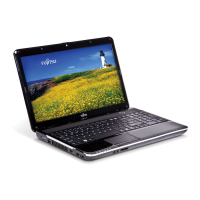
Fujitsu Lifebook AH530
313 pages
Print Icon
To Next Page IconTo Next Page
Loading...
Users Guide
Learn how to use your Fujitsu
LifeBook AH530 notebook
Guide
d’utilisation
Découvrez comment utiliser
votre ordinateur portable
Fujitsu LifeBook AH530

Table of Contents

Other manuals for Fujitsu Lifebook AH530

Questions and Answers

  • L
    lowerykevinSep 10, 2025
    What to do if ExpressCard is inserted but does not work on Fujitsu Lifebook AH530?
    • J
      joshuawhiteSep 10, 2025
      To resolve the issue of an ExpressCard that is inserted but does not work or is locking up the system on your Fujitsu Laptop, remove and re-install the card.
  • L
    Leslie ThomasAug 23, 2025
    What to do if my Fujitsu Laptop cannot be started?
    • T
      Theresa WagnerAug 23, 2025
      If your Fujitsu Laptop won't start, there are several possible causes: * The battery may not be installed correctly. Ensure it is properly placed in its compartment, and then try switching on the notebook. * The battery might be dead. Try charging the battery, inserting a charged one, or connecting the mains adapter. * The power adapter could be incorrectly connected. Verify that it's properly connected to the notebook before attempting to switch it on.
  • M
    Mrs. Jennifer LevineAug 25, 2025
    What to do if the power adapter has no power from the AC outlet for Fujitsu Lifebook AH530?
    • G
      Gary MillerAug 25, 2025
      Move the AC cord of your Fujitsu Laptop to a different outlet, and check for a line switch or tripped circuit breaker for the AC outlet. If you are using an auto/airline adapter in a car, make sure the ignition switch is in the On or Accessories position.
  • J
    jasonperkinsAug 26, 2025
    What to do if installed battery is completely discharged on Fujitsu Lifebook AH530 Laptop?
    • C
      csuarezAug 27, 2025
      Check the Status Indicator Panel on your Fujitsu Laptop to determine the presence and condition of the battery. Install a charged battery or a Power adapter.
  • M
    mcdanieljacquelineAug 27, 2025
    What to do if the battery is installed but is faulty on Fujitsu Laptop?
    • C
      Craig HolmesAug 28, 2025
      Use the Status Indicator panel on your Fujitsu Laptop to verify the presence and condition of the battery. If a battery is indicating a short, remove that battery and operate from another power source or replace that battery.
  • R
    Rachel NortonAug 29, 2025
    What to do if when I type on my Fujitsu Laptop keyboard, I only get numbers?
    • S
      Steve DoyleAug 29, 2025
      If you're getting numbers instead of letters when typing on your Fujitsu Laptop, it's likely that the virtual numeric keypad is activated. Press the Num key to deactivate it.
  • A
    Abigail KruegerSep 22, 2025
    Why does my Fujitsu Lifebook AH530 printer not print?
    • N
      Nathan SimmonsSep 22, 2025
      If your printer isn't printing, consider these possibilities: * The printer may not be switched on. Ensure the printer is on and ready. * The printer might not be connected properly. Check the data cable connecting the notebook to the printer. * The printer driver may be faulty, incorrectly installed, or the wrong driver. Verify the data cable connection and check if the correct printer driver is loaded.
  • C
    cookbobbyDec 1, 2025
    How to fix no sound on Fujitsu Lifebook AH530?
    • D
      David GrossDec 1, 2025
      If there is no sound coming from the built-in speakers of your Fujitsu Laptop, first, adjust the volume control on your notebook and operating system. You can use the [Fn+F9] key combination on your keyboard to increase the volume. If that doesn’t work, manually adjust the sound volume control settings in your software or application. Also, make sure headphones are not plugged in, as this disables the built-in speakers. Another reason could be that the speakers have been muted using the Volume icon in the system tray, click on the Volume icon in the tool tray on the bottom right of the screen. If Mute is checked, click on it to uncheck it. You can also use the [Fn+F3] key combination to toggle the volume on and off. Finally, the Audio Driver may be installed or reinstalled by using the Dri...
  • C
    Christopher SmithSep 8, 2025
    How to fix display that does not close on Fujitsu Laptop?
    • S
      Steven ArroyoSep 8, 2025
      To solve the issue when the display does not close on your Fujitsu Laptop, remove all foreign objects from the keyboard, as a small object such as a paper clip might be stuck between the display and keyboard.
  • J
    joshuahamiltonSep 5, 2025
    Why can't I access my hard drive on my Fujitsu Lifebook AH530 Laptop?
    • I
      idavisSep 5, 2025
      If you cannot access your hard drive on your Fujitsu Laptop, it could be because the wrong drive designator was used by an application when a bootable disc was used to start the notebook. To solve this, verify the drive designator used by the application is in use by the operating system, as drive designations are automatically adjusted when the operating system is booted from a CD. It could also be due to security settings that prevent the OS from starting without a password. In this case, verify your password and security settings.

Summary

Preface

About This Guide

Explains formatting, symbols, and cross-references used in the manual.

Fujitsu Contact Information

Provides contact details for Fujitsu service and support, including phone and website.

Chapter 1 Getting to Know Your LifeBook

Overview

Introduces the LifeBook AH530 notebook's components and features.

Locating the Controls and Connectors

Identifies all physical controls, ports, and indicators on the notebook.

Keyboard

Details the notebook's keyboard layout, function keys, and special keys.

Touchpad Pointing Device

Guide to using the touchpad for cursor control, clicking, and gestures.

Volume Control

Instructions for adjusting and managing the notebook's audio volume.

Chapter 2 Getting Started with Your LifeBook

Power Sources

Information on notebook power sources like AC and auto/airline adapters.

Connecting the Power Adapters

Step-by-step guide to connecting power adapters.

Display Panel

Information about the notebook's display panel and how to open it.

Starting Your LifeBook Notebook

Procedures for initial notebook setup, power-on, and system boot.

Power On

Procedure for turning on the notebook using the power button.

Boot Sequence

Explanation of the system's boot-up process.

Hard Disk Drive Passwords

Setting up security for hard disk drives.

BIOS Setup Utility

Accessing and using the BIOS for system configuration.

Starting Windows the First Time

Initial setup and configuration of Windows.

Installing ClickMe!

Installing essential software and utilities.

Fujitsu Driver Update Utility

Using the FDU utility for driver updates.

Chapter 3 User-Installable Features

Lithium ion Battery

Information about the notebook's battery, its care, and operation.

Recharging the Batteries

Steps for recharging the battery using adapters.

Replacing the Battery

Procedures for cold-swapping and hot-swapping the battery.

Optical Drive

Details about the notebook's optical drive and media handling.

Loading Media on Your Drive

Instructions for loading discs into the optical drive.

Emergency Optical Drive Tray Release

How to release the optical drive tray if the eject button fails.

Using the Media Player Software

Guide to using the media player for movies and music.

Using ExpressCards

Information on installing and using ExpressCards.

Installing ExpressCards

Step-by-step guide for inserting ExpressCards.

Removing ExpressCards

Instructions for safely removing ExpressCards.

Secure Digital Cards

Information about Memory Stick and SD Card compatibility.

Installing Memory Stick and SD Cards

Guide for inserting Memory Stick and SD Cards.

Memory Upgrade Module

Details on installing and managing memory upgrade modules.

Installing Memory Upgrade Modules

Step-by-step instructions for installing new memory modules.

Removing a Memory Upgrade Module

Procedure for removing existing memory modules.

Checking the Memory Capacity

How to verify the system recognizes newly installed memory.

Chapter 4 Troubleshooting Your LifeBook

Troubleshooting

General procedure for identifying and diagnosing notebook issues.

Identifying the Problem

Steps to diagnose common setup or operating problems.

Troubleshooting Table

Lists common problems, their causes, and solutions.

Power On Self Test Messages

Explanations of error and status messages during POST.

Restoring Your System Image and Software

Guide to creating and restoring system images and backups.

Saving and Recovering Your Factory and System Images

Procedures for backing up and restoring system images.

Chapter 5 Care and Maintenance

Caring for your LifeBook Notebook

Tips for maintaining the notebook and its devices for longevity.

Cleaning your LifeBook notebook

Instructions for cleaning the notebook's exterior, keyboard, and display.

Storing your LifeBook notebook

Recommendations for safely storing the notebook for extended periods.

Traveling with your LifeBook notebook

Tips for safely transporting the notebook and precautions.

Batteries

Advice on caring for and increasing the notebook's battery life.

Media Care

Guidelines for caring for optical media discs and the optical drive.

ExpressCards;Memory Sticks;SD Cards

Proper care instructions for memory cards and ExpressCards.

Chapter 6 System Specifications

Specifications

Details the hardware and environmental specifications of the notebook.

Configuration Label

Explanation of information on the notebook's configuration label.

Microprocessor

Technical details about the notebook's processor.

Memory

Specifications for system and cache memory.

Device Ports

Listing and description of all external ports on the notebook.

Power

Details on the battery and AC adapter specifications.

Included Software

List of pre-installed software applications.

Learning About Your Software

Guidance on using tutorials and manuals for system software.

Glossary;Regulatory

Glossary

Definitions of technical terms used in the manual.

Regulatory Information

Important FCC and Industry Canada notices and compliance statements.

Appendix A WLAN User’s Guide

Before Using the Wireless LAN

Procedures for setting up and configuring the wireless LAN device.

Wireless LAN Devices Covered by this Document

Identifies the specific WLAN device discussed.

Characteristics of the WLAN Device

Technical details and capabilities of the WLAN device.

Wireless LAN Modes Using this Device

Explains Ad Hoc and Infrastructure modes for WLAN.

Disconnecting the WLAN Device

Procedures for deactivating and disconnecting the WLAN device.

Activating the WLAN Device

Steps to enable and connect the WLAN device.

Configuration of the WLAN Device

Guide to configuring wireless network settings in Windows.

Connecting to a Network

Instructions for connecting the WLAN device to a network.

Troubleshooting the WLAN

Common issues and solutions for wireless LAN connectivity.

WLAN Specifications

Technical specifications for the wireless LAN device.

Using the Bluetooth Device

What is Bluetooth

Explanation of Bluetooth technology and its applications.

Where to Find Information About Bluetooth

Guidance on accessing Bluetooth help files and resources.

FCC Radiation Exposure Statement

FCC compliance statement regarding Bluetooth device radiation exposure.

Warranty

Information about product warranty and modification restrictions.

Fujitsu Lifebook AH530 Specifications

General IconGeneral
Bus typeDMI
SteppingK0
Tjunction90 °C
Processor cache3 MB
Processor cores2
Processor modeli3-370M
System bus rate2.5 GT/s
Processor familyIntel® Core™ i3
Processor seriesIntel Core i3-300 Mobile Series
Processor socketSocket 988
Processor threads4
Processor codenameArrandale
Processing Die size81 mm²
Processor frequency2.4 GHz
Processor cache typeSmart Cache
Processor lithography32 nm
Processor manufacturerIntel
Processor front side bus- MHz
PCI Express slots version2.0
Processor operating modes64-bit
ECC supported by processorNo
PCI Express configurations1x16
Thermal Design Power (TDP)35 W
CPU multiplier (bus/core ratio)18
Maximum number of PCI Express lanes16
Number of Processing Die Transistors382 M
Motherboard chipsetIntel® HM55 Express
HDD speed5400 RPM
HDD interfaceSATA
Optical drive typeDVD Super Multi
Card reader integratedYes
Total storage capacity500 GB
Compatible memory cardsMemory Stick (MS), MS PRO, SD, SDHC
Number of HDDs installed1
Display surfaceGloss
Display diagonal15.6 \
Display resolution1366 x 768 pixels
Native aspect ratio16:9
Memory slots2x SO-DIMM
Internal memory4 GB
Memory clock speed1066 MHz
Internal memory typeDDR3-SDRAM
Maximum internal memory8 GB
Memory layout (slots x size)2 x 2 GB
Maximum resolution1920 x 1200 pixels
Discrete graphics card modelIntel HD
Maximum graphics card memory- GB
On-board graphics card modelIntel® HD Graphics
On-board graphics card base frequency500 MHz
On-board graphics card dynamic frequency (max)667 MHz
TypePC
Power supply typeAC/DC
Power requirements100-240V, 50/60Hz
Compliance industry standardsIEEE 802.3, IEEE 802.3u, IEEE 802.3ab
Audio systemHDA
Pointing deviceTouchpad
Keyboard key pitch19.8 mm
Keyboard keystroke1.8 mm
Keyboard number of keys106
Front camera resolution (numeric)1.3 MP
Bluetooth version2.1+EDR
Cabling technology10/100/1000Base-T(X)
Networking featuresGigabit Ethernet
Operating system installedWindows 7 Home Premium
CertificationCE, R&TTE, RoHS, WiFi, EPEAT, GOST
Sustainability certificatesENERGY STAR
Battery capacity4400 mAh
Battery life (max)6 h
Number of battery cells6
Charging port typeDC-in jack
Serial ports quantity0
USB 2.0 ports quantity3
Cable lock slot typeKensington
Product colorBlack
Operating relative humidity (H-H)20 - 85 %
AC adapter power80 W
AC adapter output current4.22 A
AC adapter output voltage19 V
Processor codeSLBUK
Processor ARK ID49020
Processor package sizerPGA 37.5x 37.5, BGA 34x28 mm
Graphics & IMC lithography45 nm
Supported instruction setsSSE4.1, SSE4.2
Weight and Dimensions IconWeight and Dimensions
Depth252 mm
Width378 mm
Weight2500 g
Height (rear)38.4 mm
Height (front)35.7 mm

Related product manuals