EasyManua.ls Logo

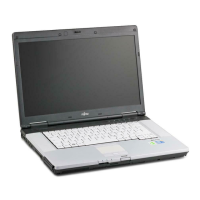
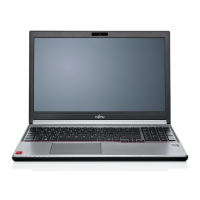
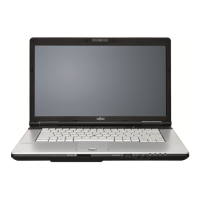
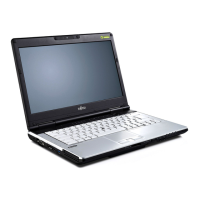
Fujitsu LIFEBOOK E782 - User Manual

Fujitsu LIFEBOOK E782
99 pages
Print Icon
To Next Page IconTo Next Page
Loading...
System
Operating Manual
LIFEBOOK E752 / E782
LIFEBOOK S752 / S782

Table of Contents

Other manuals for Fujitsu LIFEBOOK E782

Questions and Answers

  • Y
    ygarrettAug 21, 2025
    Why Fujitsu Notebook pc cannot be started?
    • J
      Jacqueline GarciaAug 21, 2025
      Your Fujitsu Notebook PC might not start due to several reasons: * The battery might not be installed correctly. Ensure it is properly placed in its compartment. * The battery might be dead. Try charging it, inserting a charged battery, or connecting the mains adapter. * The power adapter might not be connected correctly. Verify its connection to the notebook.
  • D
    Dr. Jill AllenSep 3, 2025
    What to do if external monitor image is unstable on Fujitsu Notebook pc?
    • S
      Stacy BurchSep 3, 2025
      If the external monitor image is unstable on your Fujitsu Notebook PC, it might be because the wrong external monitor has been selected or the wrong screen resolution has been set for the application program. Terminate the application program in Windows by pressing Alt + F4. If the fault persists after closing the program, switch over to the notebook’s LCD screen. Set the screen resolution as described in the documentation for your operating system. Select monitor 1 or 2 as described in the documentation for your operating system.
  • J
    Jonathan DavisSep 1, 2025
    What to do if LCD screen is difficult to read on Fujitsu Notebook pc?
    • R
      Ricky StarkSep 1, 2025
      If the LCD screen on your Fujitsu Notebook PC is difficult to read, it could be due to reflected glare. Try turning the notebook or adjusting the tilt of the screen. You can also increase the screen's brightness.
  • J
    jessica20Aug 30, 2025
    Why does printer not print from Fujitsu Notebook pc?
    • J
      Jason WongAug 30, 2025
      If your printer isn't printing from your Fujitsu Notebook PC, consider these possibilities: * The printer might not be switched on. Ensure the printer is on and ready. * The printer might not be connected correctly. Check the data cable connecting the notebook to the printer. * The printer driver might be faulty, incorrectly installed, or the wrong one. Verify the cable connection and ensure the correct printer driver is loaded.
  • S
    stephen59Aug 29, 2025
    How to fix incorrect date or time on Fujitsu Notebook pc?
    • M
      Mark FloresAug 29, 2025
      You can correct the date and time on your Fujitsu Notebook PC through the BIOS-Setup-Utility, where you can set the date and time in the main menu. If the issue persists, further assistance is needed.
  • J
    Jacqueline MoranAug 27, 2025
    What to do if Fujitsu Notebook pc stops working?
    • M
      Mariah RiveraAug 27, 2025
      If your Fujitsu Notebook PC stops working, here are a few things to check: * The notebook might be in energy-saving mode. Try exiting the energy-saving mode. * An application might be causing the issue. Close the application or restart the notebook. * The battery might be dead. Charge the battery, insert a charged one, or connect the mains adapter.
  • C
    Clayton KingAug 26, 2025
    What to do if external monitor remains blank with Fujitsu Notebook pc?
    • S
      Stephanie GuzmanAug 26, 2025
      If your external monitor remains blank when connected to your Fujitsu Notebook PC, consider these possible causes and solutions: 1. The monitor might be switched off. Ensure the external monitor is powered on. 2. Power saving might be activated. Press any key to continue. 3. The brightness might be set too low. Adjust the brightness of the monitor. 4. The screen output might be set to the notebook's LCD screen. 5. The power or data cables may be improperly connected. Turn off both the monitor and notebook, check the cable connections, and then turn them back on.
  • M
    maustinAug 25, 2025
    Why only numerals are written when certain characters are entered on Fujitsu Notebook pc?
    • S
      sthomasAug 25, 2025
      If only numerals appear when typing characters on your Fujitsu Notebook PC, the virtual numeric keypad is likely activated. Press the Num key to deactivate it.
  • A
    Alexander LawrenceAug 22, 2025
    What to do if Fujitsu Notebook pc LCD screen remains blank?
    • M
      Michael MasonAug 22, 2025
      If your Fujitsu Notebook PC's LCD screen remains blank, the monitor might be switched off. Try pressing a key or touching the touchpad. Alternatively, if an external monitor or television is connected, press the key combination to switch the screen output.

Summary

Important Notes and Safety

General Safety Notes

Essential safety precautions to follow when operating the notebook.

Radio Component Safety

Specific safety guidelines for devices with wireless communication components.

Energy Saving Features

Tips and settings to optimize power consumption and extend battery life.

First-Time Setup

Working with Your Notebook

Battery Management and Maintenance

Best practices for charging, caring for, and storing the notebook's rechargeable battery.

Battery Removal and Installation

Step-by-step instructions for safely removing and installing the notebook battery.

Power Management Features

How to utilize power management settings to optimize battery life and reduce consumption.

Security Functions

BIOS Password Protection

Setting up supervisor and user passwords in the BIOS for system security.

System and Boot Protection

Activating and deactivating system protection and boot password settings.

Hard Disk Password Protection

Procedures for activating and deactivating hard disk password protection.

Boot from Removable Media Control

Configuring BIOS settings to manage booting from external media for security.

Trusted Platform Module (TPM) Configuration

Enabling and disabling the Trusted Platform Module for hardware-based security.

Connecting External Devices

Removing and Installing Components

Memory Module Service

Procedures for preparing, installing, and removing memory modules.

Hard Disk Drive Service

Detailed steps for removing and installing the hard disk drive.

BIOS Setup Utility

Exiting BIOS Setup Utility Options

Various methods for saving or discarding changes and exiting the BIOS Setup Utility.

Troubleshooting and Tips

General Troubleshooting Steps

Procedures to follow when encountering faults, including contacting support.

System Recovery and Date;Time Issues

Restoring system contents and resolving date/time errors.

Notebook Startup and Operation Problems

Troubleshooting steps for issues like the notebook not starting or stopping unexpectedly.

Technical Data

Manufacturers Notes

FCC Regulatory Information

FCC compliance statements, interference, and RF exposure information for devices with radio.

Fujitsu LIFEBOOK E782 Specifications

General IconGeneral
Bus typeDMI
SteppingL1
Tjunction105 °C
Processor cache3 MB
Processor cores2
Processor modeli5-3210M
System bus rate5 GT/s
Processor familyIntel® Core™ i5
Processor seriesIntel Core i5-3200 Mobile series
Processor socketBGA 1023
Processor threads4
Processor codenameIvy Bridge
Processor frequency2.5 GHz
Processor cache typeSmart Cache
Processor lithography22 nm
Processor manufacturerIntel
Processor front side bus- MHz
PCI Express slots version3.0
Processor boost frequency3.1 GHz
Processor operating modes64-bit
ECC supported by processorNo
PCI Express configurations1x16, 2x8, 1x8+2x4
Thermal Design Power (TDP)35 W
CPU multiplier (bus/core ratio)25
Maximum number of PCI Express lanes16
Motherboard chipsetIntel® QM77 Express
Memory slots2x SO-DIMM
Internal memory4 GB
Memory clock speed1600 MHz
Internal memory typeDDR3-SDRAM
Maximum internal memory16 GB
HDD size2.5 \
HDD speed7200 RPM
HDD interfaceSATA
Storage mediaHDD
Optical drive typeDVD Super Multi
Card reader integratedYes
Total storage capacity500 GB
Compatible memory cardsMS PRO Duo, MS PRO Duo HS, SD, SDHC, SDXC
Number of HDDs installed1
Display diagonal15.6 \
Display brightness220 cd/m²
Display resolution1600 x 900 pixels
Native aspect ratio16:9
On-board graphics card ID0x166
Discrete graphics card modelNot available
On-board graphics card modelIntel® HD Graphics 4000
On-board graphics card familyIntel® HD Graphics
On-board graphics card base frequency650 MHz
On-board graphics card dynamic frequency (max)1100 MHz
Audio systemHD
Front camera resolution1920 x 1080 pixels
Front camera resolution (numeric)2 MP
4G standardWiMAX
Data network-
Wi-Fi standards802.11a, 802.11b, 802.11g
Bluetooth version4.0
Cabling technology10/100/1000Base-T(X)
Ethernet LAN data rates10, 100, 1000 Mbit/s
Mobile network generation4G
Charging port typeDC-in jack
Headphone connectivity3.5 mm
USB 2.0 ports quantityUSB 2.0 ports have a data transmission speed of 480 Mbps, and are backwards compatible with USB 1.1 ports. You can connect all kinds of peripheral devices to them.
eSATA/USB 3.2 Gen 1 (3.1 Gen 1) ports quantity0
Pointing deviceTouchpad
Recovery operating systemWindows 8 Pro
Operating system installedWindows 7 Professional
Form factorClamshell
Product typeLaptop
Product colorBlack, Grey
Processor codeSR0N0
Processor ARK ID65708
Processor package size31.0 x 24.0 (BGA1023) mm
Supported instruction setsAVX
Intel Identity Protection Technology version1.00
Battery capacity6700 mAh
Battery life (max)12 h
Number of battery cells6
AC adapter power80 W
AC adapter frequency50 - 60 Hz
AC adapter input voltage100 - 240 V
AC adapter output current4.22 A
AC adapter output voltage12 V
Sustainability certificatesRoHS, EPEAT Gold, ENERGY STAR
CertificationCE, CB, Nordic Swan, WEEE, HCT, HCL entry, WHQL
Weight and Dimensions IconWeight and Dimensions
Depth245 mm
Width372 mm
Height33 mm
Weight2400 g

Related product manuals