EasyManua.ls Logo

Fujitsu P24-8 WS Pro - User Manual

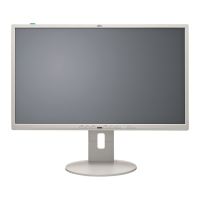
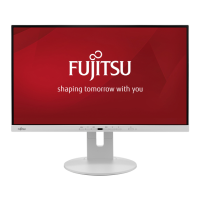
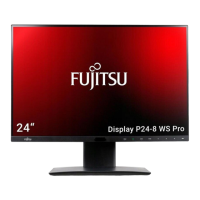
Fujitsu P24-8 WS Pro
53 pages
Print Icon
To Next Page IconTo Next Page
Loading...
Display
Operating Manual
FUJITSU Display
P24-8 WS Pro / P24-8 WE Pro
P27-8 TS Pro / P27-8 TE Pro

Questions and Answers

  • E
    Eric CardenasSep 23, 2025
    How to resolve picture disturbances like horizontal lines on my Fujitsu P24-8 WS Pro Monitor?
    • K
      kristin56Sep 23, 2025
      If you're experiencing horizontal lines or picture noise on your Fujitsu Monitor, try running the Auto adjust function.
  • S
    Sara Shepard DDSAug 23, 2025
    What to do if Fujitsu Monitor shows 'No Signal' message?
    • A
      Ana AndersonAug 23, 2025
      If your Fujitsu Monitor displays a 'No Signal' message, ensure the data cable is securely connected to the monitor port on your computer. Also, verify that your computer is powered on.
  • T
    tfreemanAug 25, 2025
    How to fix no screen display but power indicator is lit on Fujitsu P24-8 WS Pro Monitor?
    • M
      Megan FordAug 26, 2025
      If your Fujitsu Monitor's power indicator is lit but there's no screen display: * Ensure your computer is switched on. * Verify the monitor's data cable is correctly attached to the computer. * Press any key on the keyboard, as the computer may be in power saving mode. * Adjust the brightness and contrast settings.
  • T
    Tina HoganAug 26, 2025
    How to fix no screen display and power indicator does not light up on Fujitsu P24-8 WS Pro?
    • B
      bakerbryanAug 27, 2025
      If your Fujitsu Monitor has no screen display and the power indicator is not lit: * Check if the power cable is correctly connected to the monitor. * Ensure that the computer is switched on.
  • J
    Jessica LaneAug 27, 2025
    What to do if Fujitsu P24-8 WS Pro picture is shaking?
    • M
      Michael AndersonAug 27, 2025
      If the picture on your Fujitsu Monitor is shaking, check that the data cable is correctly attached to the monitor port on the computer. You can also try running the Auto adjust function.
  • K
    Krista SimmonsSep 16, 2025
    Why is the picture shaking on my Fujitsu P24-8 WS Pro?
    • C
      Christopher DukeSep 16, 2025
      If the picture on your Fujitsu Monitor is shaking, check that the data cable is correctly attached to the monitor port on the computer. You can also try running the Auto adjust function.
  • S
    ssmithSep 13, 2025
    What to do if my Fujitsu P24-8 WS Pro has no screen display but the power light is on?
    • O
      ogarciaSep 13, 2025
      If your Fujitsu Monitor's screen isn't displaying anything but the power indicator is lit, check the following: 1. Ensure your computer is switched on. 2. Verify the monitor's data cable is properly connected to the computer. 3. Press any key on the keyboard, as the computer might be in power-saving mode. 4. Adjust the brightness and contrast settings. 5. Change the signal source.
  • K
    Kevin CaseySep 14, 2025
    How to fix a Fujitsu P24-8 WS Pro with no screen display and no power light?
    • C
      Casey SanchezSep 14, 2025
      If your Fujitsu Monitor's screen is blank and the power indicator isn't lighting up, make sure the power cable is correctly connected to the monitor and that the computer is switched on.
  • D
    dwelchSep 5, 2025
    Why is Fujitsu Call Indicator status indicator not showing a status?
    • R
      Raymond StephensSep 6, 2025
      If the Call Indicator status indicator on your Fujitsu monitor isn't showing a status, make sure that Microsoft Lync / Skype for Business is installed, running, and you are logged in. Additionally, check if the monitor is connected via the supplied USB cable and that all audio devices named "Fujitsu Call Indicator" are enabled in Windows sound settings.
  • C
    Cynthia MillerSep 3, 2025
    What to do if Fujitsu Monitor picture is wrongly adjusted?
    • A
      Adam Wilson IISep 3, 2025
      If the picture on your Fujitsu Monitor is wrongly adjusted, try running the Factory Recall function.

Fujitsu P24-8 WS Pro Specifications

General IconGeneral
Screen Size24 inches
Resolution1920 x 1200
Panel TypeIPS
Aspect Ratio16:10
Brightness300 cd/m²
Contrast Ratio1000:1
Response Time5 ms
Color Support16.7 million colors
ConnectivityDisplayPort, DVI, VGA
Viewing Angle178° (H) / 178° (V)
Input PortsVGA, DVI-D, DisplayPort

Related product manuals