EasyManua.ls Logo

Fujitsu P27-8 TE Pro - User Manual

Fujitsu P27-8 TE Pro
53 pages
Print Icon
To Next Page IconTo Next Page
Loading...
Display
Operating Manual
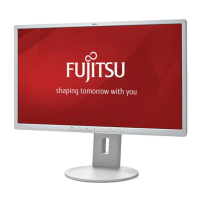
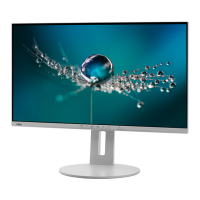
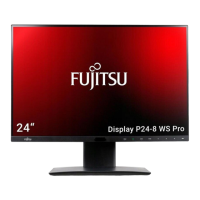
FUJITSU Display
P24-8 WS Pro / P24-8 WE Pro
P27-8 TS Pro / P27-8 TE Pro

Questions and Answers

  • K
    Kelly ConleySep 23, 2025
    How to resolve picture disturbances like horizontal lines on my Fujitsu P27-8 TE Pro?
    • P
      Patrick SilvaSep 23, 2025
      If you're experiencing horizontal lines or picture noise on your Fujitsu Monitor, try running the Auto adjust function.
  • J
    Joan RollinsAug 23, 2025
    What to do if Fujitsu P27-8 TE Pro Monitor shows 'No Signal' message?
    • K
      Kevin SmithAug 23, 2025
      If your Fujitsu Monitor displays a 'No Signal' message, ensure the data cable is securely connected to the monitor port on your computer. Also, verify that your computer is powered on.
  • G
    Gregory AndersonAug 25, 2025
    How to fix no screen display but power indicator is lit on Fujitsu P27-8 TE Pro?
    • H
      harrisjessicaAug 26, 2025
      If your Fujitsu Monitor's power indicator is lit but there's no screen display: * Ensure your computer is switched on. * Verify the monitor's data cable is correctly attached to the computer. * Press any key on the keyboard, as the computer may be in power saving mode. * Adjust the brightness and contrast settings.
  • A
    Ashley CopelandAug 26, 2025
    How to fix no screen display and power indicator does not light up on Fujitsu P27-8 TE Pro Monitor?
    • C
      Courtney MorrisonAug 27, 2025
      If your Fujitsu Monitor has no screen display and the power indicator is not lit: * Check if the power cable is correctly connected to the monitor. * Ensure that the computer is switched on.
  • H
    hblackAug 27, 2025
    What to do if Fujitsu Monitor picture is shaking?
    • S
      Steven ThomasAug 27, 2025
      If the picture on your Fujitsu Monitor is shaking, check that the data cable is correctly attached to the monitor port on the computer. You can also try running the Auto adjust function.
  • W
    William LeblancSep 16, 2025
    Why is the picture shaking on my Fujitsu Monitor?
    • H
      Howard ParkerSep 16, 2025
      If the picture on your Fujitsu Monitor is shaking, check that the data cable is correctly attached to the monitor port on the computer. You can also try running the Auto adjust function.
  • J
    Joshua StoutSep 13, 2025
    What to do if my Fujitsu P27-8 TE Pro has no screen display but the power light is on?
    • R
      Ryan CamposSep 13, 2025
      If your Fujitsu Monitor's screen isn't displaying anything but the power indicator is lit, check the following: 1. Ensure your computer is switched on. 2. Verify the monitor's data cable is properly connected to the computer. 3. Press any key on the keyboard, as the computer might be in power-saving mode. 4. Adjust the brightness and contrast settings. 5. Change the signal source.
  • M
    Margaret BrewerSep 14, 2025
    How to fix a Fujitsu Monitor with no screen display and no power light?
    • C
      Christine AndersonSep 15, 2025
      If your Fujitsu Monitor's screen is blank and the power indicator isn't lighting up, make sure the power cable is correctly connected to the monitor and that the computer is switched on.
  • O
    Olivia LeeSep 5, 2025
    Why is Fujitsu Call Indicator status indicator not showing a status?
    • M
      Melissa McclureSep 5, 2025
      If the Call Indicator status indicator on your Fujitsu monitor isn't showing a status, make sure that Microsoft Lync / Skype for Business is installed, running, and you are logged in. Additionally, check if the monitor is connected via the supplied USB cable and that all audio devices named "Fujitsu Call Indicator" are enabled in Windows sound settings.
  • A
    Audrey MurraySep 3, 2025
    What to do if Fujitsu Monitor picture is wrongly adjusted?
    • G
      gstevensSep 3, 2025
      If the picture on your Fujitsu Monitor is wrongly adjusted, try running the Factory Recall function.

Summary

Important Notes

Safety Instructions

Details critical safety precautions for device operation and handling.

Power Cable

Transporting the Device

Getting Started

Setting up the Device

Setting up an Ergonomic Video Workstation

Adjusting Height

Adjusting the Inclination

Adjusting the Rotation

Removing Monitor Base

Connecting the Device

Connecting Cables to the Monitor

Connecting Cables to the Computer

Operation

Using the Daisy Chain Function

Changing the Monitor Settings

Functions of the Control Panel and the OSD Menu

Setting Screen Display

Configuring the OSD Menu

Advanced Setting Functions

Activate;Deactivate ECO Operating Mode

Selecting the Input Signal

Selecting the Application Mode

Setting Colour Temperature and Colours

Adjusting the Brightness and Contrast

Locking the OSD Menu

Lock the ON;OFF Button

Notes on the Program DisplayView Click

Presence Sensor

Automatic Pivot Function

Driver Installation

Notes on Power Management

Notes on Low Blue Light Mode

Notes on Ergonomic Colour Adjustment

Troubleshooting

Technical Specification

Preset Operating Modes

Fujitsu P27-8 TE Pro Specifications

General IconGeneral
BrandFujitsu
ModelP27-8 TE Pro
CategoryMonitor
LanguageEnglish

Related product manuals