EasyManua.ls Logo

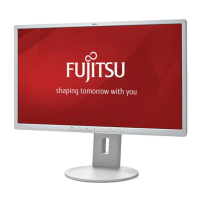
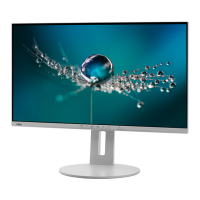
Fujitsu P27-8 TE Pro - User Manual

Fujitsu P27-8 TE Pro
53 pages
Print Icon
To Next Page IconTo Next Page
Loading...
Display
Operating Manual
FUJITSU Display
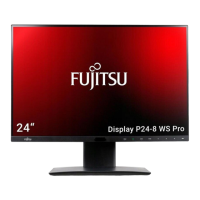
P24-8 WS Pro / P24-8 WE Pro
P27-8 TS Pro / P27-8 TE Pro

Questions and Answers

  • M
    Mary CarpenterSep 8, 2025
    Why nothing is heard from the other side during a call using Fujitsu Monitor?
    • C
      Cody MitchellSep 8, 2025
      If you can't hear the other party during a call using your Fujitsu Monitor, ensure that the USB headset or USB telephone conference system is set as the primary device for voice calls in Microsoft Lync / Skype for Business. "Fujitsu Call Indicator" must not be selected as the primary device for voice calls.
  • K
    Kristina WilliamsSep 7, 2025
    Why is Fujitsu Monitor screen becoming darker?
    • C
      Colin PhillipsSep 7, 2025
      The screen of your Fujitsu Monitor may be becoming darker because the background lighting has a limited lifetime. Contact our Service Desk.
  • K
    Kenneth SmithAug 22, 2025
    What to do if the picture is wrongly adjusted on my Fujitsu Monitor?
    • M
      Mario BushAug 22, 2025
      If the picture on your Fujitsu Monitor is wrongly adjusted, try running the Factory Recall function. The Auto Processing message will then appear.
  • C
    Christopher MahoneySep 4, 2025
    Why is my Fujitsu Call Indicator not recognised by the operating system?
    • A
      Amy OrozcoSep 4, 2025
      If the Fujitsu Call Indicator is not recognized by the operating system, verify that the monitor is connected to the computer using the supplied USB cable and check if Call Indicator is enabled in the OSD menu.
  • A
    Audrey MurraySep 3, 2025
    What to do if Fujitsu Monitor picture is wrongly adjusted?
    • G
      gstevensSep 3, 2025
      If the picture on your Fujitsu Monitor is wrongly adjusted, try running the Factory Recall function.
  • N
    Natalie JensenSep 1, 2025
    Why is Fujitsu P27-8 TE Pro Monitor picture position not correct?
    • J
      Jennifer McleanSep 1, 2025
      If the picture position on your Fujitsu Monitor is not correct, it might be recognizing an undefined mode. Try running the Auto adjust function.
  • E
    Eric WeaverAug 31, 2025
    What to do if Fujitsu P27-8 TE Pro Monitor picture disturbances appear (horizontal lines, picture noise)?
    • J
      joshuamitchellAug 31, 2025
      If you observe horizontal lines or picture noise on your Fujitsu Monitor, try running the Auto adjust function.
  • T
    Tammy QuinnAug 30, 2025
    What to do if Fujitsu Monitor picture disturbances appear (vertical lines)?
    • M
      Michael WardAug 30, 2025
      If you are experiencing picture disturbances such as vertical lines on your Fujitsu Monitor, try running the Auto adjust function.
  • J
    Jade FoleyAug 28, 2025
    What to do if Fujitsu P27-8 TE Pro Monitor displays 'Frequency out of range' error?
    • S
      Stacy CarterAug 28, 2025
      If your Fujitsu Monitor shows a 'Frequency out of range' message, it means the input signal doesn't match the monitor's technical specifications. Adjust the video frequency range using your computer's software or set a different screen resolution.
  • H
    hblackAug 27, 2025
    What to do if Fujitsu Monitor picture is shaking?
    • S
      Steven ThomasAug 27, 2025
      If the picture on your Fujitsu Monitor is shaking, check that the data cable is correctly attached to the monitor port on the computer. You can also try running the Auto adjust function.

Summary

Important Notes

Safety Instructions

Details critical safety precautions for device operation and handling.

Power Cable

Transporting the Device

Getting Started

Setting up the Device

Setting up an Ergonomic Video Workstation

Adjusting Height

Adjusting the Inclination

Adjusting the Rotation

Removing Monitor Base

Connecting the Device

Connecting Cables to the Monitor

Connecting Cables to the Computer

Operation

Using the Daisy Chain Function

Changing the Monitor Settings

Functions of the Control Panel and the OSD Menu

Setting Screen Display

Configuring the OSD Menu

Advanced Setting Functions

Activate;Deactivate ECO Operating Mode

Selecting the Input Signal

Selecting the Application Mode

Setting Colour Temperature and Colours

Adjusting the Brightness and Contrast

Locking the OSD Menu

Lock the ON;OFF Button

Notes on the Program DisplayView Click

Presence Sensor

Automatic Pivot Function

Driver Installation

Notes on Power Management

Notes on Low Blue Light Mode

Notes on Ergonomic Colour Adjustment

Troubleshooting

Technical Specification

Preset Operating Modes

Fujitsu P27-8 TE Pro Specifications

General IconGeneral
BrandFujitsu
ModelP27-8 TE Pro
CategoryMonitor
LanguageEnglish

Related product manuals