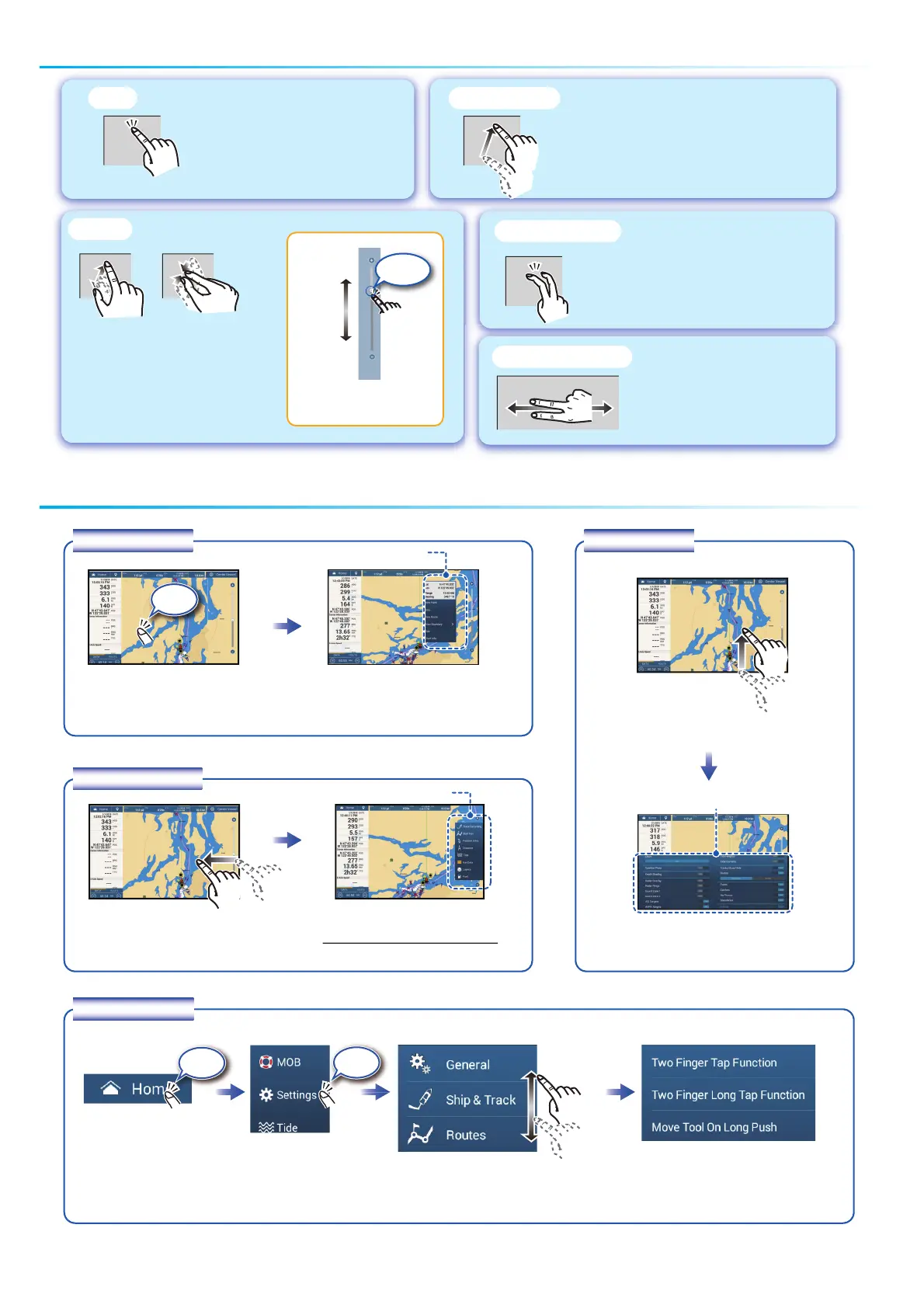
Touchscreen operations
Menu operation
Pop-up menu
Tap screen (applicable
point, object, etc.)
Tap the required function.
(”>” indicates additional options.)
Layers menu
Tap the required function.
Slide-out menu
Tap the required function.
Slide-out menuSlide-out menuSlide-out menu
Slide-out menuSlide-out menu
Swipe leftward from the right edge.
Icon color and function state
Yellow: ON, White: OFF
Tap the [Home] icon.
Tap [Settings].
Drag menu to find required
item, then tap item.
Tap the required option.
Settings menu
Swipe upward from
the bottom edge.
Layers menuLayers menuLayers menu
Layers menuLayers menu
2
Pop-up menuPop-up menuPop-up menu
Pop-up menuPop-up menu
Tap
- Select an item on a menu.
- Tap the display or an object to
show the corresponding pop-up
menu.
- Move the chart.
- Scroll the menu.
- Show Slide-out menu, Layers menu.
Drag, swipe
Zoom in Zoom out
Pinch
- Zoom in, zoom out the plotter
and weather displays.
- Change the range on the radar
display, fish finder display.
Slider barSlider barSlider bar
Slider barSlider bar
Drag
Zoom
in
Zoom
in
Zoom
out
Zoom
out
Tap operation also
available.
Do the function assigned to
[Two Finger Tap Function] in
the [Settings] - [General] menu.
Two finger tap
Two finger drag
Change the viewpoint
position on the 3D display.
Tap
Tap
Tap







 To Next Page