51838165X87NXS_V_1_1.DOC
36/75
Inda
- Reload the data into the EEPROM and restore the factory settings
1. Press [ENTER] for 3 seconds to enter the main menu (display flashing).
2. Select “INDA” by pressing [UP] button.
3. Press [ENTER], the display shows “ON” or “OFF”.
4. Press [UP] to select “ON” if you wish to enable this function or “OFF” if you don’t.
5. Press [ENTER] to confirm
6. Press the Exit/Down-button in order to return to the main menu..
Lamp
- Switch on/off the lamp
1. Press [ENTER] for 3 seconds to enter the main menu (display flashing).
2. Select „LAMP” by pressing [up] button.
3. Press [ENTER], the display shows “ON” or “OFF”.
4. Press [UP] to select “ON” if you wish to switch on the lamp or “OFF” if you wish to switch off the lamp.
5. Press [ENTER] to confirm
6. Press the Exit/Down-button in order to return to the main menu..
Ver
- Software version
1. Press [ENTER] for 3 seconds to enter the main menu (display flashing).
2. Select “VER” by pressing [UP] button.
3. Press [ENTER], the display shows “V-X.X”, “X.X “ stands for the version no. such as the display may
show “V-1.0”. “V-2.6” etc.
4. Press [ENTER] or [EXIT/DN] to exit.
- Make a test of the function of each channel
1. Press [ENTER] for 3 seconds to enter the main menu (display flashing).
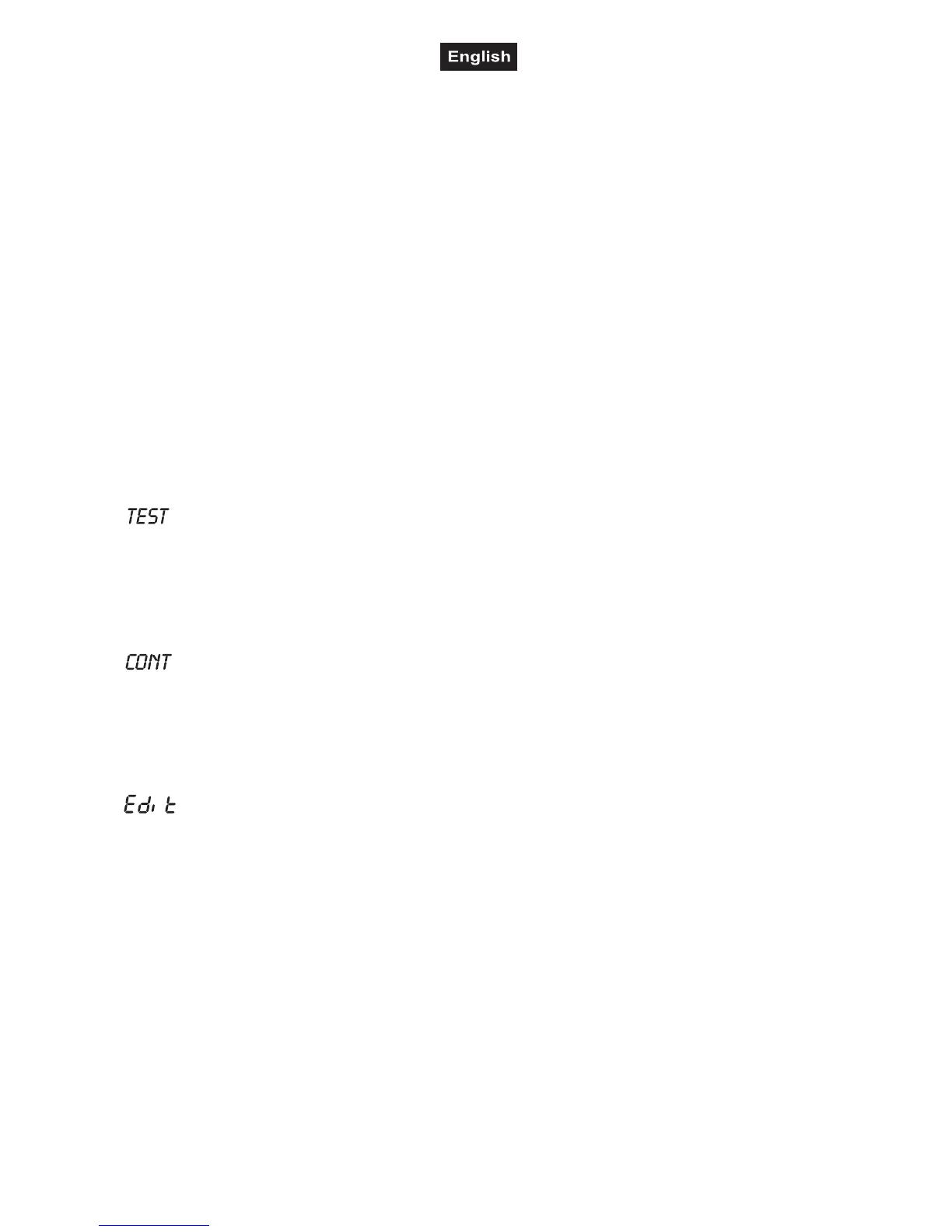
2. Select “tESt” by pressing [UP] button.
3. Press [ENTER], the display shows “tE-X”, “X” stands for the channel no.
4. The current channel will be tested.
5. Select the desired channel by pressing [UP] button.
6. Press [ENTER] or [EXIT/DN] to exit.
Define the number of steps in Run
5. Press [ENTER] for 3 seconds to enter the main menu (display flashing).
6. Select “CONT” by pressing [UP] button.
7. Press [ENTER], the display shows “CN-X”, “X” stands for the total amount of steps you want to save to
“RUN”, value “1-F”, so you can call up to 15 scenes in “RUN”. For example if the “X” is 5, it means that
“RUN” will run the first 5 scenes you saved in “EDIT”.
8. Press [ENTER] to save and exit.
- Editing the program
With this function you can edit the program to be called up in Run.
a) Editing via the Control Board
1. Press [ENTER] for 3 seconds to enter the main menu (display flashing).
2. Select “EDIT” by pressing [UP] button.
3. Press [ENTER], the display shows “SCEX”, “X” stands for the scene no. to be edited, value “1-F”. Such as
“SCE1” means you will edit the scene 1.
4. Change the scene no. by pressing [UP],
5. Press [ENTER], the display shows “ParX”, “X” stands for the channel no. Such as “Par1”, it means you
are editing channel 1 of the selected scene.
6. Select the channel no. you would like to edit by pressing [UP].
7. Press [ENTER] to enter editing for the selected channel , the fixture reacts to your settings. The display
shows the DMX value of the edited channel. Such as “ 11XX”, it stands for in the channel 1 of the scene 1,
the DMX value is XX , XX is a hexadecimal number value “01-FF”.
8. Adjust the desired DMX value by pressing [UP] or [DN].
9. Press [ENTER] in order to editio other channels of this scene.
10. Repeat steps 5-9 until you finish setting all the DMX values for all channels of this scene.
11. Once all the channels completed, the display will flash “tINE”, “tINE” stands for the time needed to run
this scene.



 To Next Page