Hardware Description
p. 145
Drive Bay Installation/Removal
Accessing the Drive Bays
You do not need to access the inside of the chassis or remove power to replace or swap hard drives.
Proceed to the next step for instructions.
SAS/SATA Drive Installation
These drives are mounted in carriers to simplify their installation and removal from the chassis. The
carriers also help promote proper air ow for the drives. For this reason, even empty carriers without
hard drives installed must remain in the chassis.
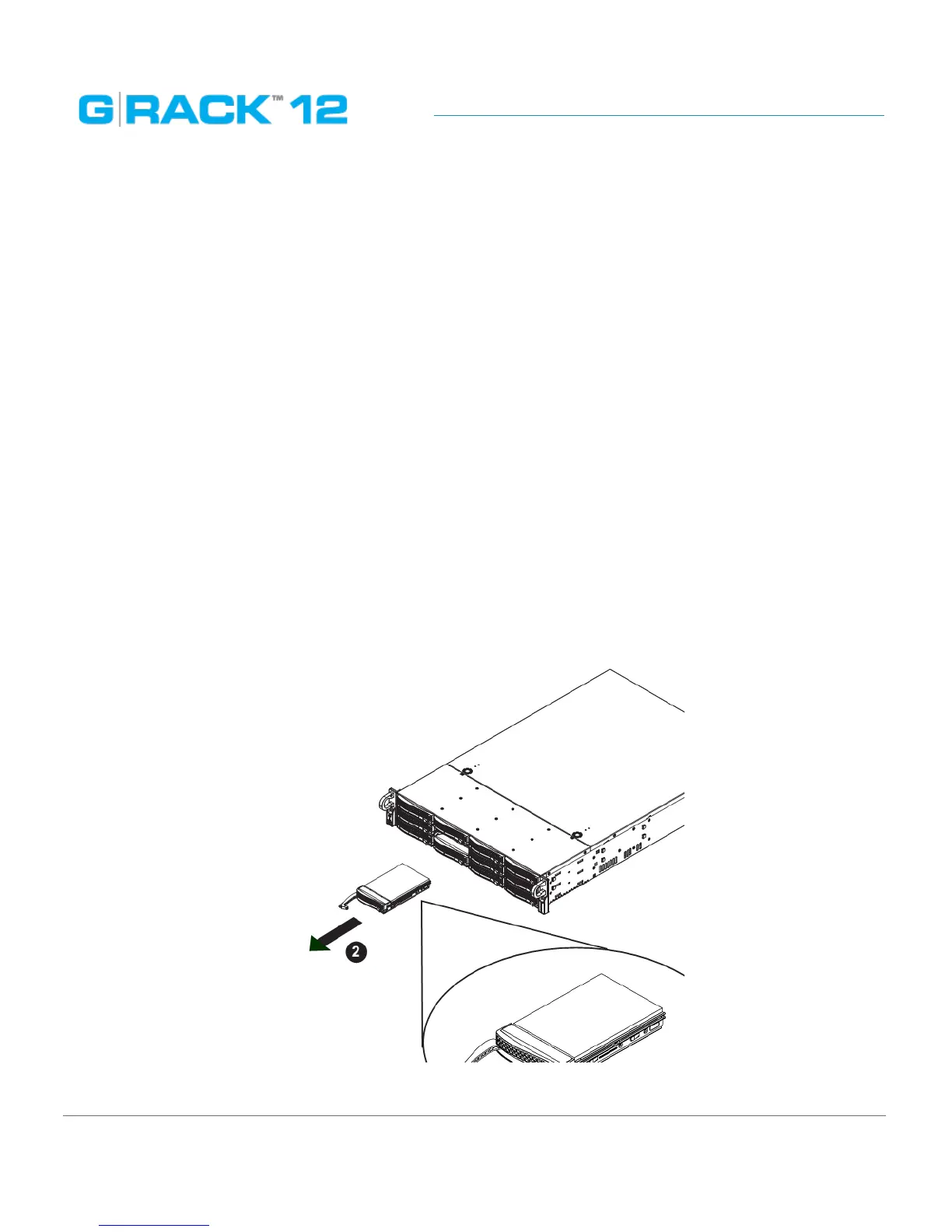
Removing a Drive Carrier
1. Push the release button located beside the drive’s LEDs.
2. Swing the handle fully out and use it to pull the drive carrier straight out (see Figure 6-5).
Mounting a Drive in a Drive Carrier
1. To add a new hard drive, install the drive into the carrier with the printed circuit board side
facing down so that the mounting holes align with those in the carrier.
2. Secure the drive to the carrier with screws, as shown in Figure 6-6.
Caution: Enterprise level hard disk drives are recommended for use in the G-RACK 12.
Removing a Hard Drive Carrier


 To Next Page