G-RAID Installation Guide
Pa
e 10
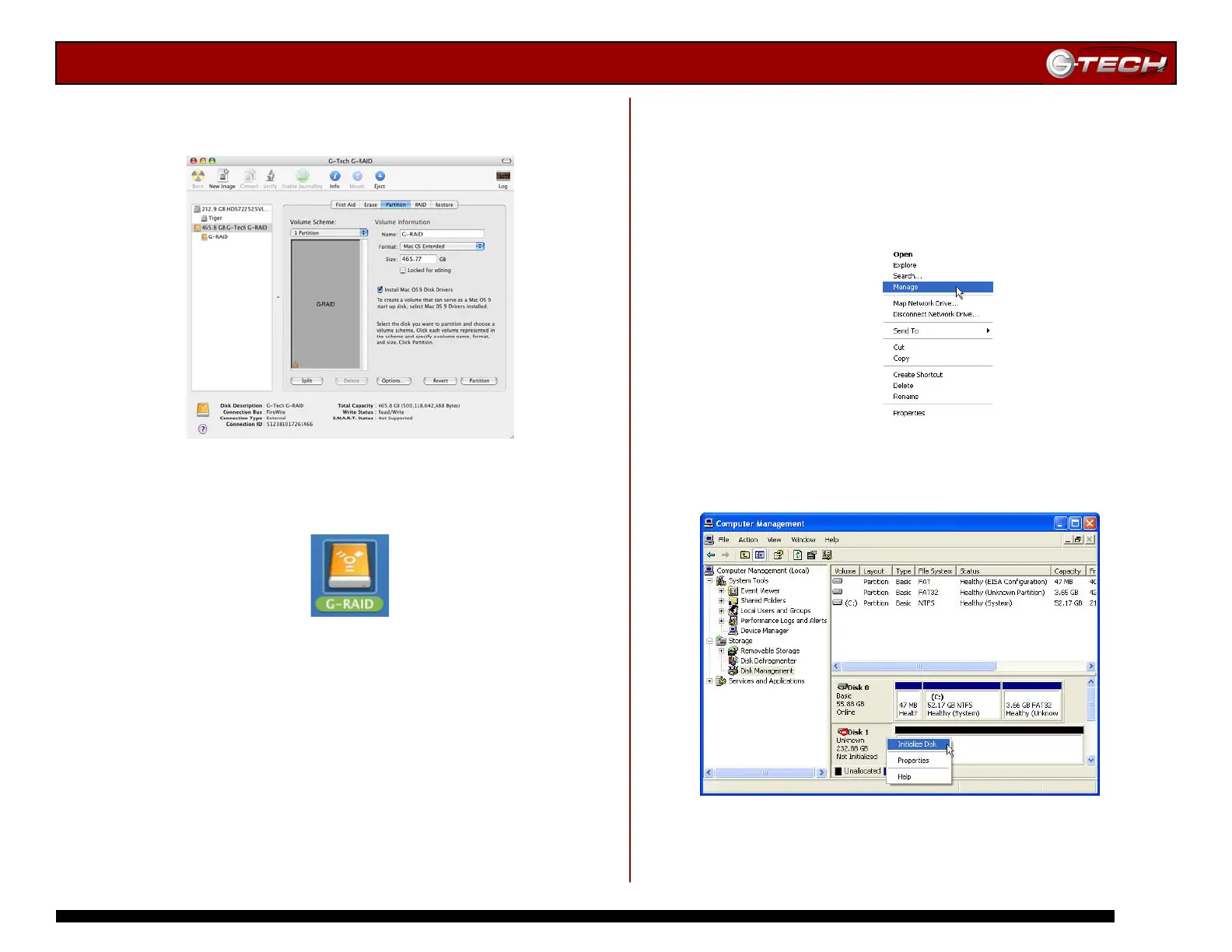
6. When partitioning is complete, G-RAID will be displayed
in the left-hand panel as shown below.
7. Exit the Apple Disk Utility.
8. G-RAID will be displayed on the desktop as shown below.
G-RAID is now set up for use!!
8.2 Windows 2000/XP
1. Power on G-RAID, wait 10 seconds, then power on your
computer.
2. Open the Disk Management utility by right-clicking on
the My Computer icon on the desktop and selecting
“Manage” from the drop down menu as shown below.
3. The Computer Management console will appear as shown
below. Click on “Disk Management” in the left-hand panel.
G-RAID is identified as Disk 1 in this example.
Right click on Disk 1 and select Initialize Disk from the
pull-down menu as shown. The window shown on the next
page will appear.












 To Next Page