Overview Of Main Components (Continued):
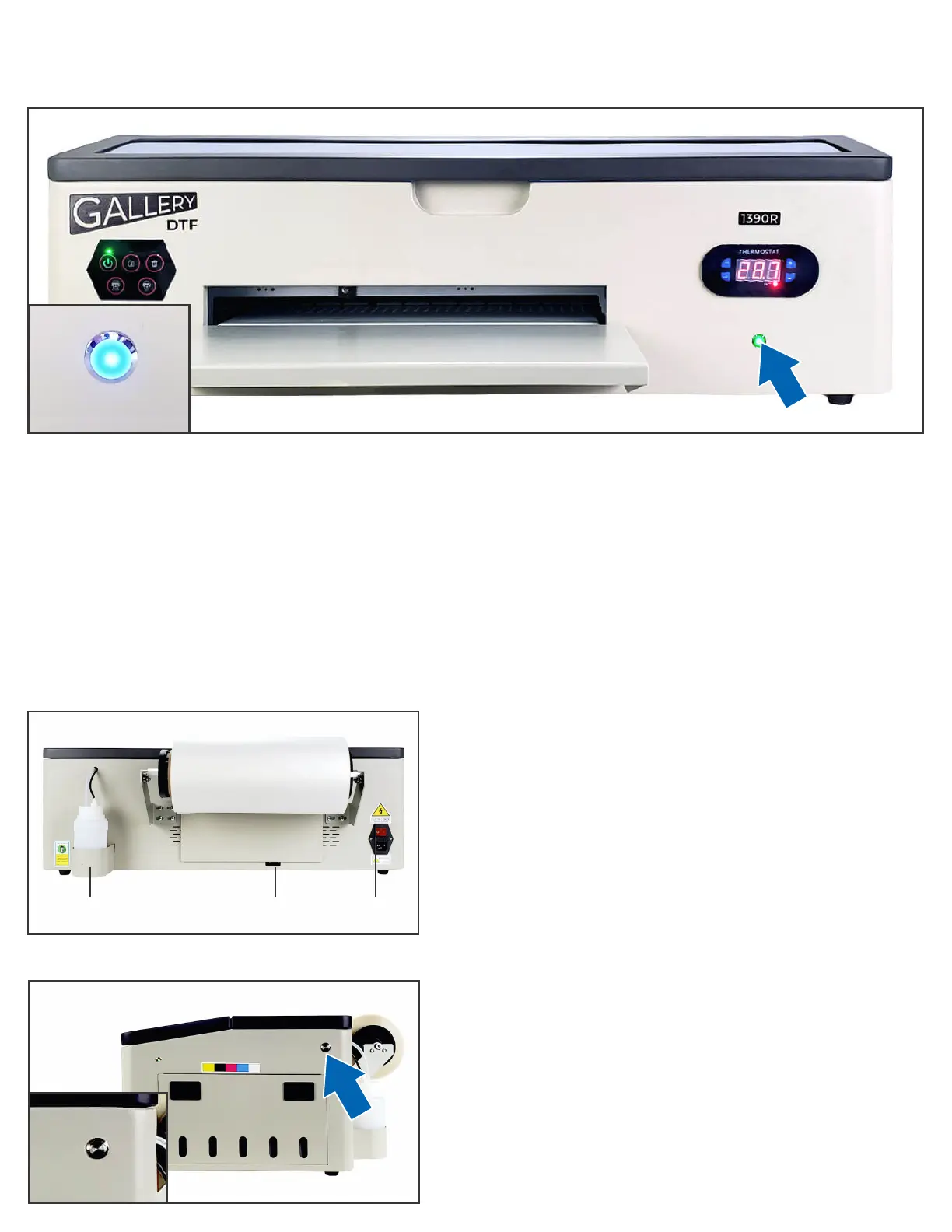
LED To Monitor White Ink Circulation
The front right side of the printer has an LED show ink circulation status
BLUE = all parts of the ink circulation system are active and functioning correctly
GREEN - white ink stirring in the tanks is actively occurring
PURPLE - white ink circulation through the lines is actively occurring
A quick glance from across the room gives you the condence to know that all is well with the printer
Back Of The Printer
The back of the printer has the USB port to connect to a
Windows PC, as well as the main printer power switch.
The main power switch should always be left ON so that
automatic ink circulation can occur.
The back of the printer also has screw holes to attach the
lm roller and holes for the waste ink bottle.
Waste Ink Bottle USB Port Main Power
Switch
Right Side Of Printer
The right side of the printer has the rellable ink tanks and
the Auto-ink-priming button
The Auto-ink-priming button avoids the need for needles.
Press and hold to pull ink through the lines
Auto-Ink-Priming
Button
LED To Monitor White
Ink Circulation


 To Next Page