i.
ii.
iii.
iv.
i.
ii.
iii.
iv.
i.
ii.
iii.
iv.
v.
vi.
vii.
On the home screen, swipe down.
Tap the ''Sunshine'' icon.
Adjust the screen brightness by pressing the ''-'' or ''+''
button. Swipe right to exit screen brightness adjustment.
Open the GloryFit app.
Go to "Device."
Go to "Light up."
Enable "Closed" by tapping the button on the right.
The duration of the bright screen is adjustable. (5, 10 or 15 seconds).
Open the GloryFit app.
Go to "Device."
Go to "Do not disturb."
Enable do not disturb by pressing the button next to "Set the time."
Set the start and end time for when you want to enable the do not disturb
feature.
You can also turn off the vibration function by pressing the button next to
"Vibration mode off."
You can also turn off messages by pressing the button next to "Message off."
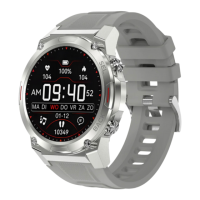
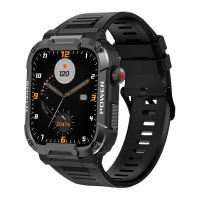
Screen settings can be changed in both the Gard Pro itself and in the
GloryFit app.
d. Adjust bright screen duration:
c. Adjust the brightness of your screen:
b. Automatically turn on screen when turning on:
a. Enable the do not disturb feature on your Gard Pro Ultra:
ULTRA
PAGE 04
4. SCREEN ACTIVITY AND DISPLAY
i.
ii.
iii.
iv.
On the home screen, swipe down.
Select settings.
Then press ''Brightness'' the light icon.
Here you can select the desired screen time.


 To Next Page