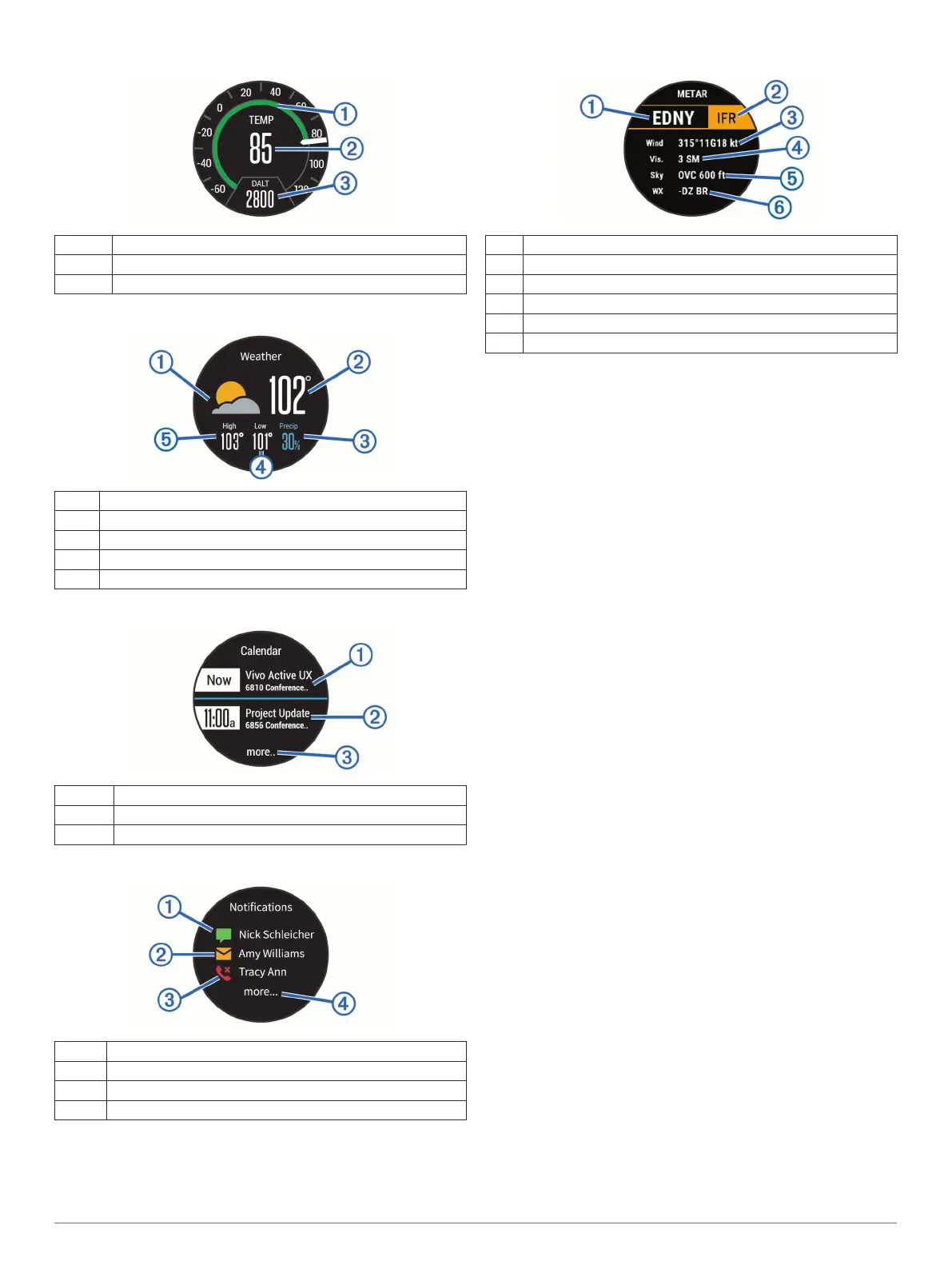
Temperature
À
Analog temperature
Á
Digital temperature
Â
Density altitude
Weather
À
Current weather conditions
Á
Current temperature
Â
Chance of precipitation
Ã
Daily low temperature
Ä
Daily high temperature
Calendar
À
Current activity
Á
Next activity
Â
Additional activities
Notifications
À
Instant message
Á
Email
Â
Missed phone call
Ã
Additional notifications
METAR
À
Nearest airport identifier
Á
Aviation flight category
Â
Wind direction, speed, and gusts
Ã
Visibility in statute miles
Ä
Sky conditions
Å
Weather conditions
Customizing the Widget Loop
You can show, hide, or move items in the widget loop.
1
Hold UP.
2
Select Settings > Widgets.
3
Select a widget.
4
Select an option:
• Select Status to show or hide the widget from the widget
loop.
• Select Move Up or Move Down to change the location of
the widget in the widget loop.
VIRB Remote
The VIRB remote function allows you to control your VIRB
action camera using your device. Go to www.garmin.com/VIRB
to purchase a VIRB action camera.
Controlling a VIRB Action Camera
Before you can use the VIRB remote function, you must enable
the remote setting on your VIRB camera. See the VIRB Series
Owner's Manual for more information. You must also set the
VIRB widget to be shown in the widget loop (Customizing the
Widget Loop, page 18).
1
Turn on your VIRB camera.
2
On your D2 Bravo device, select UP or DOWN from the
watch face to view the VIRB widget.
3
Wait while the device connects to your VIRB camera.
4
Select an option:
• To record video, select START.
The video counter appears on the D2 Bravo screen.
• To stop recording video, select STOP.
• To take a photo, select DOWN.
Customizing Your Device
Activity App Settings
These settings allow you to customize each preloaded activity
app based on your needs. For example, you can customize data
pages and enable alerts and training features. Not all settings
are available for all activity types.
Hold UP, select Settings > Apps, and select an activity.
Data Screens: Enables you to customize data screens for the
activity (Customizing the Data Screens, page 19). You can
also show or hide a map data screen for some activities.
Auto Fly: In watch mode, allows a flight activity to begin
automatically when the detected climb rate exceeds a
18 Customizing Your Device



 To Next Page