specified speed. The activity stops when the ground speed
drops below 30 kn for a specified time.
Alerts: Sets the training or navigation alerts for the activity.
Flight Timer: From the Fly app, allows the flight timer to start
and stop automatically when your ground speed exceeds
30 kn.
Nautical Dist.: Displays distances in nautical units.
Nautical Spd.: Displays your speed in nautical units.
Metronome: Plays tones at a steady rhythm to help you
improve your performance by training at a faster, slower, or
more consistent cadence (Using the Metronome, page 7).
Auto Lap: Sets the options for the Auto Lap
®
feature (Auto Lap,
page 20).
Auto Pause: Sets the device to stop recording data when you
stop moving or when you drop below a specified speed
(Enabling Auto Pause
®
, page 20).
Auto Climb: Enables the device to detect elevation changes
automatically using the built-in altimeter.
Auto Run: Enables the device to detect ski runs automatically
using the built-in accelerometer.
3D Speed: Calculates your speed using your elevation change
and your horizontal movement over ground (3D Speed and
Distance, page 20).
3D Distance: Calculates your distance traveled using your
elevation change and your horizontal movement over ground.
Lap Key: Enables you to record a lap or a rest during the
activity.
Auto Scroll: Enables you to move through all of the activity data
screens automatically while the timer is running (Using Auto
Scroll, page 20).
GPS: Sets the mode for the GPS antenna (UltraTrac,
page 20).
Pool Size: Sets the pool length for pool swimming (Going for a
Pool Swim, page 8).
Stroke Detect.: Enables stroke detection for pool swimming.
Timeout: Sets the power-save timeout setting for the activity
(Power Save Timeout Settings, page 20).
Background Color: Sets the background color of each activity
to black or white.
Accent Color: Sets the accent color of each activity to help
identify which activity is active.
Status: Shows or hides the activity in the apps list.
Move Up: Adjusts the position of the activity in the apps list.
Move Down: Adjusts the position of the activity in the apps list.
Remove: Deletes the activity.
NOTE: This deletes the activity from the apps list and all
user-entered activity settings. You can restore all of the
device settings to the factory default values to add a removed
activity back to the list (Restoring All Default Settings,
page 24).
Rename: Sets the activity name.
Customizing the Data Screens
You can show, hide, and change the layout and content of data
screens for each activity.
1
Hold UP.
2
Select Settings > Apps.
3
Select the activity to customize.
4
Select Data Screens.
5
Select a data screen to customize.
6
Select an option:
• Select Status to turn the data screen on or off.
• Select Layout to adjust the number of data fields on the
data screen.
• Select a field to change the data that appears in the field.
Adding a Map to an Activity
You can add the map to the data screens loop for an activity.
1
Hold UP.
2
Select Settings > Apps.
3
Select the activity to customize.
4
Select Data Screens > Map.
5
Select Status to turn the map on or off.
6
Select Orientation.
7
Select an option:
• To show north at the top of the page, select North Up.
• To show your current direction of travel toward the top of
the page, select Track Up.
8
Select User Locations to show or hide saved locations on
the map.
9
Select Auto Zoom to select automatically the optimal zoom
level for the map.
When Off is selected, you must zoom in or out manually.
Alerts
You can set alerts for each activity, which can help you to train
toward specific goals, to increase your awareness of your
environment, and to navigate to your destination. Some alerts
are available only for specific activities. There are three types of
alerts: event alerts, range alerts, and recurring alerts.
Event alert: An event alert notifies you once. The event is a
specific value. For example, you can set the device to alert
you when you reach a specified elevation.
Range alert: A range alert notifies you each time the device is
above or below a specified range of values. For example, you
can set the device to alert you when your heart rate is below
60 beats per minute (bpm) and over 210 bpm.
Recurring alert: A recurring alert notifies you each time the
device records a specified value or interval. For example, you
can set the device to alert you every 30 minutes.
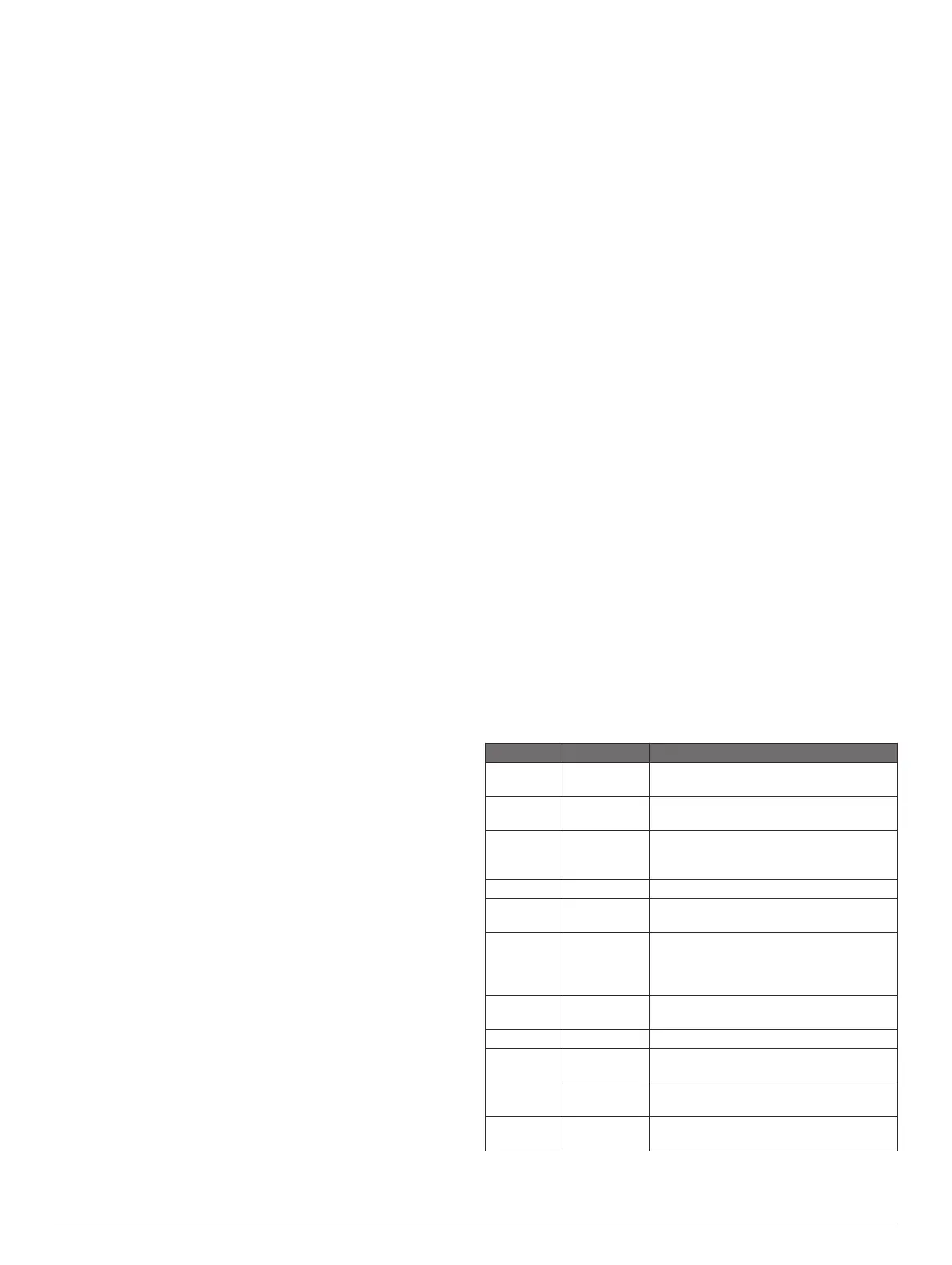
Alert Name Alert Type Description
Cadence Range You can set minimum and maximum
cadence values.
Calories Event,
recurring
You can set the number of calories.
Custom Recurring You can select an existing message or
create a custom message and select an
alert type.
Distance Recurring You can set a distance interval.
Elevation Range You can set minimum and maximum
elevation values.
Heart Rate Range You can set minimum and maximum heart
rate values or select zone changes. See
About Heart Rate Zones, page 10 and
Heart Rate Zone Calculations, page 10.
Pace Range You can set minimum and maximum pace
values.
Power Range You can set the high or low power level.
Run/Walk Recurring You can set timed walking breaks at
regular intervals.
Speed Range You can set minimum and maximum
speed values.
Time Event,
recurring
You can set a time interval.
Setting an Alert
1
Hold UP.
Customizing Your Device 19



 To Next Page