Formatting the Memory Card
The device requires a memory card formatted using the FAT32 file system. You can use the device to format
your card using this file system. You should format your memory card at least one time every 6 months to help
extend the useful life of the memory card. You must also format a brand new memory card.
NOTE: Formatting the memory card deletes all videos and data on the card.
1 Connect the camera to power using the included vehicle power adapter and a USBcable.
The camera turns on. If the memory card is not correctly formatted in FAT32 format, the status LED flashes
yellow.
2 Hold for eight seconds.
The status LED turns green while the card is formatting.
When formatting is complete, the status LED turns red and the camera begins recording.
Pairing with Your Smartphone
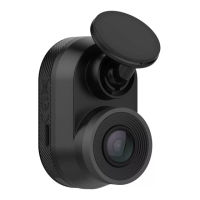
You can pair your Garmin Dash Cam Mini 3 camera with your smartphone and the Garmin Drive app. The
Garmin Drive app allows you to set up a multiple-camera network, change camera settings, and view, edit, and
save videos. You can also upload, manage, and share videos on a secure, online storage drive using the Vault.
NOTE: Remote Wi‑Fi
®
network features and Vault features require a paid subscription (Subscribing to Vault,
page11).
1 From the app store on your smartphone, install the Garmin Drive app.
2 Connect the camera to power using the included vehicle power adapter and cable.
The camera turns on.
3 Place the camera and your smartphone within 3m (10ft.) of each other.
4 On your phone, open the Garmin Drive app.
5 Select an option:
• If this is the first Garmin
®
device you are pairing with your smartphone, accept the Garmin Drive app
license agreements.
• If you are pairing an additional Garmin camera with your smartphone, select Add Another Device.
6 Select Garmin Dash Cam Series.
7 On your camera, press and hold until the status LEDflashes blue.
8 Follow the on-screen instructions to complete the pairing and setup process.
After pairing is complete, the main app dashboard appears. After the camera and smartphone are paired, they
connect automatically when they are turned on and within range.
Pairing with Your Smartphone 5


 To Next Page