EasyManua.ls Logo

Garmin Echo 150 - Understanding the Sonar Screen; Depth Scale Adjustment; Manual Sonar Zoom

Garmin Echo 150
20 pages
Print Icon
To Next Page IconTo Next Page
To Previous Page IconTo Previous Page
Loading...
Using
the
echo
1
00
an~
echo
1_50
__
.
Using
the
echo
100
and
echo
150
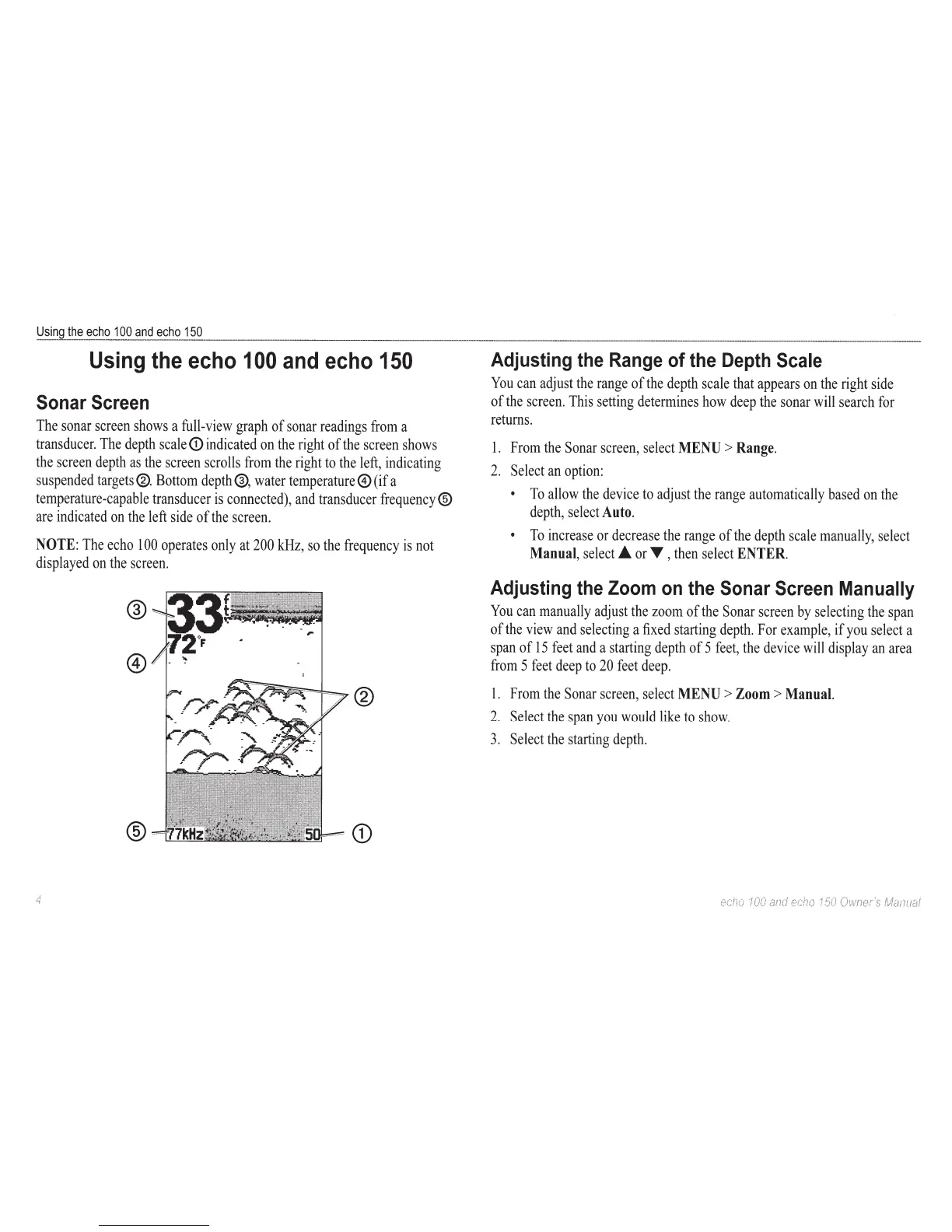
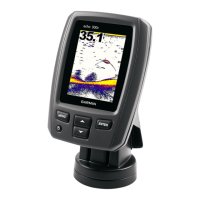
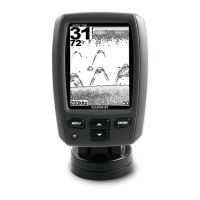
Sonar
Screen
The
sonar
screen
shows
a
full-view
graph
of
sonar
readings
from
a
transducer.
The
depth
scale
<D
indicated
on
the
right
of
the
screen
shows
the
screen
depth
as
the
screen
scrolls
from
the
right
to
the
left,
indicating
suspended
targets®.
Bottom
depth®,
water
temperature@
(if a
temperature-capable
transducer
is
connected),
and
transducer
frequency®
are
indicated
on
the
left
side
of
the
screen.
NOTE:
The
echo
100
operates
only
at
200kHz,
so
the
frequency
is
not
displayed
on
the
screen.
®
@
®
®
CD
4
Adjusting
the
Range
of
the
Depth
Scale
You
can
adjust
the
range
of
the
depth
scale
that
appears
on
the
right
side
of
the
screen.
This
setting
determines
how
deep
the
sonar
will
search
for
returns.
1.
From
the
Sonar
screen,
select
MENU
>
Range.
2.
Select
an
option:
To
allow
the
device
to
adjust
the
range
automatically
based
on
the
depth,
select
Auto.
To
increase
or
decrease
the
range
of
the
depth
scale
manually,
select
Manual,
select_.
or
T
,
then
select
ENTER.
Adjusting
the
Zoom
on
the
Sonar
Screen
Manually
You
can
manually
adjust
the
zoom
of
the
Sonar
screen
by
selecting
the
span
of
the
view
and
selecting
a
fixed
starting
depth.
For
example,
if
you
select
a
span
of
15
feet
and
a
starting
depth
of 5
feet,
the
device
will
display
an
area
from
5
feet
deep
to
20
feet
deep.
1.
From
the
Sonar
screen,
select
MENU
>
Zoom
>
Manual.
2.
Select
the
span
you
would
like
to
show.
3.
Select
the
starting
depth.

Related product manuals