EasyManua.ls Logo

Garmin Edge 200 - History; Viewing History; Transferring History to Your Computer

Garmin Edge 200
26 pages
Print Icon
To Next Page IconTo Next Page
To Previous Page IconTo Previous Page
Loading...
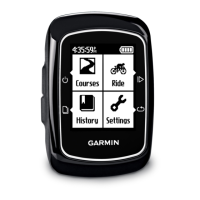
History
The
Edge
can
save
at
least
130
hours
of
ride
data
with
typical
use.
When
the
Edge
memory
is
full,
a
message
appears.
The
Edge
does
not
automatically
delete
or
overwrite
your
history.
See
page
9
to
learn
how
to
delete
history.
Upload
your
history
(page
8)
to
Garmin
Connect
periodically
to
keep
track
of
all
of
your
ride
data.
History
includes
time,
distance,
calories,
average
speed,
maximum
speed,
ascent
and
descent,
and
detailed
lap
information.
NOTE:
History
is
not
recorded
while
the
timer
is
stopped
or
paused.
Viewing
History
1.
Select
History.
2.
Select
an
option:
•
Last
Ride
•
Longest
Ride
•
Fastest
Ride
•
All
Rides
•
Odometer
3.
Use
.._
and
T
to
scroll
through
your
activities.
NOTE:
To
see
lap
data,
select
Options
>
Laps.
Transferring
History
to
Your
Computer
1.
Connect
the
USB
cable
to
a
USB
port
on
your
computer.
2.
Pull
up
the
weather
cap
from
the
mini-USB
port
<D.