To track your travel:
1. Navigate to “Tracking” on the main menu, then press the select key
2. Select “Start”
a. “Send interval”: How often the device will send its logged position data. Anything not
sent risks being lost once the device is turned off
b. “Log interval”: How often the device logs its position
c. “Points Sent”: How many location log points the device has sent
d. “Time Until Full”: How much longer the device could continue logging and sending
position data, assuming continuous battery power, i.e. memory. Usually this is not an
issue
3. The device will continue logging and sending position data as long as it is on. To stop logging
position, select “stop”
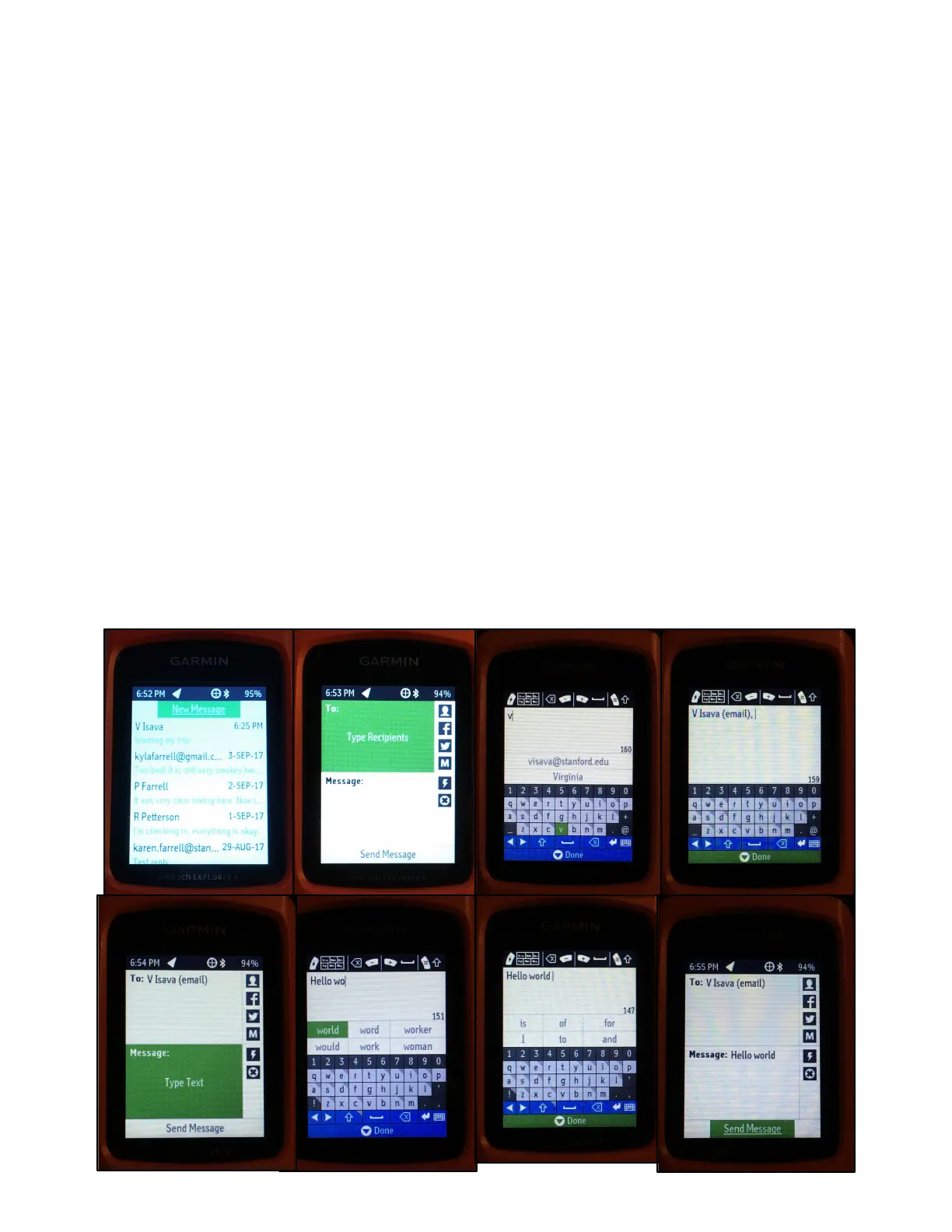
To send a text message on the device:
1. Navigate to “Messages” on the main menu, then press the select key
2. Select “New Message”
3. Select “To”
4. Move cursor to each letter and select to type a name or phone number. If the device recognizes
the name or number, it will offer options that you can select (e.g. You type in an “A” and
“Aaron” appears. You can select “Aaron” to send a message to his phone number). When
finished, select “Done” to return to the “Messages” menu
5. Select “Message”
6. Move cursor to each letter and select to type a word. The device will also offer word
suggestions that you can select. When finished, select “Done” to return to the “Messages” menu
7. Select “Send Message”
8. Your message will appear in the list of messages within the “Messages” feature. When the
spinning dots disappear and the target symbol is filled in, your message has sent successfully




 To Next Page