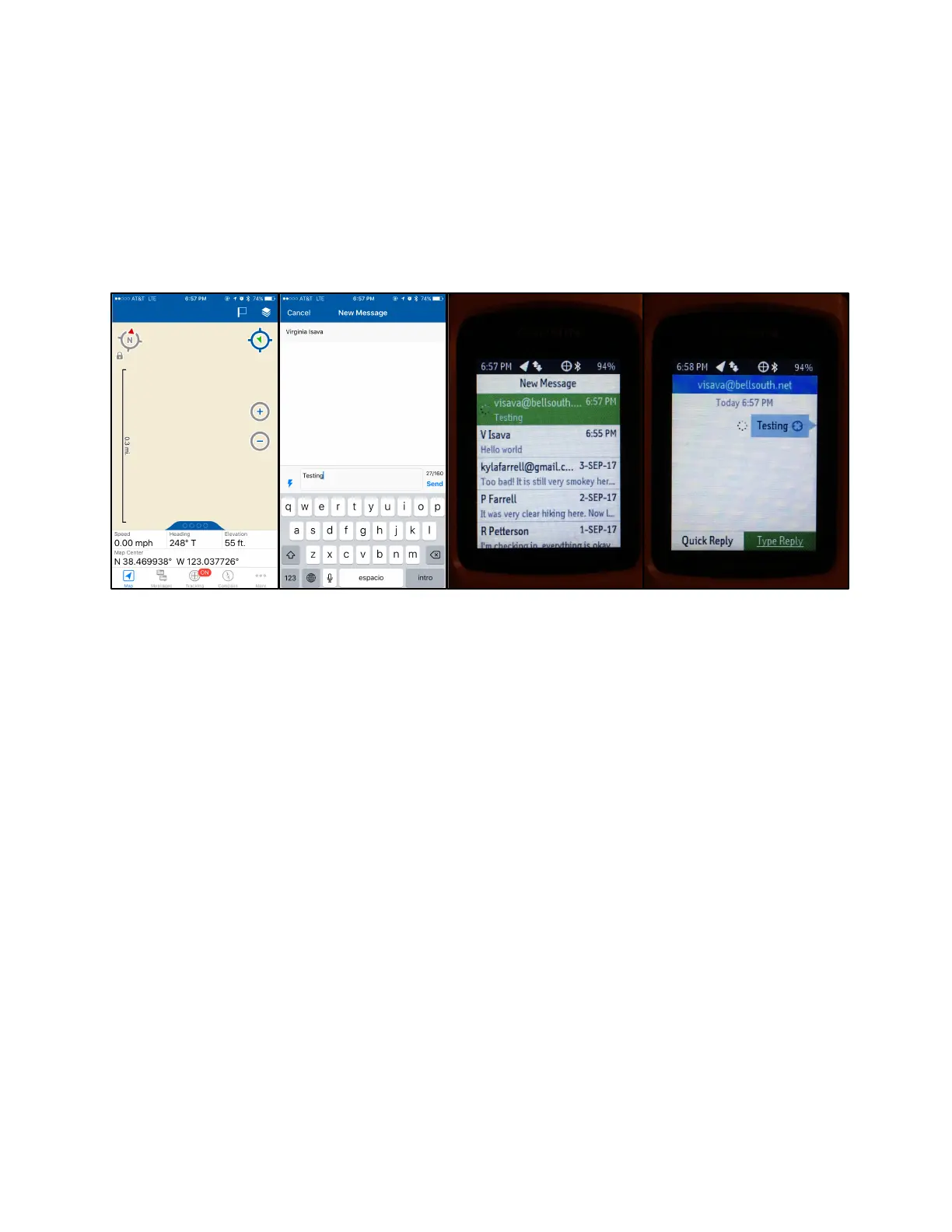
To send a text message on your iPhone:
1. On your iPhone, open the “Earthmate” app
2. Select “Messages”
3. Select the new message icon (a piece of paper with a pencil) in the top right corner of the screen
4. Input names, email addresses, or phone numbers as you regularly would on a phone
5. Type message, then press “Send” at the bottom of the screen
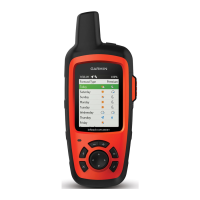
9. On the device, your message will appear in the list of messages within the “Messages” feature.
When the spinning dots disappear and the target symbol is filled in, your message has sent
successfully
To call for help:
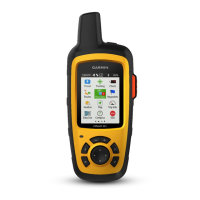
Option 1: Navigate to “SOS” on the main menu, then press the select key
Option 2:
1. Lift the protective cap off of the SOS key
2. Press and hold the SOS key
3. Wait for the SOS countdown (I think it’s 5 seconds – this gives you a chance to cancel if
the call was a mistake). After this point the device will send a default message to the
emergency response service with your location
4. On the device, reply to the confirmation message from the emergency response service
(this lets the emergency response service know that you are capable of interacting with
them during the rescue)
a. For the first 10 minutes of your rescue, an updated location is sent to the
emergency response service every minute. To conserve battery power after the
first 10 minutes, an updated location is sent every 10 minutes when moving and
every 30 minutes when stationary
To cancel an SOS rescue:
1. Lift the protective cap off of the SOS key
2. Press and hold the SOS key
3. During the 5-second SOS countdown, select “Cancel”
a. Your device will then transmit the cancellation request. When you receive a
cancellation message from the emergency response service, the device returns to
normal operation





 To Next Page