compass settings quickly, you can select START from the
compass widget.
Altimeter and Barometer
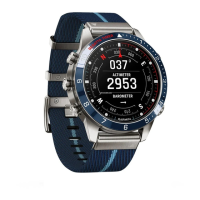
The device contains an internal altimeter and barometer. The
device collects elevation and pressure data continuously, even
in low-power mode. The altimeter displays your approximate
elevation based on pressure changes. The barometer displays
environmental pressure data based on the fixed elevation where
the altimeter was most recently calibrated (Altimeter Settings,
page 31). To open the altimeter or barometer settings quickly,
select START from the altimeter or barometer widgets.
History
History includes time, distance, calories, average pace or speed,
lap data, and optional sensor information.
NOTE: When the device memory is full, your oldest data is
overwritten.
Using History
History contains previous activities you have saved on your
device.
1
From the watch face, hold MENU.
2
Select History > Activities.
3
Select an activity.
4
Select an option:
• To view additional information about the activity, select All
Stats.
• To view the impact of the activity on your aerobic and
anaerobic fitness, select Training Effect (About Training
Effect, page 14).
• To view your time in each heart rate zone, select Heart
Rate (Viewing Your Time in Each Heart Rate Zone,
page 26).
• To select a lap and view additional information about each
lap, select Laps.
• To select an exercise set and view additional information
about each set, select Sets.
• To view the activity on a map, select Map.
• To delete the selected activity, select Delete.
Multisport History
Your device stores the overall multisport summary of the activity,
including overall distance, time, calories, and optional accessory
data. Your device also separates the activity data for each sport
segment and transition so you can compare similar training
activities and track how quickly you move through the
transitions. Transition history includes distance, time, average
speed, and calories.
Viewing Your Time in Each Heart Rate Zone
Viewing your time in each heart rate zone can help you adjust
your training intensity.
1
From the watch face, hold MENU.
2
Select History > Activities.
3
Select an activity.
4
Select Heart Rate.
Viewing Data Totals
You can view the accumulated distance and time data saved to
your device.
1
From the watch face, hold MENU.
2
Select History > Totals.
3
If necessary, select an activity.
4
Select an option to view weekly or monthly totals.
Using the Odometer
The odometer automatically records the total distance traveled,
elevation gained, and time in activities.
1
From the watch face, hold MENU.
2
Select History > Totals > Odometer.
3
Select UP or DOWN to view odometer totals.
Deleting History
1
From the watch face, hold MENU.
2
Select History > Options.
3
Select an option:
• Select Delete All Activities to delete all activities from the
history.
• Select Reset Totals to reset all distance and time totals.
NOTE: This does not delete any saved activities.
Customizing Your Device
Activities and App Settings
These settings allow you to customize each preloaded activity
app based on your needs. For example, you can customize data
pages and enable alerts and training features. Not all settings
are available for all activity types.
Hold MENU, select Activities & Apps, select an activity, and
select the activity settings.
3D Distance: Calculates your distance traveled using your
elevation change and your horizontal movement over ground.
3D Speed: Calculates your speed using your elevation change
and your horizontal movement over ground (3D Speed and
Distance, page 29).
Accent Color: Sets the accent color of each activity to help
identify which activity is active.
Alerts: Sets the training or navigation alerts for the activity.
Auto Climb: Enables the device to detect elevation changes
automatically using the built-in altimeter.
Auto Lap: Sets the options for the Auto Lap
®
feature (Auto Lap,
page 28).
Auto Pause: Sets the device to stop recording data when you
stop moving or when you drop below a specified speed
(Enabling Auto Pause, page 28).
Auto Run: Enables the device to detect ski runs automatically
using the built-in accelerometer.
Auto Scroll: Enables you to move through all of the activity data
screens automatically while the timer is running (Using Auto
Scroll, page 29).
Auto Set: Enables the device to start and stop exercise sets
automatically during a strength training activity.
Background Color: Sets the background color of each activity
to black or white.
ClimbPro: Displays ascent planning and monitoring screens
while navigating.
Countdown Start: Enables a countdown timer for pool
swimming intervals.
Data Screens: Enables you to customize data screens and add
new data screens for the activity (Customizing the Data
Screens, page 27).
Driver Distance: Sets the average distance the ball travels on
your drive while playing golf.
Edit Weight: Allows you to add the weight used for an exercise
set during a strength training or cardio activity.
26 History




 To Next Page