EasyManua.ls Logo

Garmin zumo 350LM - User Manual

Garmin zumo 350LM
24 pages
Print Icon
To Next Page IconTo Next Page
Loading...
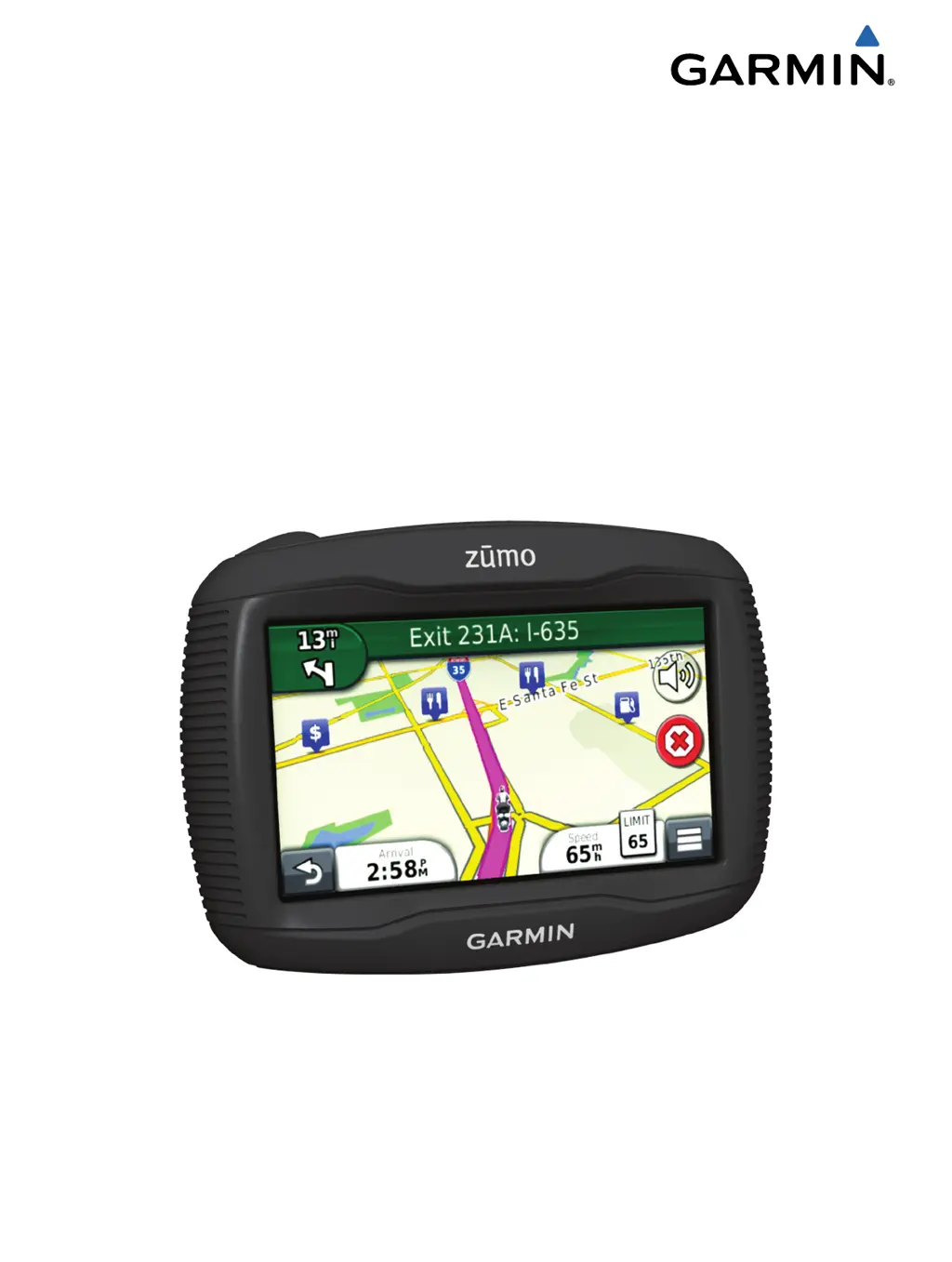
zūmo
®
300 Series
Owner’s Manual
June 2012 190-01457-00_0B Printed in Taiwan

Table of Contents

Other manuals for Garmin zumo 350LM

Questions and Answers

  • A
    Angela McintoshJul 26, 2025
    Why is my Garmin GPS not acquiring satellite signals?
    • B
      Brenda PerryJul 26, 2025
      Your Garmin GPS may not be acquiring satellite signals because the GPS simulator is turned on. Also, parking garages, tall buildings, and trees can block the signal. Try moving away from these obstructions and remaining stationary for several minutes.
  • T
    Tiffany ChavezJul 31, 2025
    What to do if my Garmin GPS device does not charge in my vehicle?
    • C
      christina39Jul 31, 2025
      If your Garmin GPS device isn't charging in your vehicle, check the fuse in the vehicle power cable. Make sure your vehicle is turned on and supplying power to the outlet. Note that the device can only charge between 32°F and 113°F (0°C and 45°C).
  • J
    Joshua ReyesAug 5, 2025
    How to fix Garmin zumo 350LM phone will not connect to the device?
    • J
      Jordan KellerAug 5, 2025
      To fix your Garmin GPS when your phone won't connect: * From the main menu, go to Settings > Bluetooth and ensure Bluetooth is enabled. * Turn on your phone and keep it within 33 feet (10 m) of the device.
  • L
    Lauren PriceAug 9, 2025
    How to make Garmin zumo 350LM battery stay charged longer?
    • K
      Keith BakerAug 10, 2025
      To extend the battery life of your Garmin GPS between charges, reduce the backlight setting.
  • J
    Jeffrey KleinAug 15, 2025
    What to do if Garmin GPS suction cup will not stay on windshield?
    • J
      Jaime PerezAug 16, 2025
      If the suction cup of your Garmin GPS won't stay on the windshield: 1. Clean the suction cup and the windshield using rubbing alcohol. 2. Dry both surfaces with a clean, dry cloth. 3. Mount the suction cup.
  • R
    Ryan VillanuevaAug 20, 2025
    How to fix Garmin GPS device not going into mass storage mode?
    • R
      Robert BrownAug 20, 2025
      If your Garmin GPS device isn't entering mass storage mode: 1. Disconnect the USB cable from your computer. 2. Turn off the device. 3. Plug the USB cable into a USB port on your computer and then into your device. The device will turn on automatically and enter USB mass storage mode. 4. Ensure your device is connected directly to a USB port on your computer, not a USB hub.

Summary

Getting Started and Device Mounting

Motorcycle Mounting Procedures

Detailed steps for mounting the device on a motorcycle, including cable connections and bases.

Automobile Mounting Procedures

Instructions for mounting the device in a car using a suction cup mount.

Device Setup, Updates, and Basic Operations

myDashboard and Device Registration

Setting up myDashboard, registering the device, and checking for software/map updates.

Power, Sleep, and Reset Functions

Managing device power, sleep mode, and resetting the device.

Display and Status Indicators

Adjusting screen brightness, volume, and understanding status bar icons.

Finding and Navigating to Locations

Location Search Methods

Using categories, search bars, addresses, coordinates, and map browsing to find places.

Saving, Managing, and Going Home

Saving locations, managing favorites, and navigating to home.

Navigation and Route Planning

Starting and Managing Routes

How to start routes, preview options, and use the navigation map.

Route Customization and Avoidances

Adjusting route calculation, avoiding roads/areas, and using detours.

Traffic Information and Exit Services

Finding Services and Understanding Traffic

Locating services at exits and interpreting traffic alerts and data.

Map Features and Customization

Map Display and Layers

Customizing map layers, data fields, buttons, dashboards, and perspective.

Turn and Route Visualization

Viewing upcoming turns, junctions, and the entire route on the map.

Hands-Free Voice Prompts and App Usage

Bluetooth Headset Integration

Pairing, connecting, and managing Bluetooth headsets for voice prompts.

Using Device Applications

Accessing and using applications like Trip Computer and Where Am I?.

Trip Planning and Service History

Trip Planner Features

Planning, scheduling, and navigating saved trips with various modes.

Service Record Management

Logging, adding, deleting, and renaming service history records and categories.

Device Utilities and Management

Clock, Calculator, and Unit Conversion

Using world clock, calculator, and converting units and currencies.

Traffic, Offers, and Language Guide

Managing traffic settings, viewing offers, and using the language guide.

Traffic Receiver and Subscription Management

Receiving and Understanding Traffic Data

How to receive traffic data, interpret icons, and view traffic on the map.

Adding and Managing Traffic Subscriptions

Purchasing and managing subscriptions for traffic services.

Data Management and Device Customization

Data Management and Storage

Storing files, managing memory cards, connecting to a computer, and deleting files.

Map and Vehicle Settings

Customizing map views, icons, themes, layers, and vehicle icons.

System Settings and Preferences

Navigation and Bluetooth Settings

Configuring navigation calculation, avoidances, and Bluetooth connectivity.

Display and Time Settings

Adjusting display brightness, timeout, and time formats.

Units, Language, and Device Information

Setting units, language, keyboard, and viewing device details.

Appendix: Power, Care, and Mounting

Device Power and Charging

Information on power cables, charging, and changing the vehicle power cable fuse.

Device Care and Theft Prevention

Cleaning the device, preventing theft, and extending battery life.

Mounting and Removing the Device

Instructions for dashboard mounting and removing the device, cradle, and mount.

Troubleshooting and Advanced Features

Troubleshooting Common Issues

Solutions for common problems like satellite acquisition, charging, and connectivity.

nüMaps Lifetime and Safety Cameras

Information on map updates, subscriptions, and safety camera features.

Garmin zumo 350LM Specifications

General IconGeneral
Marine (chartplotters, sounders)No
Live service-
Routes quantity100
Number of waypoints1000
Spoken street namesKeep your eyes on the road while your GPS announces turn-by-turn directions, including street and place names.
Form factorHandheld/Fixed
Product colorBlack
International Protection (IP) codeIPX7
Map coverageAll Europe
Display diagonal4.3 \
Display resolution480 x 272 pixels
Native aspect ratio16:9
Display size (HxV) (imperial)2.2 x 3.7 \
Storage media typeSSD
Compatible memory cardsMicroSD (TransFlash)
Number of built-in speakers1
Supported radio bandsNot supported
Power source typeBattery
Battery life (max)7 h
Cables includedUSB
Mac operating systems supportedMac OS X 10.4 Tiger, Mac OS X 10.5 Leopard, Mac OS X 10.6 Snow Leopard, Mac OS X 10.7 Lion
Weight and Dimensions IconWeight and Dimensions
Depth30 mm
Width130 mm
Height94 mm
Weight270 g

Related product manuals