6 -
Quick Start & Troubleshooting Guide
GETTING TO KNOW YOUR COMPUTER
Control Devices (Keyboard/Mouse)
Cordless Devices
The cordless mouse and keyboard normally connect automatically as soon as you turn your computer on. However,
if the cordless mouse and keyboard do not work after installation, you should try to manually establish
communication with the receiver.
Note:
The Keyboard/Mouse and Receiver shown below may not be the same as the Keyboard/Mouse supplied
with your computer. Check your InfoCentre documentation to see your Keyboard/Mouse specifications if they
are different from those shown below.
1. First check that the batteries for the keyboard and mouse are inserted correctly.
2. Then identify the mouse:
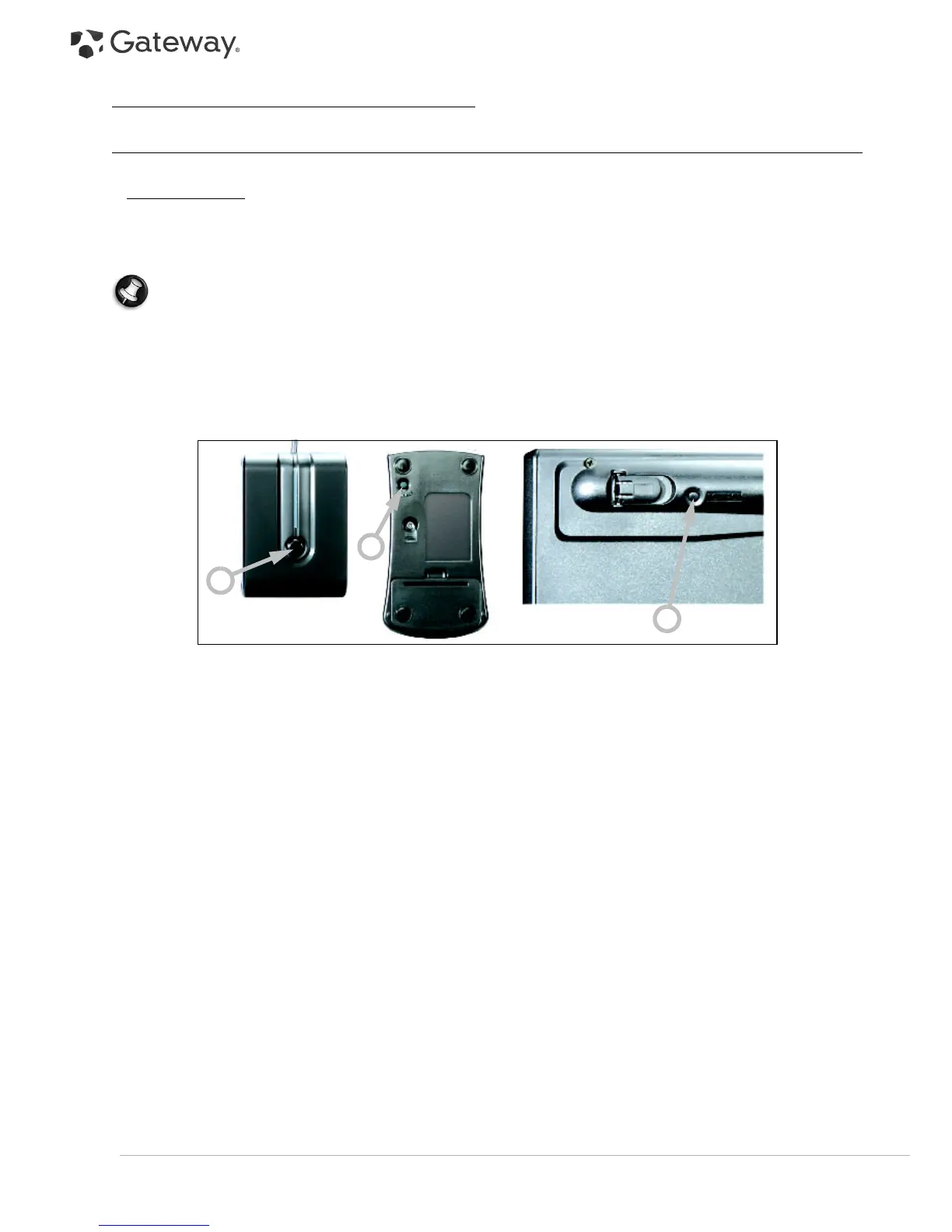
• Press the
connect button
on the receiver (A).
• Turn the mouse over.
• Use a thin object (such as a pen tip) to press the
connect button
on the mouse (B).
3. Wait 20 seconds.
4. Identify the keyboard:
• Press the
connect button
on the receiver (A).
• Turn the keyboard over.
• Use a thin object (such as a pen tip) to press the
connect button
on the keyboard (C).
A
B
C


 To Next Page