Setting up the optional stand www.gateway.com
10
Screen distance from user
The screen should first be placed at arm’s length from the user, then adjusted
back and forth to suit individual preference.
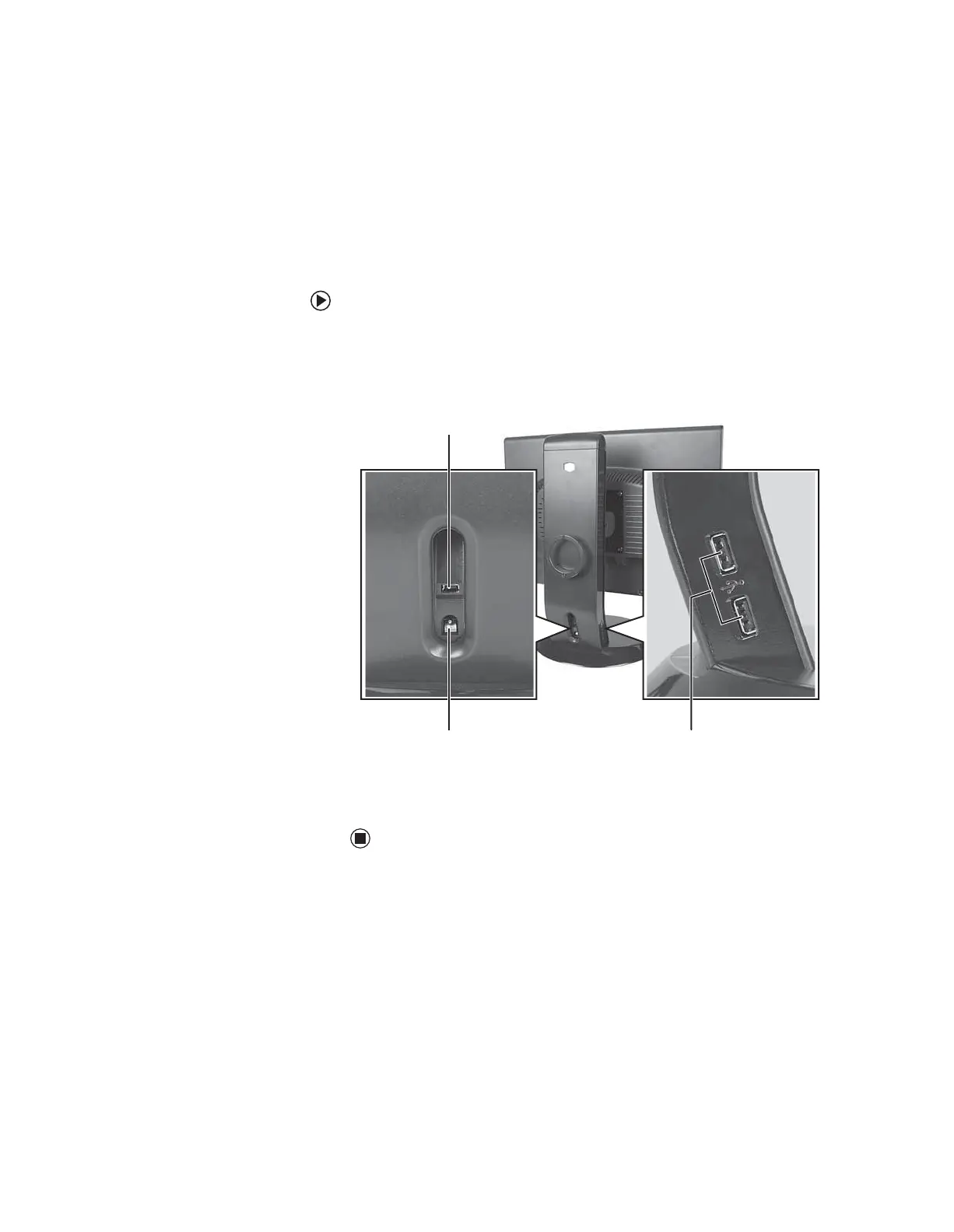
Connecting the USB hub
The optional USB stand has a built-in, 4-port, USB 2.0 hub. To use these USB
connectors, you need to connect the hub to power and to your computer.
To connect your USB stand’s built-in USB hub:
1 Plug the included USB cable into the USB In port on the back of your USB
stand and into a USB 2.0 port on your computer. If you connect the stand
to a USB 1.1 port on your computer, the stand’s USB hub operates in
USB 1.1 mode.
2 To provide full power to your stand’s USB ports, connect the AC power
adapter to the power connector on the back of your USB stand and into
an AC power outlet.
USB In port
Power connector USB 2.0 ports
8511654.book Page 10 Monday, July 24, 2006 11:00 AM


 To Next Page