Using Your Gateway Flat-panel Monitor
4
Setting up the optional stand
Attaching the USB stand
In the United States, you can buy an adjustable USB stand from www.gateway.com. The stand
can be adjusted for height, tilt, and screen rotation. When connected to your computer’s USB
port, you can connect as many as four USB devices to the USB 2.0 ports on the stand.
To attach the adjustable stand:
1 Make sure that the monitor is turned off.
2 Place the monitor face-down on a soft, non-marring surface. A non-slip mat on a tabletop
is ideal. Let the monitor base hang down over the edge of the table.
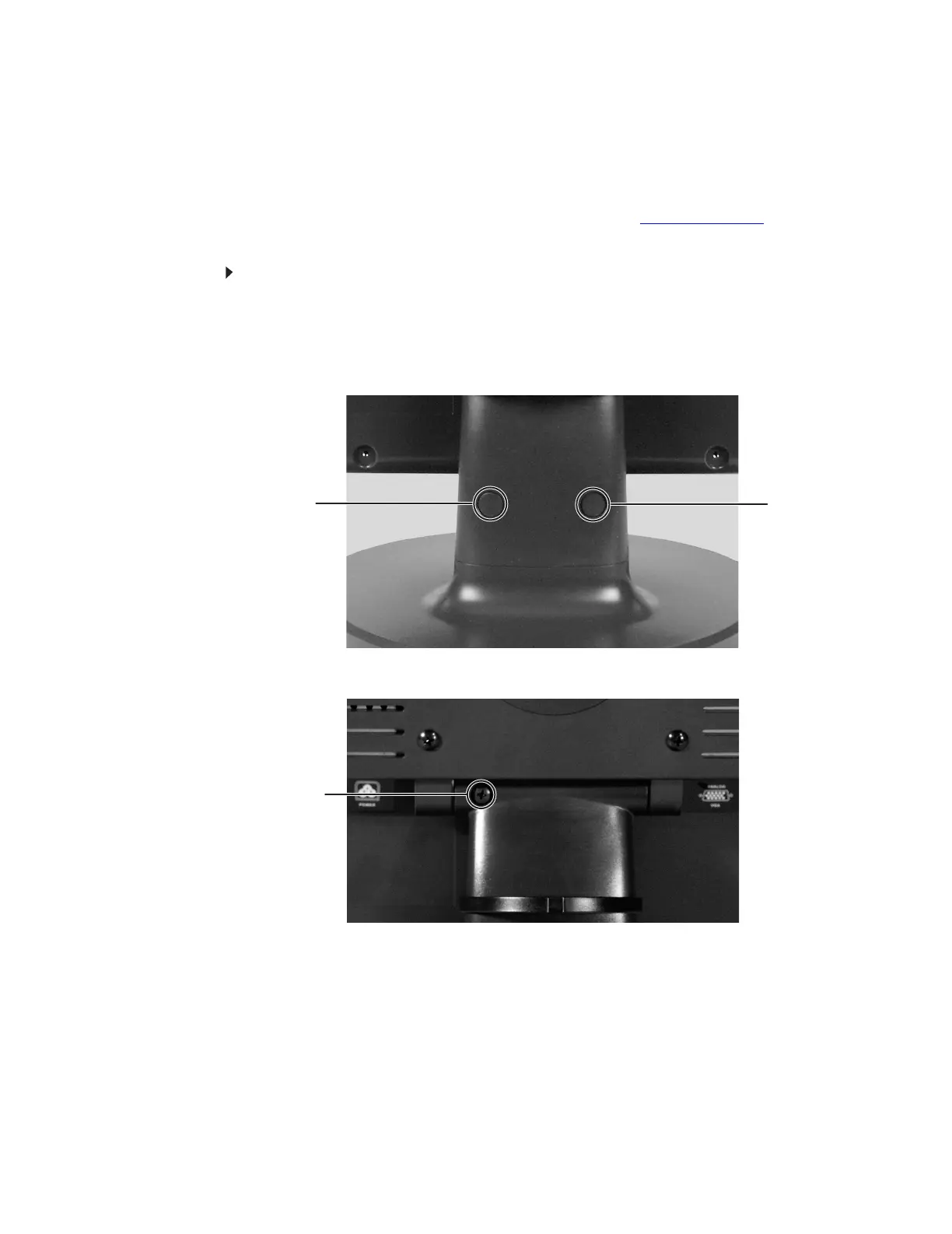
3 Press the two release buttons on the back of the monitor’s original neck, then slide the
monitor base out of the neck.
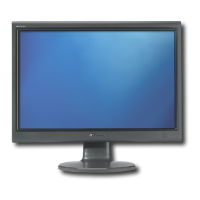
4 Remove the screw from the neck hinge, then remove the neck from the LCD panel. Do
not discard the screw.
Release Button
Release Button
Screw



 To Next Page