CHAPTER 7: Customizing Windows
82
Scheduling computer and Internet use
To schedule the times a user can access the Internet:
1 Click (Start), Control Panel, then under User Accounts and Family Safety, click Set
up parental controls for any user. The Parental Controls dialog box opens.
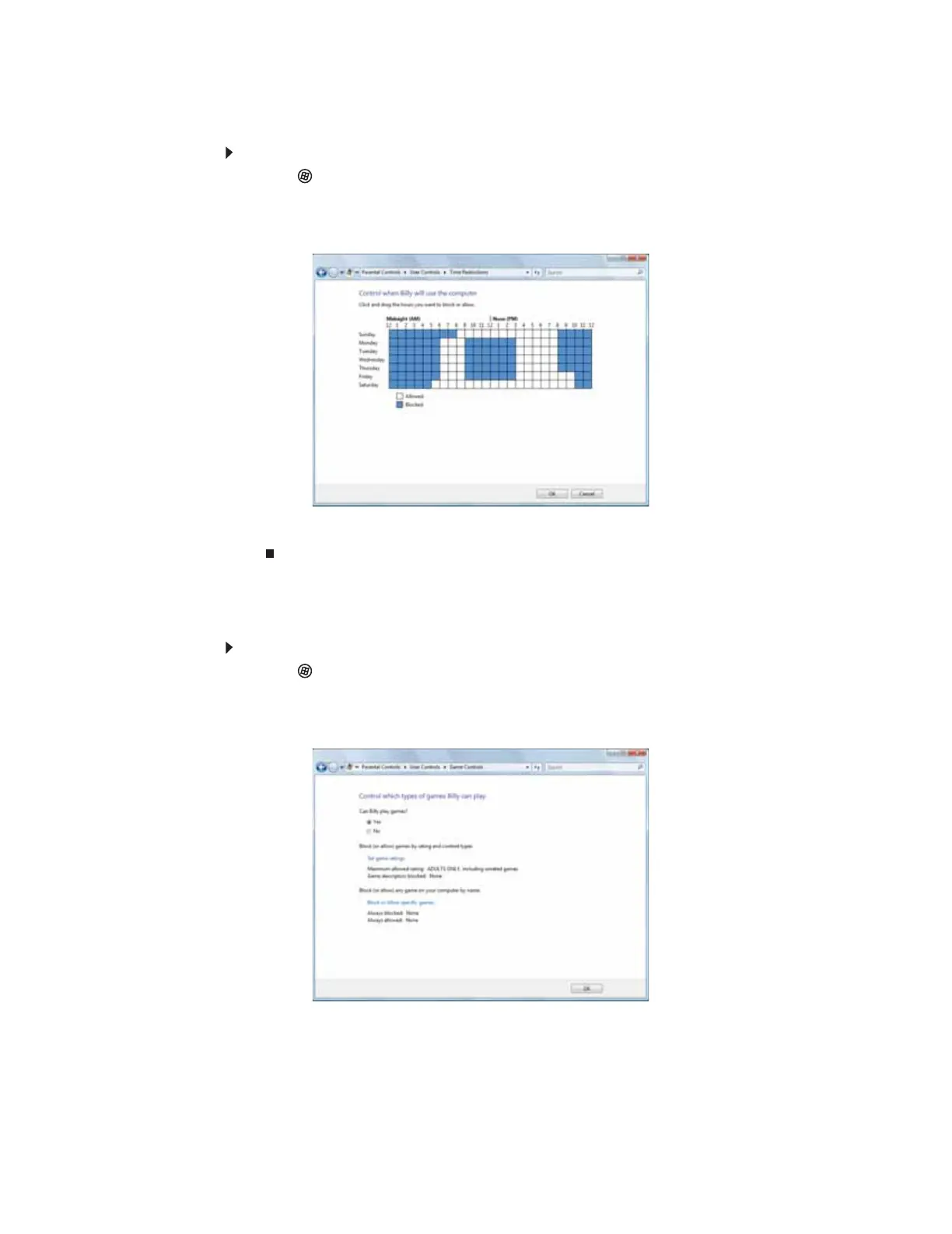
2 Click the user account to schedule for, then click Time limits. The Time Restrictions dialog
box opens.
3 Click inside the grid to set when the user can access the computer. Blocked hours are blue,
and allowed hours are white.
Restricting game access
You can restrict games by game ratings, or you can specify the games which are not allowed.
To restrict games by game ratings:
1 Click (Start), Control Panel, then under User Accounts and Family Safety, click Set
up parental controls for any user. The Parental Controls dialog box opens.
2 Click the user account to set up restrictions for, then click Games. The Game Controls dialog
box opens.
8512158.book Page 82 Tuesday, February 6, 2007 4:22 PM



 To Next Page