35
Managing contacts
Your tablet features an address book that allows you to save contacts to the
internal memory, SIM card or your Google account.
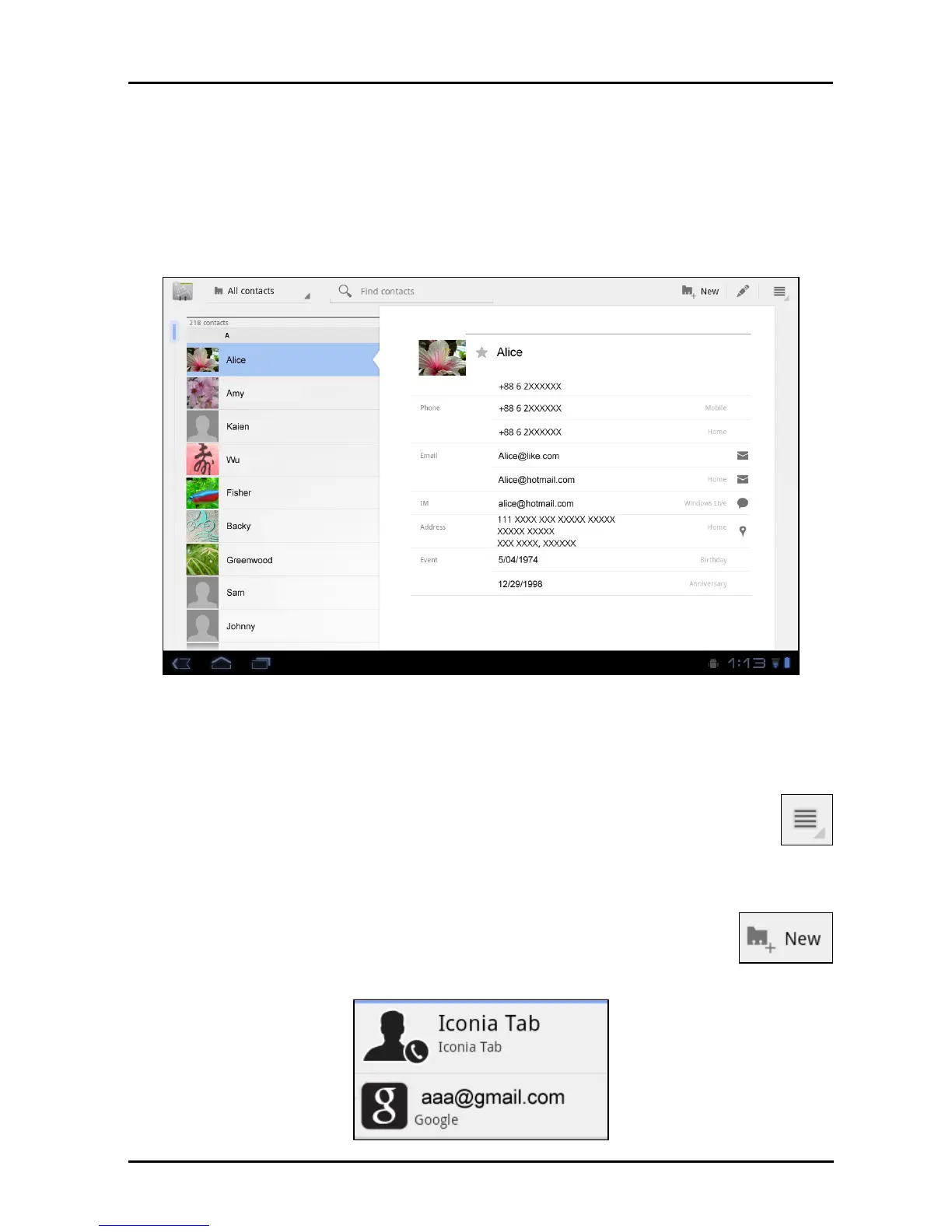
Tap Con
tacts f
rom the application menu to view your contacts.
If you don’t have any contacts stored on your tablet, you can sync with your
Goog
le account contacts, import contacts from a contact data file (vCard or csv)
or add a new contact.
If you have activated a Google account that includes contacts, your contacts will
be synchronized automatically. See “Synchronization” on page 53.
Importing contacts
Tap the
Menu
button and select Import/Export. Tap the option that
describes where your contacts are stored.
When the contacts are found,
confirm to import the contacts in a new group.
Adding a new contact
Tap New to add a new contact. You will be asked which account
you want to use to store the contact. If you
select the name of your
tablet it will be stored in the tablet’s internal memory, and not
synchonized with other accounts.


 To Next Page