User Manual
Page 7
1. Screw one of the antennas on to the USB Wi-Fi dongle and insert the USB Wi-Fi dongle into the USB connector on the
back panel of the ampli er as shown on page 5.
2. Turn on the NPM Wi-Fi setup network by press and hold the Wi /WPS button on the back panel of the ampli er for 2-5 seconds. After
a short while the Wi /WPS button will start blinking.
3. Go to the Wi-Fi settings of your phone or tablet and connect to the Wi-Fi network of the NPM called (the model name of your
ampli er) eg. “DIA-250S_xx”. Password for this network is “password”.
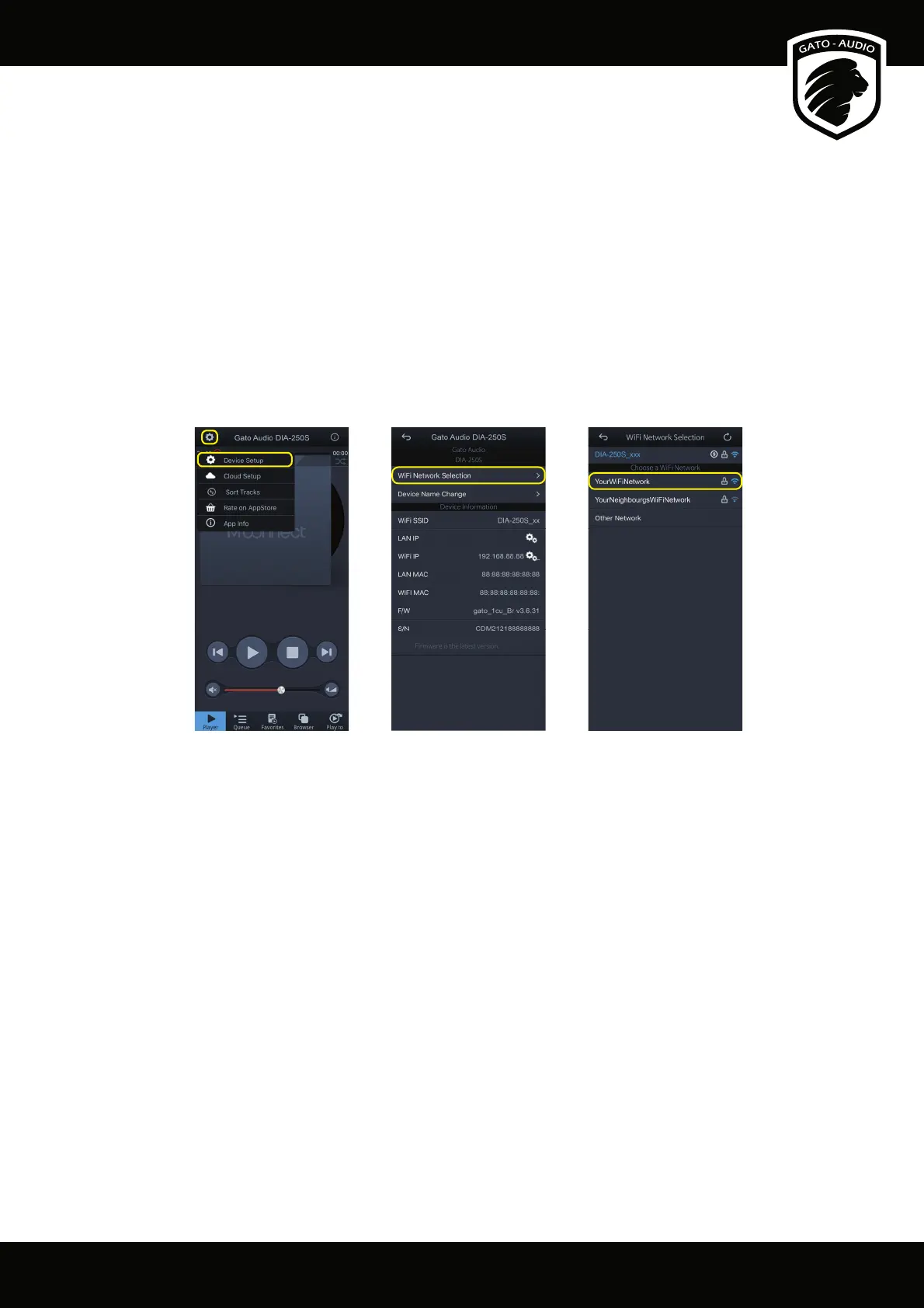
4. When connected, open the Mconnect Control app on your phone or tablet and select the “Setup” icon on the top left corner and then
“Device Setup”.
5. Select “Wi Network Selection”, then select and type in the password for the network you want the NPM to be connected to. The NPM
will reset and connect to your Wi-Fi network. This will take about 40 seconds.
6. Select the NET input channel on the ampli er when connection has been made. Use the Mconnect Control app or Roon to stream
music to the NPM.
Factory Reset
If you want to remove the Wi-Fi settings (SSID and password), you need to perform a Factory Reset. Press and hold the Factory Reset
button on the back panel of the ampli er for 2-3 seconds. The NPM will then remove Wi-Fi settings and reset. This will take about a minute.
Mconnect Control app:
Select the “Setup” icon on the top left Corner and
then “Device Setup”.
Mconnect Control app:
Select “WiFi Network Selection”.
Mconnect Control app:
Select the network you want to connect to and
enter your password.



 To Next Page