User Manual
Page 9
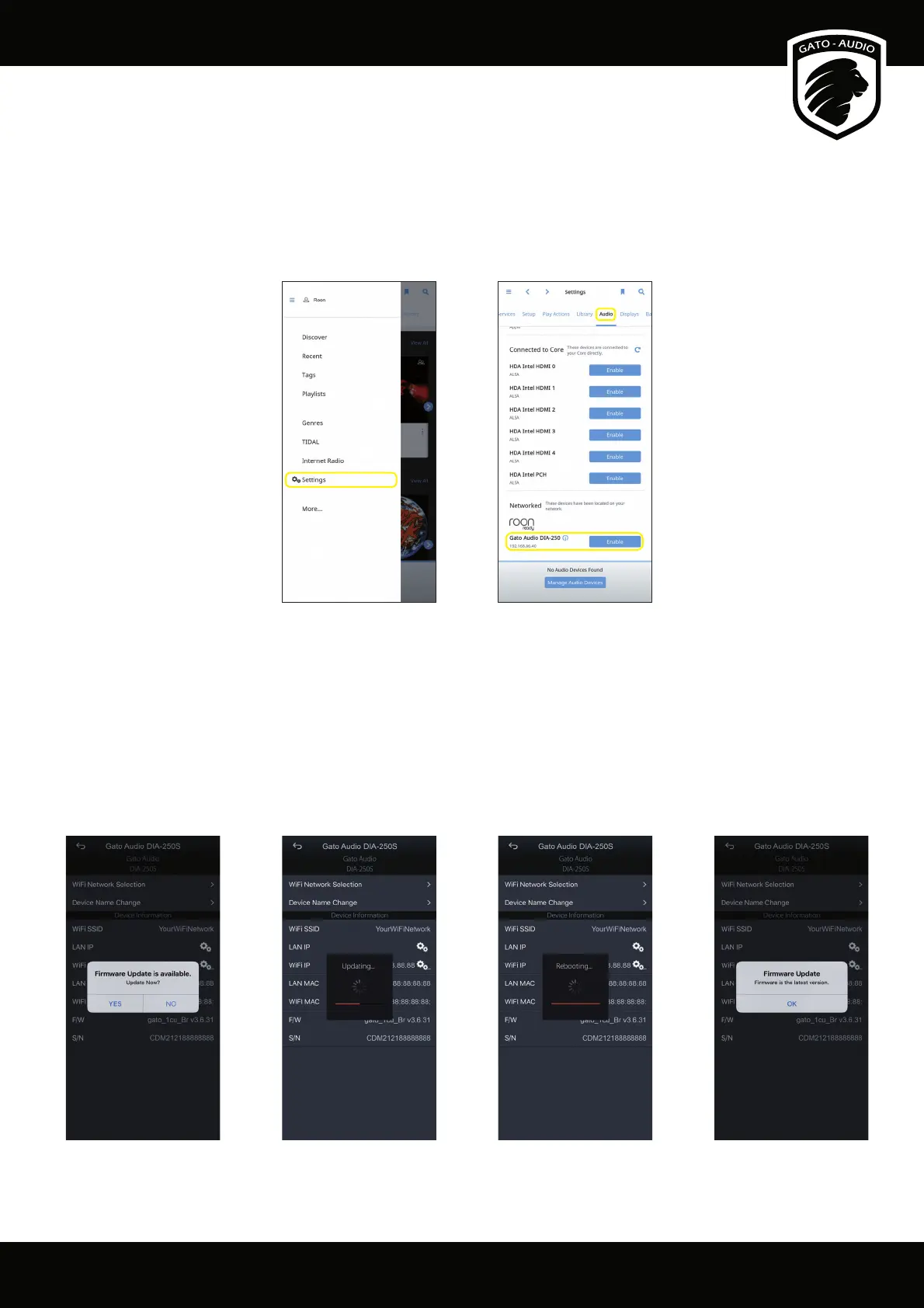
Enable Roon Ready Devices
NPM is Roon Ready, which means that all you have to do is to connect the NPM to the same network as your Roon Core. Then open your
Roon application on your phone, tablet or computer, choose “Settings” and “Audio” and your ampli er should be available for playback.
Make sure that you are not streaming music to the NPM by another app, while trying to connect to it in Roon.
For further information about using Roon please go to www.RoonLabs.com.
Firmware Update
NPM Firmware updates are performed from the Mconnect Control app (see page 10 for download instructions). In the Mconnect Control
app, go to “Device Setup”. From here, new rmware versions are announced and installed. We recommend you to do this once in a while to
make sure that the rmware is up to date.
Please note! Do not interupt the rmware update process by turning the ampli er o ! Make sure the update is fully completed
before turning o the ampli er.
In Roon, go to Settings and choose Audio... ...scroll down and enable your Gato Audio device.
The rmware will rst download from a server,
and then the update will start. This will take
several minutes.
Just a little more patience. Do not turn o the
ampli er untill reboot has completed.
If a new rmware is available, you will be
prompted in the Device setup screen.
Update completed! Enjoy!



 To Next Page