EasyManua.ls Logo

GE 4 Series - User Manual

GE 4 Series
72 pages
Print Icon
To Next Page IconTo Next Page
Loading...
g
GE Security
user guide
466-2183 Rev B
June 2005
Concord 4 Series Security Systems
Part Numbers:
600-1021-95R
600-1022-95R
600-1040
600-1042
www.gesecurity.com
National Security Systems Inc (800)457-1999

Table of Contents

Questions and Answers

  • D
    darrellballardAug 19, 2025
    What to do if my GE 4 Series says 'AC POWER FAILURE'?
    • J
      John JonesAug 20, 2025
      If your GE Security System displays an 'AC POWER FAILURE' message, it indicates that the panel power transformer might be unplugged or there could be a power outage. If the transformer is plugged in, check the circuit breaker or fuse that controls the outlet.
  • R
    riggspatrickAug 21, 2025
    What does 'SENSOR XX LOW BATTERY' mean on my GE 4 Series and how to fix it?
    • S
      Samantha ChavezAug 21, 2025
      If your GE Security System displays 'SENSOR XX LOW BATTERY', it means that a sensor has a low battery. To resolve this: 1. Disarm the system. 2. Remove the sensor cover. If the battery is an Alkaline AA or AAA, change the battery. If the battery is another type, contact your security dealer for assistance.
  • E
    Edward WalkerAug 23, 2025
    What does 'LOW BATT' mean on my GE 4 Series and what to do?
    • D
      Darlene PotterAug 23, 2025
      If your GE Security System displays 'LOW BATT', the emergency backup battery in the control panel is low and needs to be recharged or replaced. If AC power is out, the security system may shut down once the battery is below the operating level.
  • J
    Jennifer LawrenceAug 26, 2025
    What to do if my GE 4 Series displays 'SENSOR TROUBLE'?
    • K
      kathymckayAug 26, 2025
      If your GE Security System displays 'SENSOR TROUBLE', it indicates that a sensor may have an internal problem, a fire/smoke sensor may not have properly reset after activation, or the sensing chamber may be dirty or partially obstructed. You can try to test the sensor in Test Mode. If that doesn't resolve the issue, contact your security dealer for service.
  • J
    jamiegonzalezAug 27, 2025
    What does 'SENSOR XX TAMPER' mean on my GE Security System and how to fix it?
    • C
      Craig WilliamsAug 27, 2025
      If your GE Security System displays 'SENSOR XX TAMPER', it means a sensor cover is off or open. To fix this, secure the cover and trip the sensor to clear the tamper condition.
  • J
    Jordan CarrAug 29, 2025
    What does 'PHONE FAILURE TROUBLE' mean on my GE 4 Series Security System and how do I resolve it?
    • M
      Michael SalazarAug 29, 2025
      If your GE Security System displays 'PHONE FAILURE TROUBLE', it means the system can’t communicate with the central monitoring station. Make sure the panel is connected to the special phone jack installed by your security dealer.
  • R
    ruth13Aug 31, 2025
    What does 'SENSOR SUPERVISORY' mean on my GE 4 Series Security System and what should I do?
    • M
      Michael BoydSep 1, 2025
      If your GE Security System displays 'SENSOR SUPERVISORY', it indicates a problem with how the sensor is communicating with the panel. First, test the sensor in Test Mode. If testing the sensor does not clear the trouble condition, call your security dealer for service.
  • D
    Donna FloresSep 3, 2025
    Why can’t I arm my GE 4 Series Security System to Level 3—AWAY?
    • R
      Rebecca YoungSep 3, 2025
      If you can’t arm your GE Security System to Level 3—AWAY, it might be because a delay door is open or was not activated after the arming attempt. Close the delay door, arm the system to Level 3, then exit through a delay door.
  • R
    rmillerSep 4, 2025
    Why does my GE 4 Series Security System alphanumeric touchpad display “INVALID” when bypassing a sensor?
    • T
      Tanya HowellSep 5, 2025
      If your GE Security System alphanumeric touchpad displays “INVALID” and your fixed display touchpad sounds a single, long beep when you attempt to bypass a sensor, it could be due to several reasons: * The sensor you’re trying to bypass may not be active in the current arming level. For example, an interior motion detector will not be active in Level 2—STAY. * You may be trying to bypass a 24-hour sensor that cannot be bypassed, such as a smoke detector. * Your access code has not been assigned the direct bypassing attribute.
  • T
    Tara CookSep 6, 2025
    Why don't my lights come on automatically as programmed on my GE 4 Series?
    • A
      Adam PhillipsSep 6, 2025
      If the lights don’t come on automatically as programmed with your GE Security System, check the following: * Does the lamp have a working bulb? * Is the lamp plugged in at a working outlet that is not controlled by a light switch? * Is the lamp plugged in to a lamp module? * Make sure that you’ve attached the correct time schedule. * Check to see that you’ve set up the time schedule correctly. * Check the User Sheets to see in which partition the light is set up to be active.

Summary

Notices

FCC Part 15 Information to the User

Information regarding FCC Part 15 Class B digital device compliance and user operation guidelines.

ACTA Part 68

Compliance with ACTA Part 68, including registration number and REN for telephone connection.

Commands at a Glance

Getting to Know Your Security System

Panel

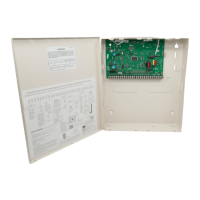
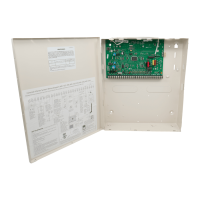
Description of the security panel as the central hub monitoring all sensors and devices.

Touchpads

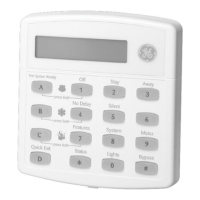
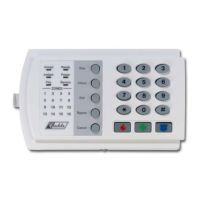
Explanation of touchpads for user interaction, system control, arming, disarming, and programming.

Communicating with the System

Touchtone Phones

Information on operating the system remotely using a touchtone phone for arming, disarming, and status checks.

Beeps and LEDs- How Your System Talks to You

LEDS

Describes the function of system status LEDs on touchpads, indicating arming and readiness states.

Basic System Operations

What Happens in an Alarm Condition

Describes system responses during an alarm, including tones, lights, and central station notification.

Fire Alarms

Information on how the system detects and responds to fire emergencies, including alarm sounds.

Preventing Accidental Alarms

Aborting Accidental Alarms

Procedures for canceling intrusion, police, or auxiliary alarms before they are reported.

Arming and Disarming Your System

Level 1-OFF

How to disarm the system to the OFF state, stopping alarms and allowing entry/exit.

Level 2-STAY

Level 3-AWAY

Instructions for arming all sensors for maximum protection.

Quick Arm

Method to arm the system quickly without needing an access code.

Quick Exit

Feature allowing brief exit and re-entry without disarming the system.

Using the Chime Feature

No Delay-For Instant Alarm

Configuration to arm the system instantly without entry/exit delays.

Bypassing-Arming With a Door or Window Open

Bypassing a Sensor Directly

Basic Light Control

How to control lights connected to the system via touchpads.

Checking the Status of Your System

Panic Alarms

Fire Panic Alarm

Procedure to activate a fire panic alarm from a touchpad or keychain.

Police Panic Alarm

Procedure to activate a police panic alarm from a touchpad or keychain.

Auxiliary Panic Alarm

Procedure to activate an auxiliary panic alarm from a touchpad or keychain.

Access Codes

Programming Access Codes

Process for setting up and managing user access codes and their attributes.

System Master Code Privileges

Defines the capabilities and control granted by the system master code.

Changing a User Code

Assigning Code Attributes

How to assign specific permissions and capabilities to user codes.

Assigning the Direct Bypassing Attribute

Allows user codes to bypass sensors directly when arming the system.

Setting the Time and Date

Adjusting System Sounds and Touchpad Brightness

Adjusting the Touchpad Display Brightness

How to modify the brightness of a touchpad's display screen for better visibility.

Using the Energy Saver Feature

Setting the Energy Saver High and Low Temperature Settings

Configuring desired temperature setpoints for automated home climate control.

Notification by Pager

Pager Messages

Event Code in Page

Details on the meaning of specific event codes received via pager notifications.

Creating Time Schedules

To define a time schedule

Step-by-step instructions for setting up custom time-based schedules for system functions.

Attaching Time Schedules

Advanced Light Control

Controlling Lights By Time Schedule

Automating light activation and deactivation based on defined time schedules.

Controlling Lights with Sensors

How to automate lights to turn on when specific sensors are activated.

Scheduled Arming

Opening and Closing Reports

Latchkey Paging

Notification feature for specific events related to Latchkey users or schedules.

Latchkey Opening

Latchkey Closing

Setup and operation of Latchkey pages for system arming events.

Notify by Exception

The No Activity Feature

Using a Partitioned System (Concord 4 systems only)

Jumping Partitions

Method to access and control different system partitions from a single touchpad.

Arming and Disarming Multiple Partitions

Macro Keys

System Information

Viewing the Event Buffer

How to access and review the history of system events, including arming and alarms.

Testing the System

Sensor Test

Procedure to verify the operational status of individual system sensors.

Phone Communication Test

Tests the communication link between the system and the central monitoring station.

Troubleshooting

Trouble Beeps and Trouble Messages

Understanding the meaning of system trouble beeps and visual error messages.

Silencing Trouble Beeps

Procedure to temporarily silence trouble beeps or resolve the underlying issue.

Common Questions and Answers

Phone Issues

Solutions for common problems encountered when using the system with a phone.

Lighting Issues

Troubleshooting steps for automated lighting control features not functioning correctly.

Appendix B: Planning for Emergencies

Floor Plan Example

An example to guide users in drawing their own floor plan for emergency preparedness.

Alarm System Limitations

Appendix C: Programming Your System

Using Programming Menus

Navigating the system's programming interface using menus and touchpad commands.

Examples of Programming Using Menus

Illustrative examples of programming user codes and system settings via menus.

To change or assign a user access code

To erase a user code

Procedure for deleting existing user access codes from the system.

Using Programming Shortcuts

GE 4 Series Specifications

General IconGeneral
BrandGE
Model4 Series
CategorySecurity System
LanguageEnglish

Related product manuals