Concord 4 Series Security Systems
56
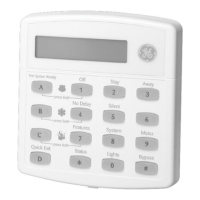
3. Press B until the touchpad displays the type of code you wish to change (Regular User codes,
Partition Master Codes, or System Master code), then press
#. For example, if you want to
change a Regular User code, press
# when the touchpad displays “REGULAR USER
CODES” or “REG CODES.”
4. Press
B until the touchpad displays the user code you wish to change, then press #. For exam-
ple, if you want to change Regular User code 2, press
# when the touchpad displays “USER
02” or “REG CODE 02.”
5. Enter the new code and press
#.
6. Press
B. “DIRECT BYPASSING” or “BYPASS” appears:
Press
1 + # to turn the option off for this user code.
Press
2 + # to turn the option on for this user code.
7. Press
B. “REMOTE ACCESS” or “REMOTE” appears:
Press
1 + # to turn the option off for this user code.
Press
2 + # to turn the option on for this user code.
8. Press
B. “SYSTEM TESTS” or “TESTS” appears:
Press
1 + # to turn the option off for this user code.
Press
2 + # to turn the option on for this user code.
9. Press
B. “LATCHKEY REPORT” or “LATCH” appears:
Press
1 + # to turn the option off for this user code.
Press
2 + # to turn the option on for this user code.
Note
Step 10 can only be per-
formed on Concord 4 sys-
tems using the System
Master Code.
10. Press B. “PARTITION ASSIGN” or “P” appears:
Enter the desired partition numbers (1-6) for this user code.
11. Press
* + B to move to the next user code, or * + 00 + # to exit the programming menus.
Note
The system will not accept
the same code for two differ-
ent users.
To erase a user code:
1. Enter the programming menus by pressing 9 + System or Partition Master CODE.
2. Press
B until the touchpad displays “USER CODES,” then press #.
3. The touchpad displays “REGULAR USER CODES” or “REG CODES.” Press
#. (You can-
not delete the System Master code.)
4. Press
B until the touchpad displays the user code you wish to erase, then press #. For exam-
ple, if you want to change User code 4, press # when the touchpad displays “USER 04” or
“REG CODE 04.”
5. Enter the System or Partition Master code you used in Step 1 and press
#. The deleted code
appears as “USER 04 ****” or “RG 01 ––––,” for example.
6. Press
* + B to move to the next user code, or * + 00 + # to exit the programming menus.
To change or delete the Partition Master Code:
1. Enter the programming menus by pressing 9 + System or Partition Master CODE.
2. Press
B until the touchpad displays “USER CODES,” then press #.
3. The touchpad displays “REGULAR USER CODES” or “REG CODES.” Press
B until the
display reads “PARTITION MASTER CODE” or “PTN MASTER,” then press
#.
4. Enter the System Master Code to delete the existing Partition Master Code
OR enter a new 4 digit Partition Master Code to replace the existing code, then press
#.
5. Press
* + 00 + # to exit the programming menus.
To change the System Master Code:
1. Enter the programming menus by pressing 9 + System Master CODE.
2. Press
B until the touchpad displays “USER CODES,” then press #.


 To Next Page
 Loading...