24 DVSR xU User Manual
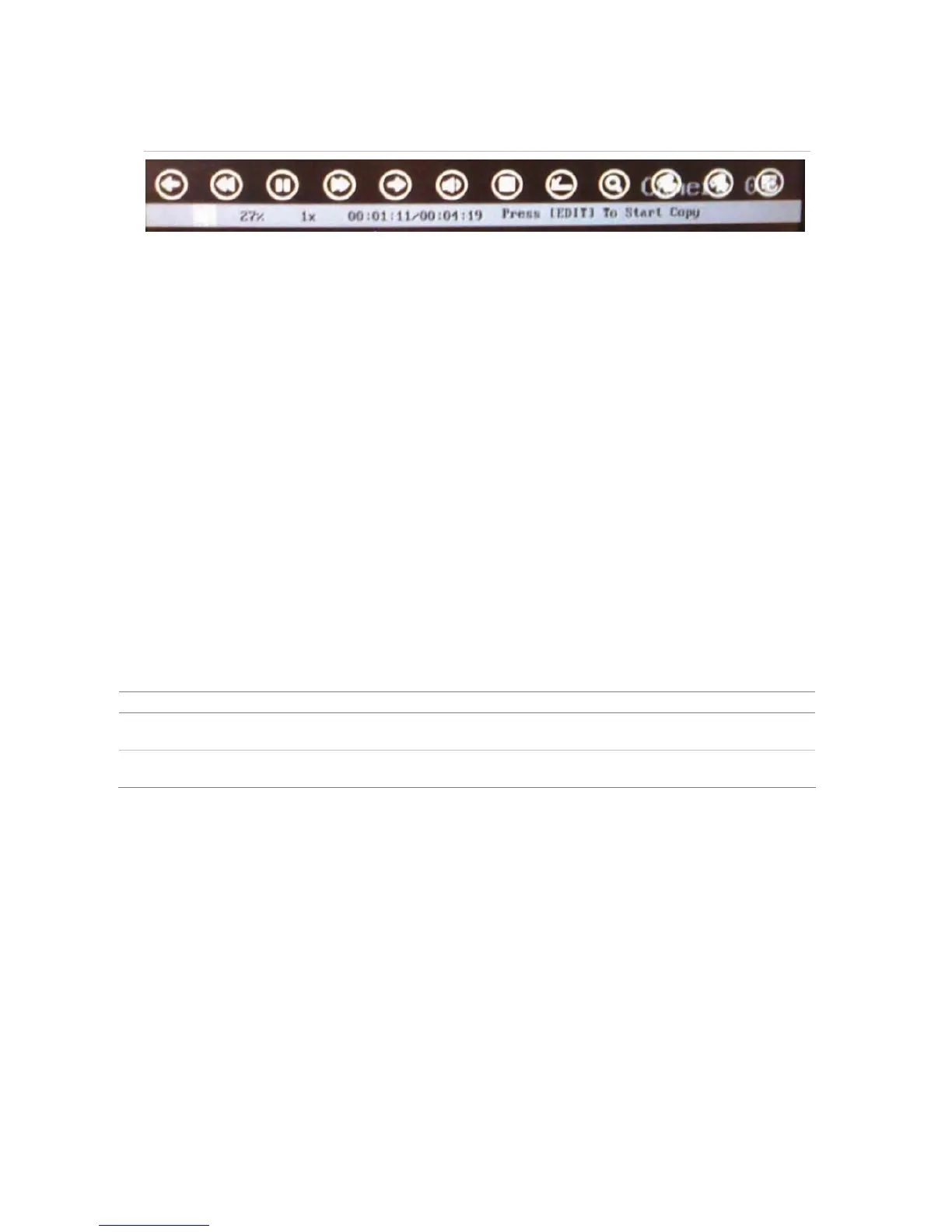
Figure 21: Playback tool bar
5. When you reach the part of the playback that you want to copy, press EDIT to start copying. A red
radio button appears in the right hand corner of the screen when copying is taking place.
Press EDIT again to stop copying. The red radio button disappears. You can copy several sections
of the same playback file.
6. Using the mouse, adjust the playback variables as required. See section Description of the
Play
back toolbar on page 19 for the description of the icons. Pla
yback can also be paused by
pressing Enter, and then pressing it again to restart it.
7. When finished copying this recording, press ESC or right-click the mouse to exit. A message
appears asking you to confirm that you want to copy the file. Select OK.
8. Press ESC or right-click the mouse to quit playback mode and return to live mode.
Controlling a PTZ camera
You can control the PTZ operation of the cameras. It is entered from live mode.
It can be controlled using buttons on front panel and IR remote control as well using the PTZ control
icons accessed with the mouse. See Figure 22 for the PTZ contr
ol icons onscreen and Table 4 for the
descriptions on how to control PTZ using the front panel, IR remote control and mouse.
To enter PTZ mode To exit PTZ mode
Front panel/remote
control
Press the PTZ button. Press the ESC or Enter buttons to return to
live mode.
Mouse Right-click the mouse and select the menu
option PTZ.
Right-click the mouse to return to live
mode.


 To Next Page